
In this blog post, I will demonstrate the steps to change Microsoft 365 tenant display name. If you are updating your company branding (rebrand, merger, or simple name correction), you can change the tenant display name directly in the Microsoft Entra admin center. This is the same “organization name” shown in many sign-in prompts and Microsoft 365 surfaces.
Contents
About Tenant Display Name
The tenant display name is the organization name stored on the tenant object (often surfaced as “Name” in tenant properties). It appears in places like Entra sign-in dialogs, MFA prompts, Teams tenant switcher, and OneDrive labels and paths. The display name is not your onmicrosoft.com domain or primary SMTP domain. Changing the tenant display name will also not affect SharePoint and OneDrive URL domains. Before you proceed with changing the tenant display name, ensure that you have the necessary administrator rights, like global administrator.
Option 1: Change Tenant Display Name in Entra Admin Center
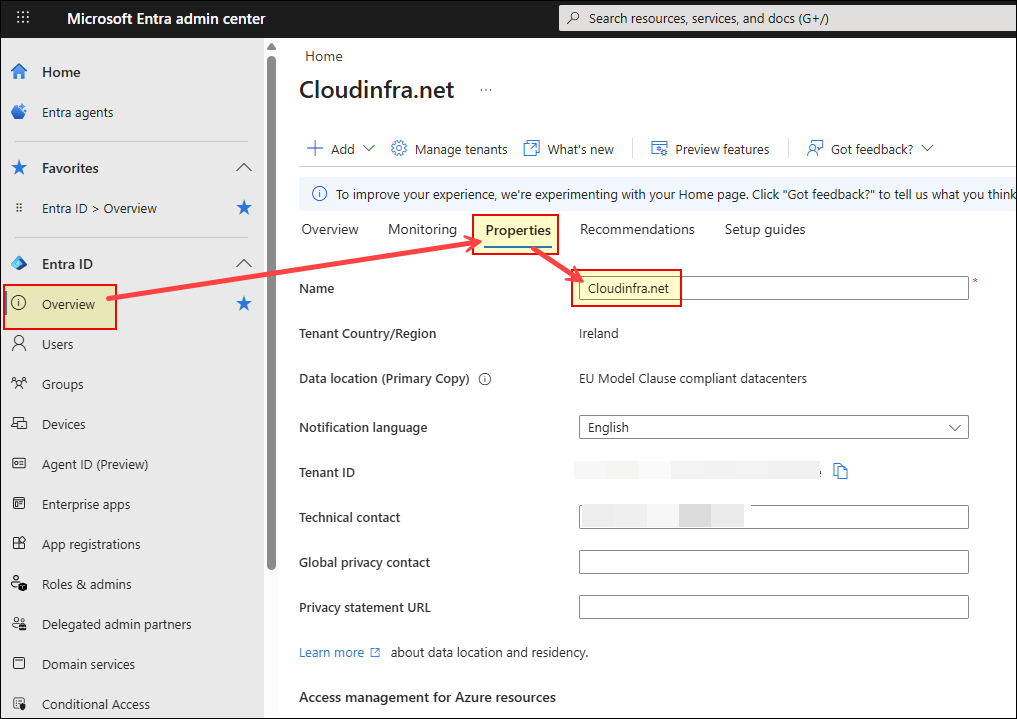
Sign in to the Entra admin center > Expand Entra ID > Overview > Properties. Update the Name field and click Save to change the organization display name.
Option 2: Change Tenant Display Name via PowerShell
Alternatively, you can use PowerShell to change the tenant display name. Use the Update-MgOrganization cmdlet, which requires the Microsoft Graph PowerShell module to be installed. You must grant the delegated permission Organization.ReadWrite.All, and you typically need the Global Administrator role to consent to the permission and perform the change.
Change Tenant Display Name
# 1) Install Microsoft Graph PowerShell (if needed)
Install-Module Microsoft.Graph -Scope CurrentUser -Force

# 2) Connect with the required delegated scope
Connect-MgGraph -Scopes "Organization.ReadWrite.All"

# 3) Get your tenant (organization) object
$org = Get-MgOrganization

# 4) Update the tenant display name
Update-MgOrganization -OrganizationId $org.Id -DisplayName "mytestorganization"

# 5) Verify
(Get-MgOrganization).DisplayName
Verify Microsoft 365 Tenant Display Name using PowerShell
Use the PowerShell commands below to verify the updated Microsoft 365 tenant display name. For this verification, you need to install the Microsoft Graph PowerShell module on your computer.
# Install Microsoft Graph module if not already installed
Install-Module Microsoft.Graph -Scope CurrentUser# Import Microsoft Graph module
Import-Module Microsoft.Graph# Connect to Microsoft Graph with required scopes
Connect-Mggraph -Scopes "Organization.Read.All" -NoWelcome# Get Tenant Display Name information
PS C:\Users\jatin> Get-MgOrganization | Select DisplayName

DisplayName
-----------
techpress.net
Thank you for posting this!
Hi,
Are there any implications after that rename? Some services / PowerBI / PowerApps / Teams / SharePoint / OneDrive / Licenses etc. might stop working properly? or is it just safe change of display name?
any update on Krystian question.. I am considering the same thing