
In this post, I will show you how to download ADMX templates for Notepad app. If you want to manage Notepad app policies in an enterprise environment, you first need the Notepad Administrative Template (ADMX). Notepad ADMX is available from the Microsoft Download Center, and the policy settings in this template are machine-wide for all users.
In this guide, I will show you how to download the Notepad ADMX templates, where to place the ADMX and ADML files, and how to verify that the template is loaded correctly in Group Policy or ready for Intune import.
About Notepad ADMX Template Files
The Notepad ADMX template adds policy settings for the Windows Notepad app so administrators can manage supported features through Group Policy, Intune, or Registry. For more information, refer to the link: Manage AI features in Notepad | Microsoft Learn.
Before you Download Notepad ADMX
- The Notepad ADMX can be downloaded from the Microsoft Download Center.
- The template depends on the Windows administrative template Windows.admx, so you must import that as well when using Intune. For more info, refer to the link: NamespaceMissing: Microsoft.Policies.Windows. Please Upload It First ADMX Import Intune.
- For Group Policy, the files you will use are WindowsNotepad.admx and the language file WindowsNotepad.adml.
Steps to download ADMX templates for Notepad App
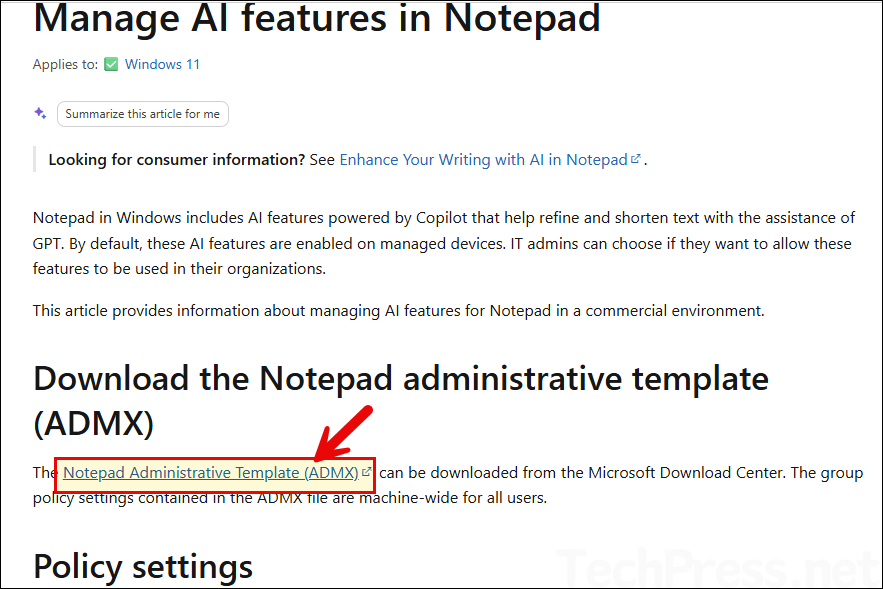
To download Notepad ADMX template files, open the Microsoft Learn page, Manage AI features in Notepad | Microsoft Learn, and click the Notepad Administrative Template (ADMX) link under Download the Notepad administrative template (ADMX). It will start the download of WindowsNotepadAdminTemplates.cab file.
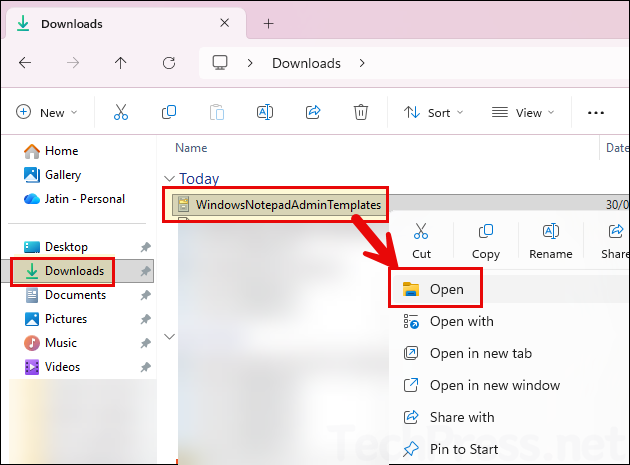
Right-click on WindowsNotepadAdminTemplates.cab and click Open.
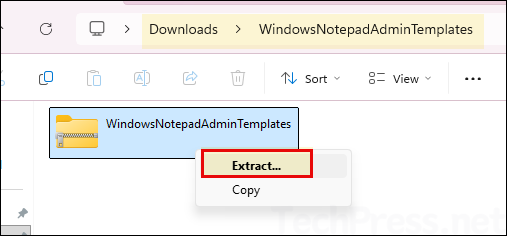
Right-click on the WindowsNotepadAdminTemplates compressed folder and click Extract.
You may see another compressed folder; extract it again to any folder and open it. I have extracted it to C:\temp\WindowsNotepadAdminTemplates. Open this folder and scroll down to find the WindowsNotepad.admx template file. This is the main file, which contains the settings you can configure for the Notepad app.
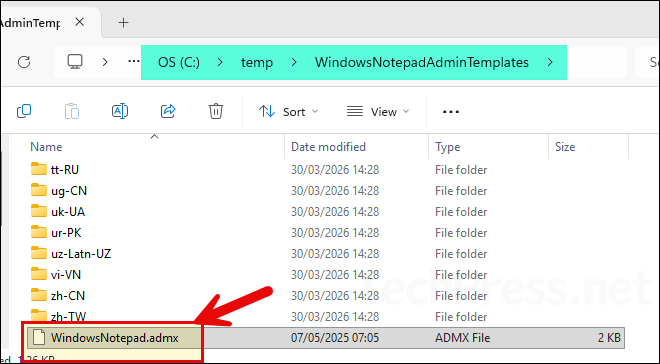
You will also need the corresponding ADML file, which is the language file for the template. For English, you can use either the en-GB or en-US folder. Within that folder, you will find the WindowsNotepad.adml file.
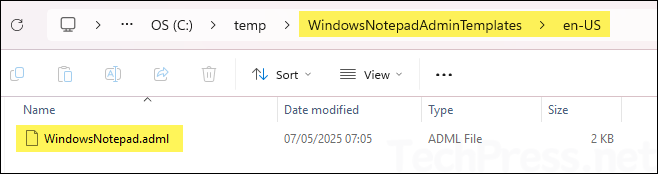
Copy Notepad ADMX Files
You can use either the local PolicyDefinitions folder or a Group Policy Central Store to copy the ADMX template files. If you are managing multiple devices via Group Policy, it is recommended to use the Central Store.
If you are managing settings via Intune, you can import the ADMX template files directly into Intune. An important point to note is that the Notepad ADMX template files depend on the Windows ADMX template files. Therefore, first download and import the Windows ADMX template files into Intune, and then import the Notepad ADMX template files.
Option 1: Local PolicyDefinitions folder
If you want to manage Notepad settings using the Local Group Policy Editor (gpedit.msc), you can copy the required files to the local PolicyDefinitions folder path as shown below:
- WindowsNotepad.admx > C:\Windows\PolicyDefinitions\
- en-US\WindowsNotepad.adml > C:\Windows\PolicyDefinitions\en-US\
Option 2: Group Policy Central Store
If you manage templates centrally using the Group Policy Management Console (gpmc.msc), copy them to the domain-level PolicyDefinitions folder. If the PolicyDefinitions folder does not exist, you must create it first.
- WindowsNotepad.admx > \\yourdomain.com\SYSVOL\yourdomain.com\policies\PolicyDefinitions.
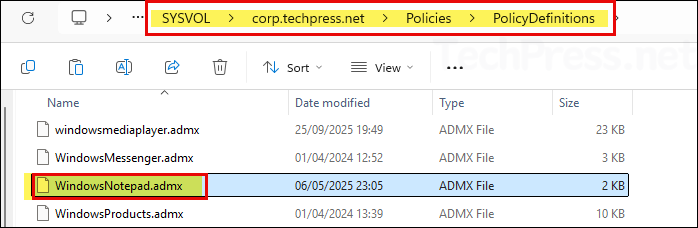
- en-US\WindowsNotepad.adml > \\yourdomain.com\SYSVOL\yourdomain.com\policies\PolicyDefinitions\en-US.
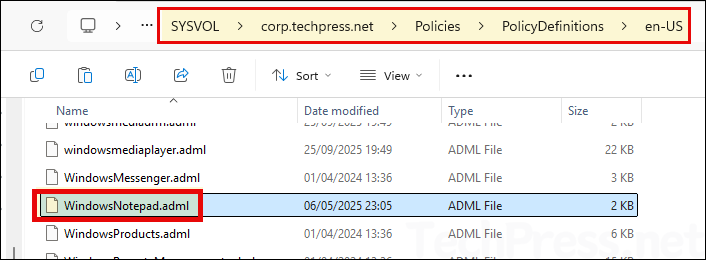
Replace yourdomain.com with your domain name, and replace en-US if your environment uses a different language. For more information, refer to the link: Group Policy Central Store
How to verify the Notepad ADMX template is loaded
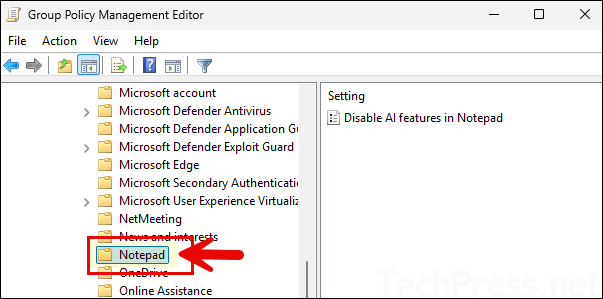
After copying the files, open Group Policy Management Console (GPMC) or Local Group Policy Editor on the machine you use to manage policy. Open any GPO and navigate to the below path. If the template is loaded correctly, you should see the Notepad folder available there.
Computer Configuration > Policies > Administrative Templates > Windows Components > Notepad
Import Notepad ADMX Template Files in Intune
You can import Notepad ADMX template files in Intune by using Import ADMX option. But first import windows.admx and then import the WindowsNotepad.admx file.
- Import the Notepad ADMX files.
- Create a device configuration profile using Imported Administrative Templates option.
Notepad ADMX Template Policies
The Notepad ADMX template currently only provides the DisableAIFeaturesInNotepad policy setting. This policy controls whether AI features are disabled in the Notepad app:
- If the policy is enabled, users cannot access AI features in Notepad.
- If the policy is disabled or not configured, users can access AI features in Notepad.
Troubleshooting
Notepad policy is not visible in Group Policy
If the Notepad node does not appear, confirm that:
- WindowsNotepad.admx is in the correct PolicyDefinitions folder.
- WindowsNotepad.adml is in the correct language folder, such as en-US.
- You copied both files to the same template store, either local or Central Store.
Intune import fails
The most common issue is the missing dependency. Notepad ADMX depends on Windows.admx, so import that template first. Use the post NamespaceMissing: Microsoft.Policies.Windows. Please Upload It First ADMX Import Intune for guidance on importing windows.admx template files in Intune.
Policy applies but has no effect
Check the platform requirements. Policy support requires Windows 11 version 22H2 or later and Notepad version 11.2503.16.0 or later.
Best practice
If you manage domain-joined devices, use the Central Store so all administrators work with the same Notepad ADMX version. If you manage cloud devices with Intune, import both Windows.admx and WindowsNotepad.admx before building the configuration profile.
Conclusion
Downloading ADMX templates for the Notepad app is straightforward once you know where Microsoft hosts them. Get the Notepad Administrative Template from the Microsoft Download Center, extract WindowsNotepad.admx and WindowsNotepad.adml, copy them to the correct PolicyDefinitions path, and then verify the template under Windows Components > Notepad in Group Policy.
