
In this post, I will show you how to create an alert policy in MS Purview Compliance Manager. Alert policies notify the users when important changes happen, like compliance score changes, assignment changes, or implementation status updates, etc.
An alert policy in Compliance Manager defines the conditions that trigger an alert. When the selected condition is matched, Compliance Manager generates an alert and sends an email notification to the configured recipients. The alert is sent from the [email protected] email address to the users configured in the alert policy.
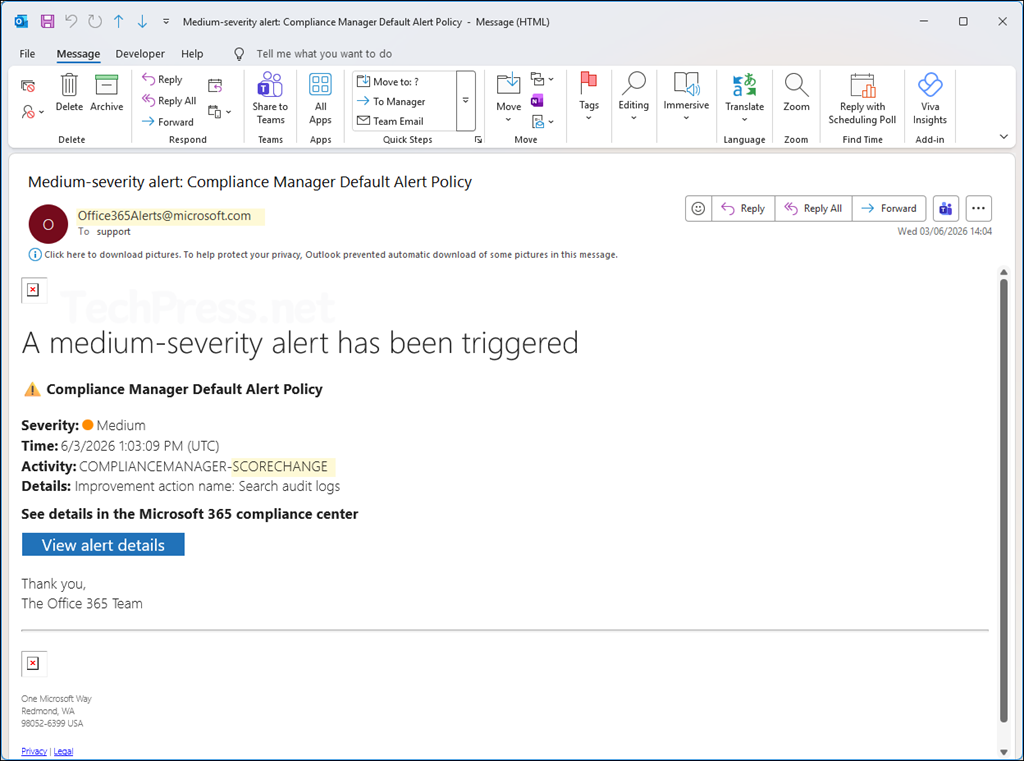
The compliance manager provides a default alert policy called Compliance Manager Default Alert Policy to monitor for score changes in improvement actions. This policy cannot be deleted, but you can update the recipients who will get the email alerts. The screenshot below shows an example of the email alert from this default policy for a score change.
Alert Event Types
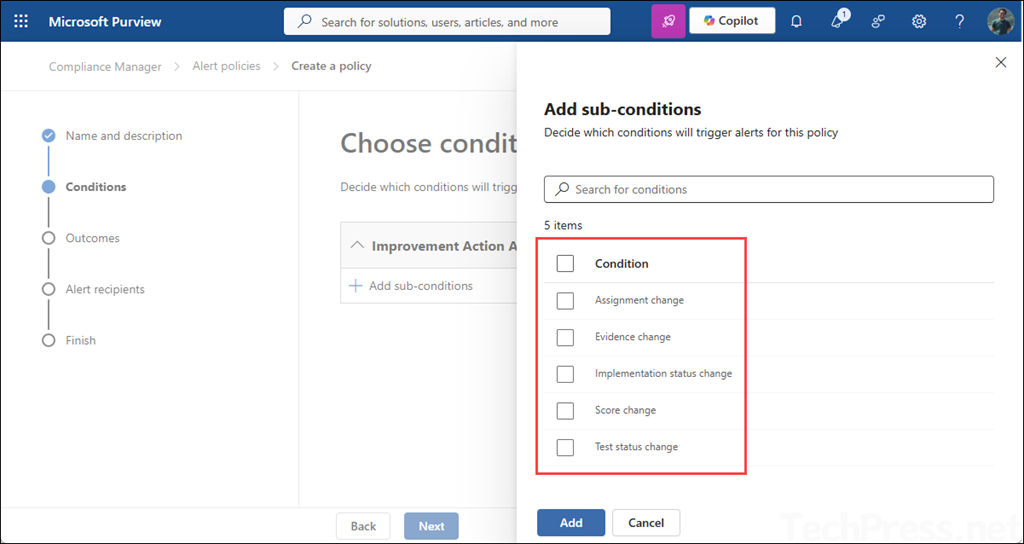
Below are the different types of alert events you can create on the compliance manager portal. For more information, refer to the link: #alert-event-types.
- Score change: Triggers an alert when an improvement action score increases or decreases.
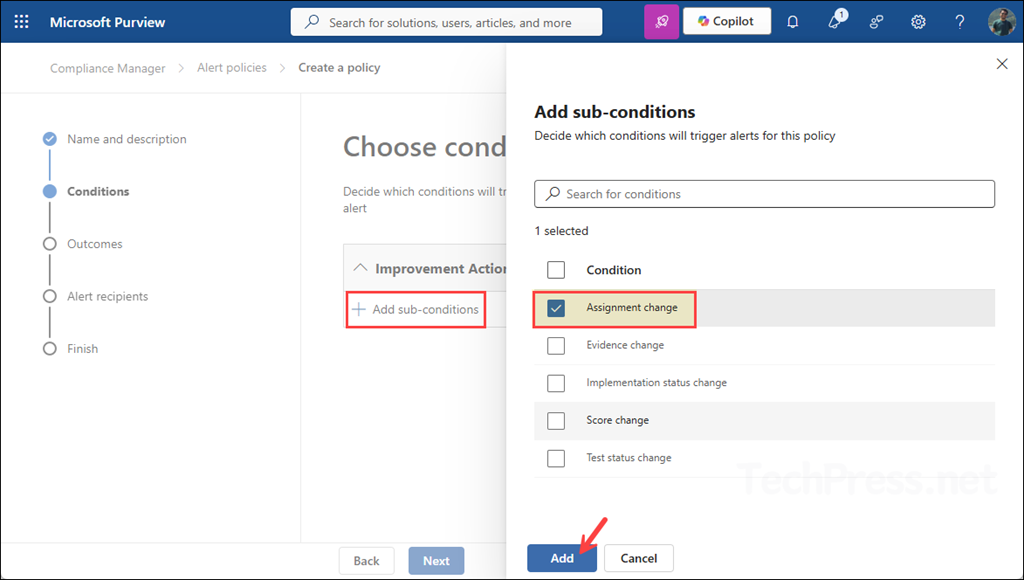
- Assignment change: Triggers an alert when an improvement action is assigned or reassigned.
- Evidence change: Triggers an alert when evidence is added or removed.
- Implementation status change: Triggers an alert when the implementation status of an improvement action changes.
- Test status change: Triggers an alert when the test status of an improvement action changes.
Create an Alert Policy
You don’t need to create a score change alert policy as it exists by default. Create alert policies for other events like assignment change or evidence change, etc., as per the requirement.
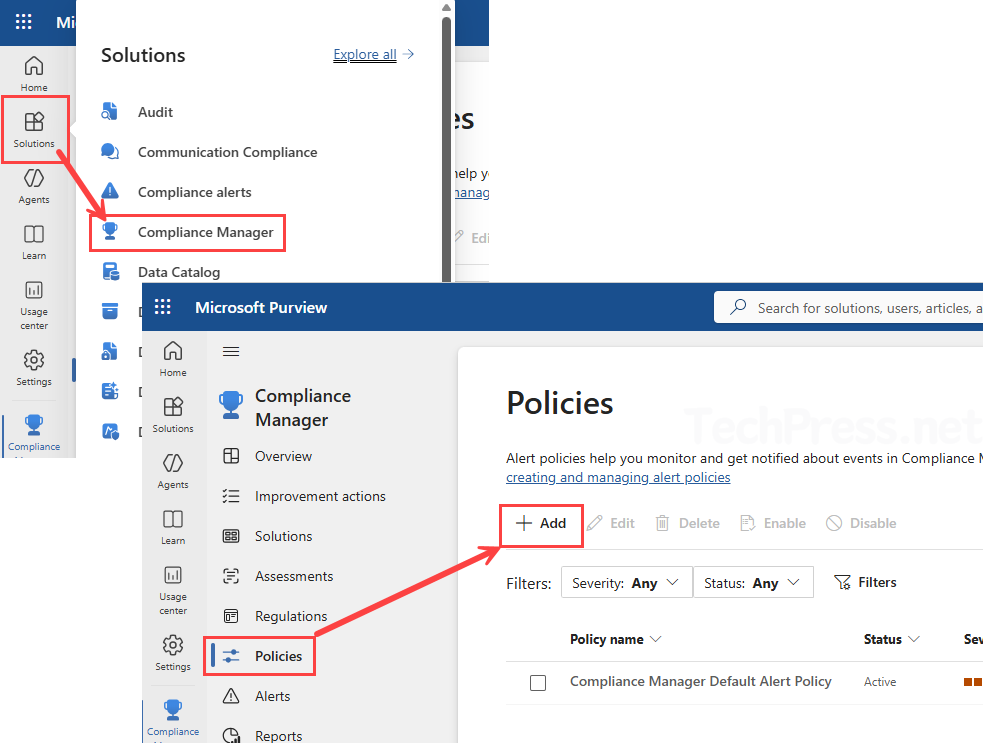
- Go to the Microsoft Purview admin portal.
- Click on Solutions > Compliance Manager > Policies > + Add.
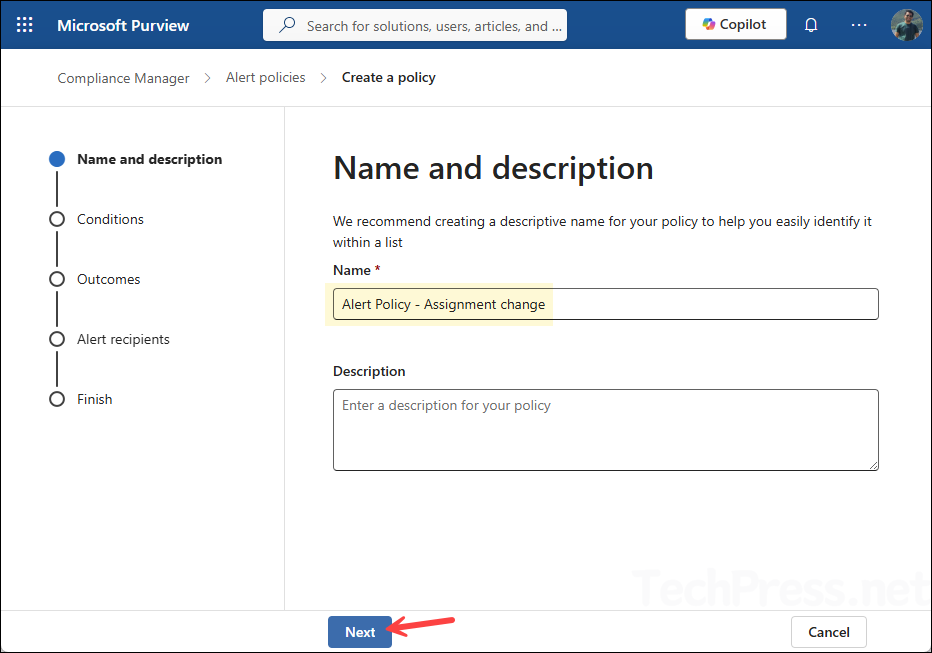
- Provide a name and description of the Alert Policy.
- Click on Add sub-conditions and then select the condition for generating the alert. I have selected Assignment Alert.
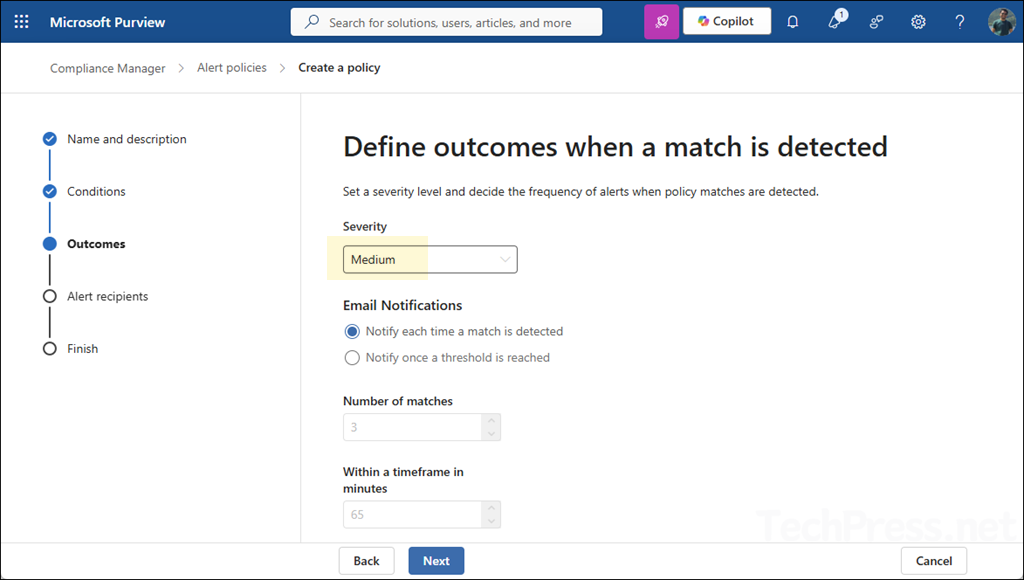
- Modify the severity to Medium and configure the frequency of alerts.
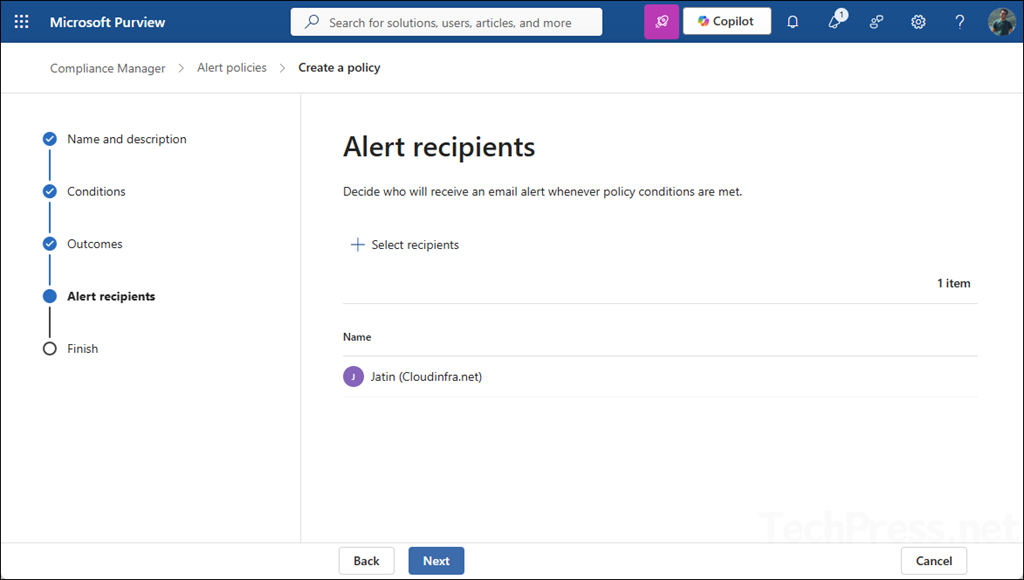
- Review the recipients or click on + Select recipients to add the users who will get the alert notification email.
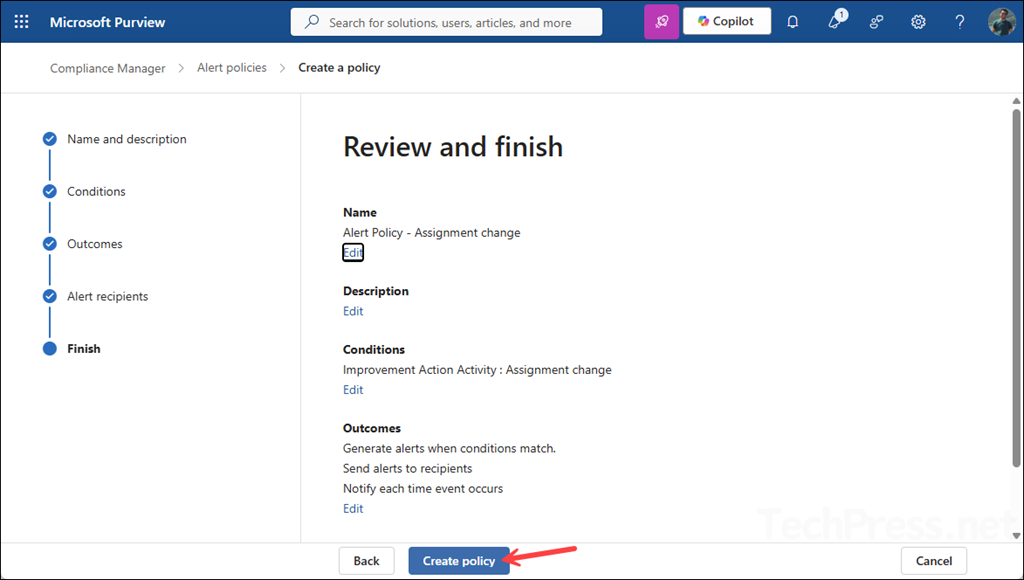
- Review the alert policy and click Create policy.
- Click Done.
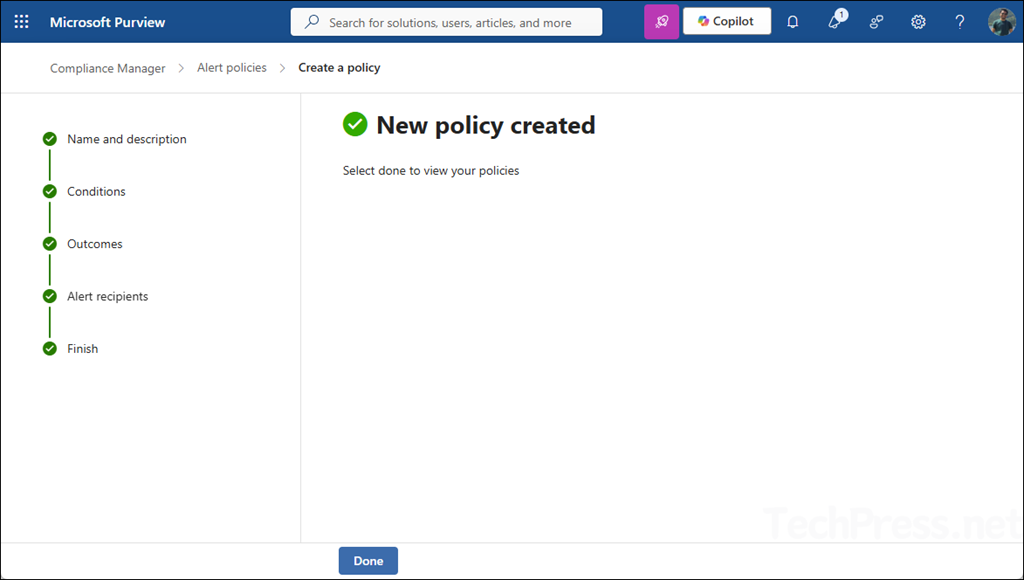
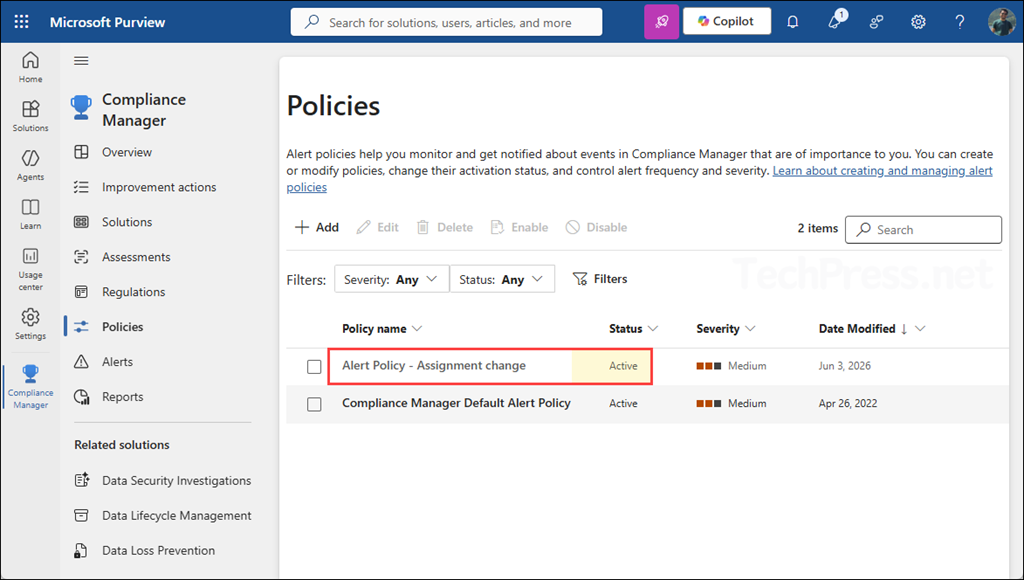
- An alert policy has been created; ensure the status is showing as Active.
Conclusion
Creating an alert policy in Microsoft Purview Compliance Manager is a simple but useful way to monitor important compliance-related changes. Instead of manually checking improvement actions, score changes, evidence updates, or status changes, you can configure alert policies to notify the right users automatically. For more detailed information, refer to the link: Microsoft Purview Compliance Manager alerts and alert policies | Microsoft Learn.
