
In this post, I will show you multiple ways to restore a deleted Team in Microsoft Teams. Deleting a team in Microsoft Teams can remove access to important conversations, channels, files, tabs, and connected Microsoft 365 resources. If the deletion was accidental, the good news is that the Team can usually be restored, but only within a limited recovery window.
In Microsoft Teams, a deleted Team is restored by recovering its underlying Microsoft 365 group. While archived teams can be reactivated directly, a deleted Team itself is not restored from the Teams client in the same way. Instead, you restore the associated Microsoft 365 group, which brings the Team back. For more information about restoring a deleted Microsoft 365 group, refer to the link: Restore a deleted Microsoft 365 group – Microsoft 365 admin | Microsoft Learn.
Contents
How deleted Team Restoration works in Microsoft Teams
A Microsoft Team is backed by a Microsoft 365 group. When the Team is deleted, the connected Microsoft 365 group is also deleted. To recover the Team, you must restore the deleted Microsoft 365 group during the soft-delete period. Deleted Microsoft 365 groups are retained for 30 days by default. During this period, they remain recoverable by eligible administrators or, in some cases, by the group owner. After the 30-day period expires, the group and its associated Team data are permanently deleted and can no longer be restored through normal Microsoft recovery methods.
What gets restored when you recover the Team?
When the underlying Microsoft 365 group is restored, Microsoft restores the Team and related workloads associated with that group. This can include the Team itself, membership, channels, SharePoint content, group mailbox, calendar, OneNote notebook, and Planner-related data. A complete restore of a Team can take some time to finish across all services.
This is important because restoring the Team is not just about bringing back the Team name in the Teams client. It is also about recovering the Microsoft 365 resources that were connected to it.
Prerequisites
Before attempting to restore a deleted Team, verify the following:
- The Team was deleted within the last 30 days.
- You have the required admin permissions (Global Administrator, Group Administrator, Partner Tier 2 Support, and Intune Administrator), or you are the owner of the Microsoft 365 group.
- You know the Team name or the associated Microsoft 365 group name.
- You understand that full restoration across workloads can take up to 24 hours in some cases.
Method 1: Restore a Deleted Team from Teams Admin Center
This is one of the easiest methods for administrators because Microsoft provides a deleted Teams view directly in the Teams admin center.
Steps
- Sign in to the Microsoft Teams admin center.
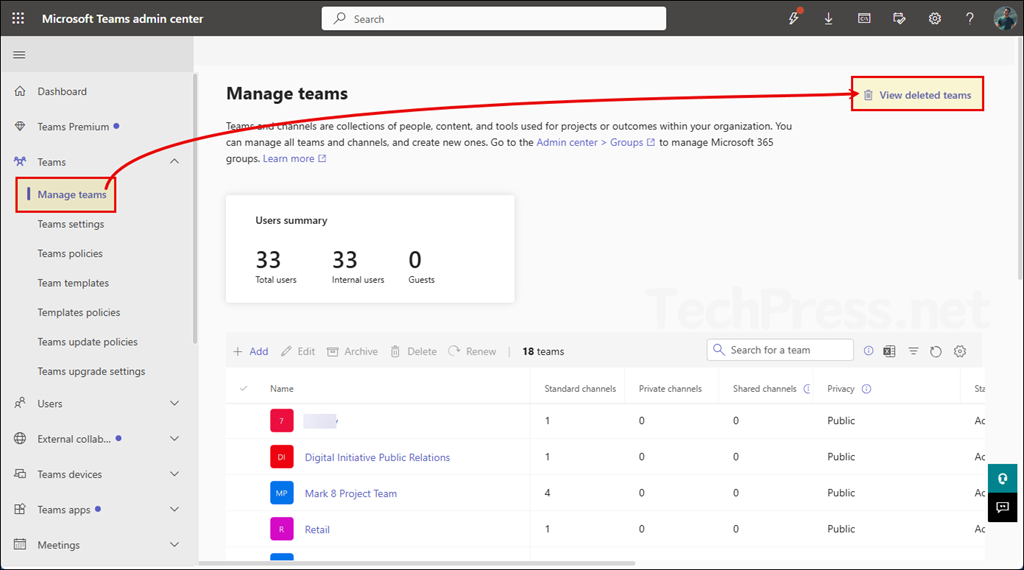
- Go to Teams > Manage teams.
- In the upper-right corner, select View deleted teams.
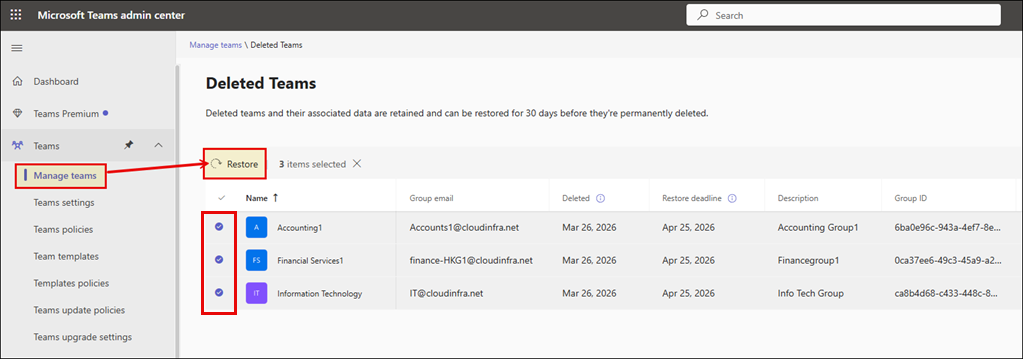
- From the deleted teams list, select the Team that you want to recover.
- Click Restore.
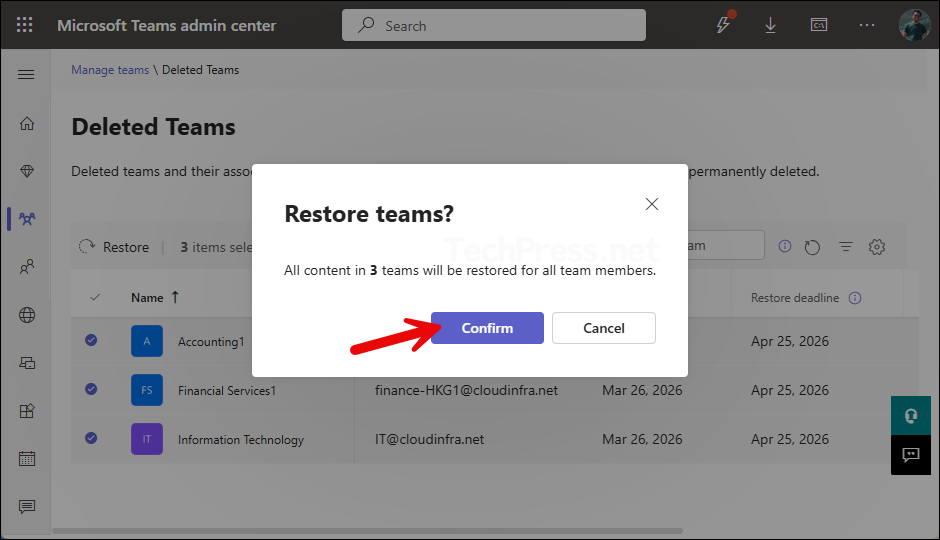
- Click Confirm to confirm the restoration.
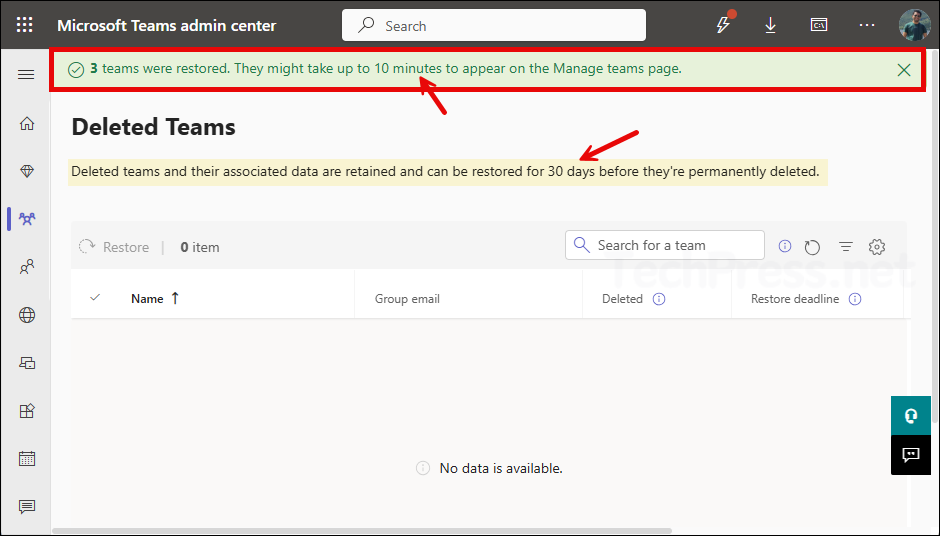
- Once the Teams are restored successfully, you will get a banner message at the top. Notice that the message says it might take up to 10 minutes for the Teams to appear on the Microsoft Teams page.
Method 2: Restore a Deleted Team from Microsoft 365 Admin Center
Because every Team is backed by a Microsoft 365 group, you can also recover a deleted Team from the Microsoft 365 admin center by restoring the deleted group. This is often the preferred route when you manage Microsoft 365 groups centrally.
Steps
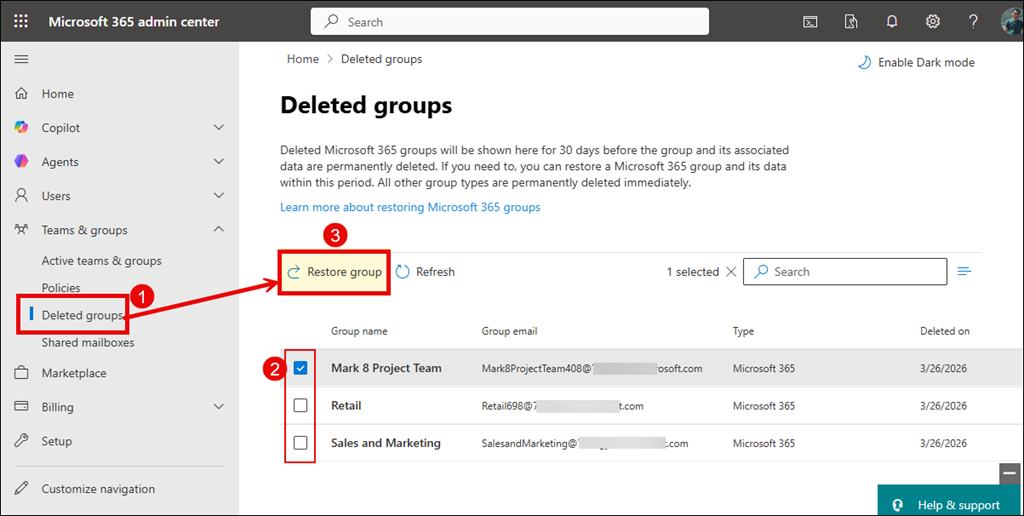
- Sign in to the Microsoft 365 admin center.
- Expand Teams & Groups in the left navigation.
- Select Deleted groups.
- Find the Microsoft 365 group associated with the deleted Team.
- Select the group.
- Click Restore group.
When you use the Microsoft 365 admin center to restore groups, you cannot select and restore multiple groups at once. You must select each group individually and restore them one by one. If you need to restore multiple groups simultaneously, consider using other methods such as the Teams admin center or PowerShell.
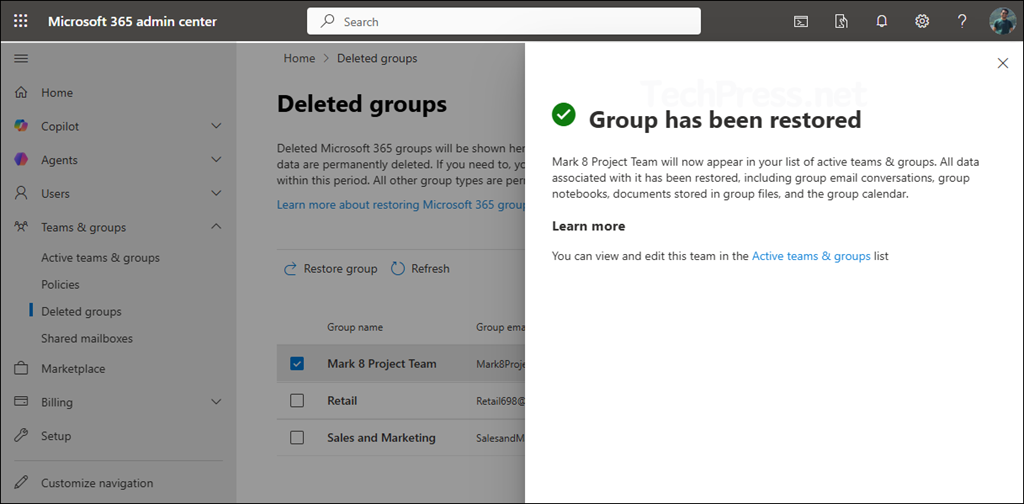
- Once the Team is restored, it will show a message on the screen: Group has been restored.
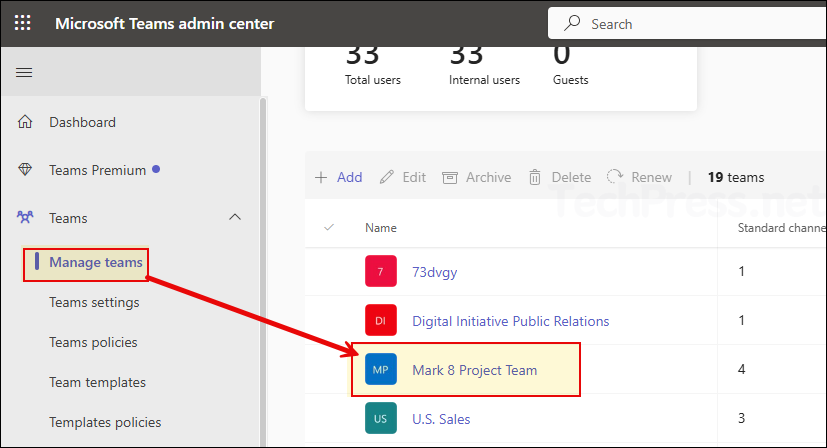
- Go to the Teams admin center to confirm if the restored Team is now showing on the Manage Teams page.
Method 3: Restore a Deleted Team using PowerShell
PowerShell is a good option when working in larger environments or when you want to script the recovery of deleted Microsoft 365 groups. You will first need to install Microsoft Graph, then connect to Microsoft Graph PowerShell with the required scopes, and finally use the Restore-MgBetaDirectoryDeletedItem cmdlet to perform the restore operation.
Install Microsoft Graph Beta
Install-Module Microsoft.Graph.BetaConnect to Microsoft Graph
Connect-MgGraph -Scopes "Group.ReadWrite.All"View deleted groups
Get-MgBetaDirectoryDeletedGroupRestore the deleted group
Restore-MgBetaDirectoryDeletedItem -DirectoryObjectId <ObjectId>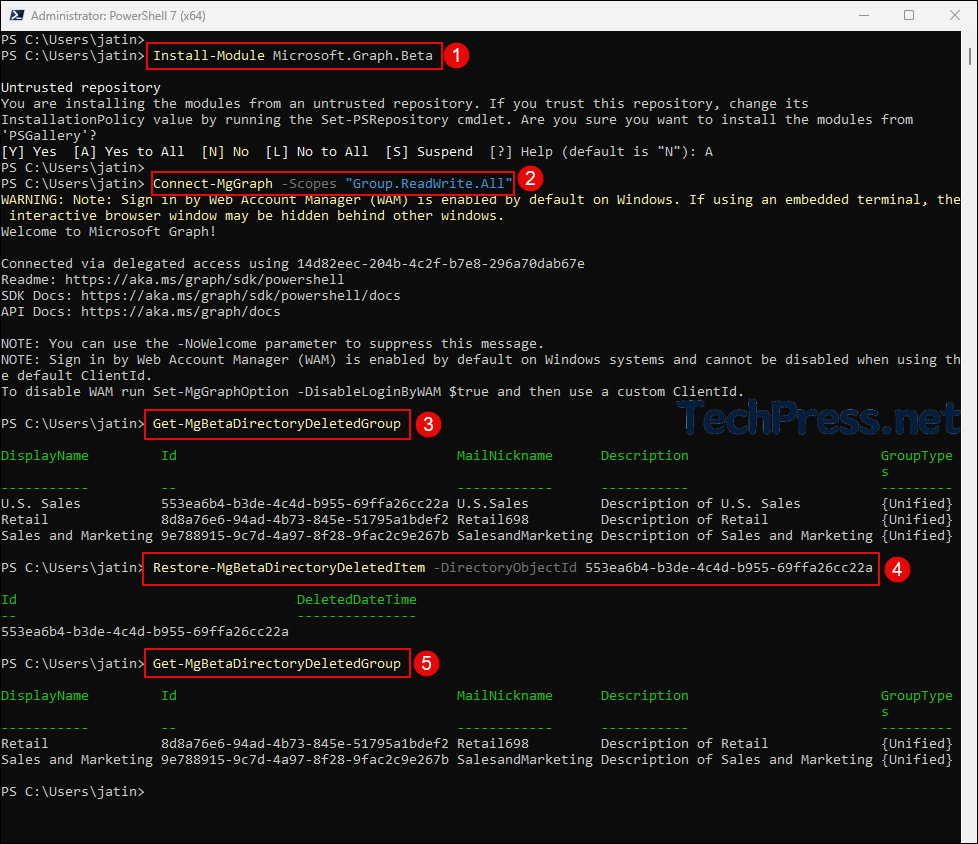
How to Verify the Team Has Been Restored?
After you have performed the restoration of a Team in Microsoft Teams, follow the checks below to confirm if it has been restored successfully.
- The Team appears again in the Microsoft Teams client or Teams admin center.
- Standard channels are visible.
- Private channels are available if they existed before deletion.
- SharePoint files and folders are accessible.
- Membership and ownership are correct.
- Planner and OneNote content reappear where applicable.
Limitations
1. You cannot restore a Team after 30 days
This is the most important limitation. Deleted Microsoft 365 groups are recoverable only for 30 days. Thereafter, the Team and its associated resources are permanently deleted.
2. Deleted and archived Teams are not the same
A Team that was archived can be restored directly, but a Team that was deleted must be recovered through the Microsoft 365 group restore process. Consider archiving first if you are not sure whether the Team should be permanently removed.
3. Recovery is not always instant
Even when the restore succeeds, it can take up to 24 hours for the Team and all connected data to come back fully.
Troubleshooting
The Team does not appear in the deleted teams list
Confirm the Team was deleted recently and not more than 30 days ago. Also make sure you are checking with the correct admin account and in the correct tenant. If the Team is no longer within the retention window, it will not appear in deleted lists.
The Team was restored but still does not show in Teams
Wait for replication to complete. Full restoration across all workloads can take up to 24 hours. Also sign out and back into Teams, then refresh the Teams admin center.
Only files are missing
If the Team itself has returned but certain files are not immediately visible, check the related SharePoint site. Deleted sites can also be restored from the SharePoint admin center when applicable.
Best practices
To reduce the risk of permanent loss, follow these best practices:
- Archive a Team before deleting it when you are unsure whether it might be needed again.
- Limit Team deletion permissions where appropriate.
- Review Team ownership regularly so recovery can be handled quickly by the correct person.
- Act quickly when a Team is deleted accidentally, because the restore window is time-limited.
- Document important Team names and owners for faster recovery in production environments.
FAQs
Can I restore a deleted Team directly from the Teams client?
No. Archived teams can be reactivated, but deleted teams are restored by recovering the underlying Microsoft 365 group.
How long do I have to restore a deleted Team?
You normally have 30 days from the time the Team’s Microsoft 365 group was deleted. After that, it is permanently removed.
Can a Team owner restore a deleted Team?
Yes, if they are the owner of the underlying Microsoft 365 group and the group is still within the 30-day deleted window, they can restore it from Outlook on the web.
Does restoring the Team also restore files and channels?
Yes, restoring the Microsoft 365 group restores the Team and related resources such as standard channels, private channels, and associated site collections.
How long does it take for the Team to come back?
Full restore can take up to 24 hours in some cases.
Conclusion
Restoring a deleted Team in Microsoft Teams is possible, but it depends entirely on whether the underlying Microsoft 365 group is still within the 30-day soft-delete period. The easiest methods are through the Teams admin center and Microsoft 365 admin center, while group owners can also use Outlook on the web and administrators can use PowerShell for more advanced recovery scenarios. The key is to act quickly and verify the restore across Teams, SharePoint, files, and membership once the group has been recovered.
