
When you run a PowerShell script and see the error File <script path> cannot be loaded because running scripts is disabled on this system, it usually means the effective PowerShell execution policy is preventing scripts from running. On Windows, execution policy is a safety feature that controls when PowerShell loads configuration files and runs scripts.
This problem is common on Windows client devices because if no execution policy is configured in any scope, the effective policy can be restricted. On Windows Server, the default is typically RemoteSigned. Also note that Windows PowerShell 5.1 and PowerShell 7 are different products that can exist side by side, so you may hit this error in either powershell.exe or pwsh.exe.
You can change the PowerShell script execution manually if you are dealing with few devices. For managed devices, the recommended way to manage the PowerShell execution policy is via Intune or GPO. Refer to this post for more details: Set PowerShell Execution Policy Using Intune.
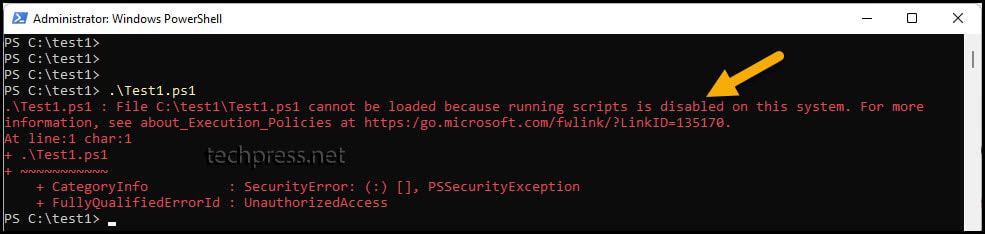
Error Example
PS C:\test1> .\Test1.ps1
.\Test1.ps1 : File C:\test1\Test1.ps1 cannot be loaded because running scripts is disabled on this system. For more
information, see about_Execution_Policies at https:/go.microsoft.com/fwlink/?LinkID=135170.
At line:1 char:1
.\Test1.ps1
~~~ CategoryInfo : SecurityError: (:) [], PSSecurityException
FullyQualifiedErrorId : UnauthorizedAccess
PS C:\test1>
Screenshot of the error message:
Contents
What causes this error?
Under the Restricted execution policy, PowerShell blocks script files from running. You can still run PowerShell commands interactively, but .ps1 scripts are blocked. If the effective policy is RemoteSigned, locally created scripts can run, but scripts downloaded from the internet may still be blocked unless they are signed or unblocked.
PowerShell Execution Policies
You can set the PowerShell execution policy to one of the following values. Before proceeding with the steps to fix this error, it is important to understand these policies and what they do.
| Execution Policy | Description |
|---|---|
| Restricted | The execution of PowerShell scripts is disabled on the system. |
| RemoteSigned | Requires a digital signature from a trusted publisher for scripts downloaded from the internet. Scripts created locally do not require a digital signature. |
| AllSigned | Only digitally signed scripts are allowed to run. |
| Unrestricted | All PowerShell scripts can be executed without restriction. |
| Bypass | Bypasses the PowerShell execution policy entirely. |
- On Windows client computers, the default PowerShell execution policy is Restricted.
- On Windows Servers, the default PowerShell execution policy is RemoteSigned.
- On non-Windows computers, the default PowerShell execution policy is Unrestricted and cannot be changed.
Fix Running Scripts is Disabled on this system
Follow the steps below to fix the PowerShell error “Fix Running Scripts is Disabled on this system“.
Step 1: Check Current PowerShell Execution Policy
Check the PowerShell execution policy currently set on your computer by using Get-ExecutionPolicy cmdlet. Open the PowerShell console and execute the below command. This command shows the effective policy for the current session.
Get-ExecutionPolicy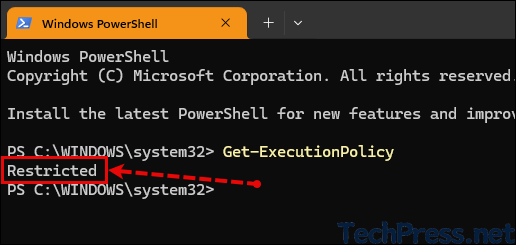
Step 2: Set PowerShell Execution Policy
To resolve the File <script path> cannot be loaded because running scripts is disabled on this system error, use the Set-ExecutionPolicy cmdlet and set the execution policy to any of the values we listed above. For most users, the safest and most practical fix is to set the policy to RemoteSigned for the CurrentUser scope. This does not require an elevated PowerShell session and only affects the signed-in user.
RemoteSigned
Set PowerShell execution policy to RemoteSigned
Set-ExecutionPolicy -ExecutionPolicy RemoteSigned -Scope CurrentUser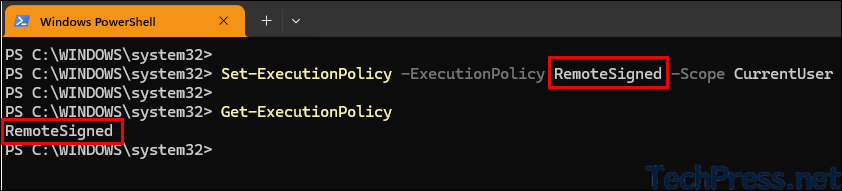
You might get a prompt after you run the command to change the PowerShell execution policy (as shown in the screenshot below). Add a -Force switch to the command to suppress the prompt.
Set-ExecutionPolicy -ExecutionPolicy -Scope CurrentUser RemoteSigned -Force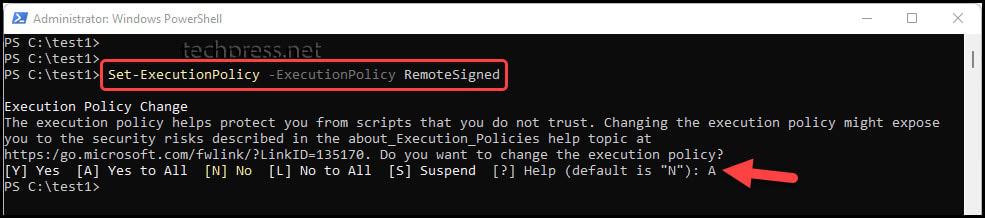
Unrestricted
To resolve the File <script path> cannot be loaded because running scripts is disabled on this system error, you can set the PowerShell execution policy to Unrestricted. This option allows the PowerShell scripts to execute even if they are not digitally signed.
Set PowerShell execution policy to Unrestricted
Set-ExecutionPolicy -ExecutionPolicy UnrestrictedAfter executing the command, you will receive the prompt/warning message, Do you want to change the execution policy? Type A and press Enter to accept all warning messages and suppress further prompts. If you prefer not to be prompted, you can use the -Force parameter with the command.
Set-ExecutionPolicy -ExecutionPolicy Unrestricted -Force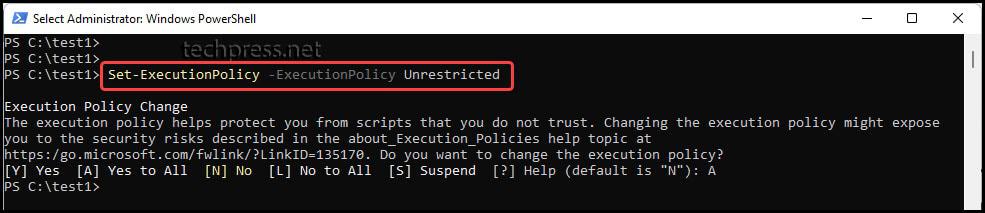
Bypass
To resolve the File <script path> cannot be loaded because running scripts is disabled on this system error, you can set the PowerShell execution policy to Bypass. If you only need to run a single script and do not want to permanently change the execution policy, use a one-time session setting and set the execution policy to bypass.
Set PowerShell execution policy to Bypass
powershell -executionpolicy Bypass -File .\Test1.ps1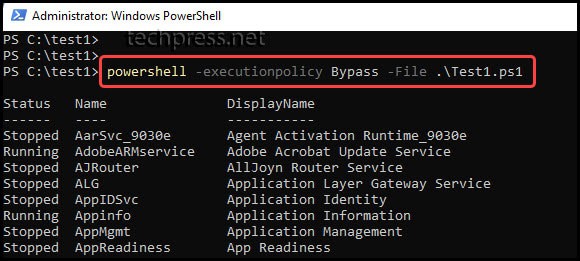
The below command will set the mode of the current PowerShell session to Bypass. After you close that PowerShell window, the execution policy goes back to whatever it was before.
Set-ExecutionPolicy Bypass -Scope ProcessPowerShell Execution Policy Location in Registry
PowerShell execution policy is stored in HKEY_LOCAL_MACHINE\SOFTWARE\Microsoft\PowerShell\1\ShellIds\Microsoft.PowerShell under a registry entry Executionpolicy. To check the PowerShell execution policy in the Windows registry, please follow the steps below:
- Open the Registry Editor on a Windows device.
- Navigate to HKEY_LOCAL_MACHINE\SOFTWARE\Microsoft\PowerShell\1\ShellIds\Microsoft.PowerShell.
- On the right-hand side, you will find a registry entry called ExecutionPolicy, which provides information on the currently set PowerShell execution policy.
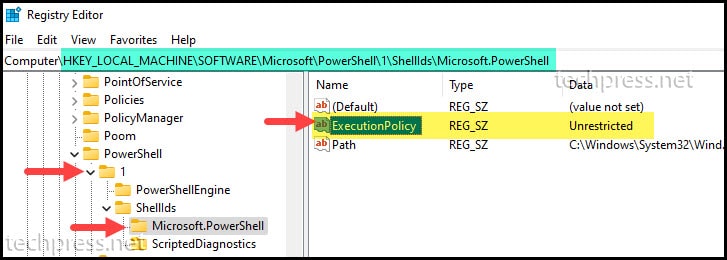
- You can also retrieve the PowerShell execution policy from the registry using the following command.
Retrieve PowerShell execution policy from registry
get-itemproperty "HKLM:\SOFTWARE\Microsoft\PowerShell\1\ShellIds\Microsoft.PowerShell" -Name executionpolicy | select ExecutionPolicy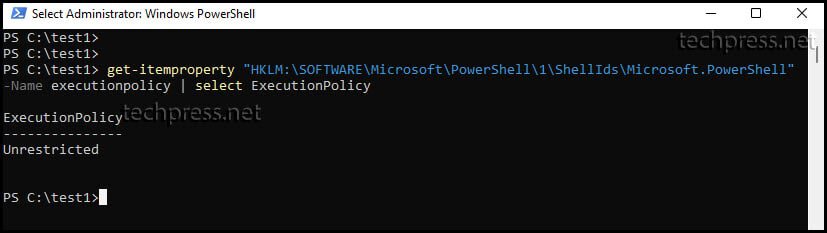
Set Execution Policy as Non-Administrator
When you are not an administrator on the device, you will not be able to open the PowerShell console in Admin mode and therefore will not be able to set the execution policy.
When you open PowerShell console as an administrator and set the PowerShell execution policy, it makes the change on the device level, which will apply to all users who use the device. However, when you want to change the execution policy and apply it only in the current user scope, you will not require any administrator rights.
- Open PowerShell console as a standard user and use a switch
-Scope CurrentUserwith Set-ExecutionPolicy cmdlet. As an example, the below command will set the execution policy to RemoteSigned for only the user who is currently signed in to the device.
Set PowerShell execution policy for the current user scope
Set-ExecutionPolicy -ExecutionPolicy RemoteSigned -Scope CurrentUser