
Microsoft has released KB5085516, an out-of-band (OOB) update for Windows 11 versions 24H2 and 25H2, published on March 21, 2026. This update is designed to fix a sign-in problem introduced after the March 2026 Windows 11 update, where some users could not sign in to apps with a Microsoft account even though the device had a working internet connection. The build number that corresponds to the 25H2 KB5085516 patch is OS Builds 26200.8039 and for 24H2 it is 26100.8039.
If you were seeing a “no Internet” message while trying to sign in to apps such as Microsoft Teams Free, OneDrive, Microsoft Edge, Word, Excel, or Microsoft 365 Copilot, KB5085516 is the update intended to resolve that issue. This issue affected sign-ins using Microsoft accounts, while organizations using Microsoft Entra ID for app authentication were not affected.
Contents
What is KB5085516?
KB5085516 is a cumulative out-of-band update. It includes updates from previous security and non-security releases, along with the additional fix for the Microsoft account sign-in issue. In other words, this is not a small standalone patch for one component only; it is a cumulative quality update that brings the device forward while also resolving the login problem.
What issue does KB5085516 fix?
According to Microsoft, after installing the Windows update released on or after March 10, 2026, some users experienced an issue signing in to apps with a Microsoft account. Even when the internet connection was working properly, Windows incorrectly showed a message indicating there was no internet connection, which blocked access to Microsoft services and apps. Teams Free and OneDrive are listed on the KB5085516 page as affected apps; it may also affect Edge, Excel, Word, and Microsoft 365 Copilot apps.
The issue was added by Microsoft as a known issue for the March 10, 2026 KB5079473 release, and Microsoft’s documented workaround there is simply that the issue is addressed in KB5085516.
Which devices are affected?
This update applies to Windows 11 version 24H2 and version 25H2 systems. KB5085516 is offered through Windows Update for devices running Windows 11 that have already installed KB5079473. That makes this update particularly relevant for users who installed the March 2026 cumulative update and then started seeing Microsoft account sign-in failures afterward.
Who is not impacted?
Only Microsoft account sign-ins are affected. Businesses using Microsoft Entra ID for application authentication do not experience this issue. That is an important distinction because it means the problem is mainly tied to consumer-style Microsoft account authentication rather than enterprise Entra ID sign-in flows.
Installing KB5085516 on Windows 11 24H2 and 25H2
There are various ways to install the KB5085516 out-of-band (OOB) update on your Windows 11 version 24H2 and version 25H2 systems.
- KB5085516 is offered through Windows Update for devices running Windows 11 that have already installed KB5079473.
- You can download KB5085516 from the Microsoft Update Catalog site and install it manually on the affected devices.
- If the devices are managed via Microsoft Intune, create an expedited update policy in Intune to deploy this patch.
- If you are still managing your devices with WSUS/SCCM, use the respective consoles to sync the software updates to show KB5085516 and deploy to the devices.
Let’s go through all of these options in more details.
Method 1: Install KB5085516 via Windows Update
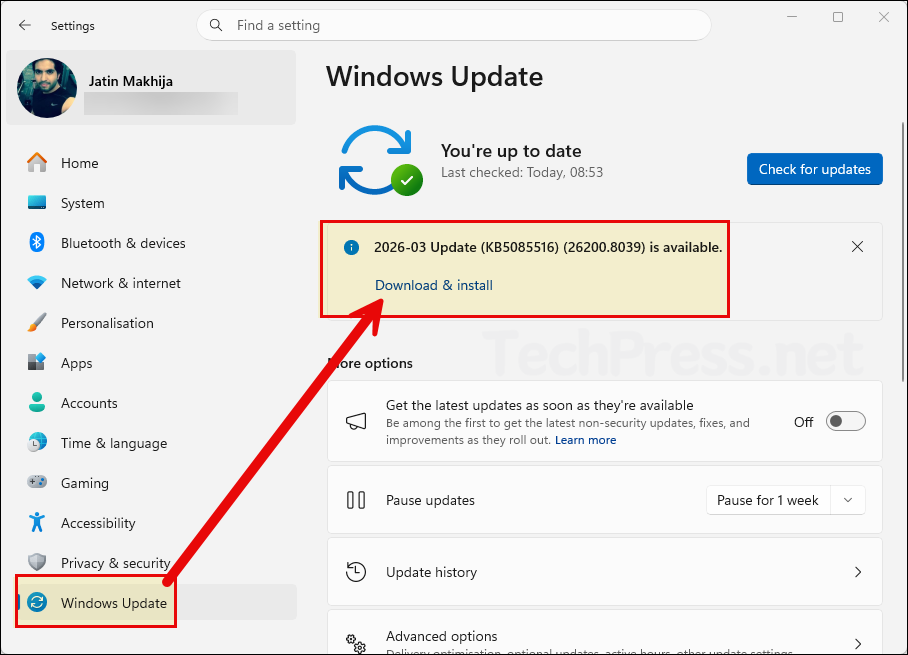
As discussed earlier, if your system already has the KB5079473 patch installed, you can use Windows Update in the Settings app to install the KB5085516 out-of-band (OOB) update.
On my Windows 11 device, I did not enable the Get the latest updates as soon as they’re available toggle. However, if you do not see this patch on your device, you can safely enable this option (if allowed by your organization’s policies) and click Check for updates. Otherwise, simply click Check for updates and wait for the update to be offered on your device.
Once the update appears, click Download & install to proceed. You may need to restart your device after installation to complete the update process.
Method 2: Download KB5085516 and Install it Manually
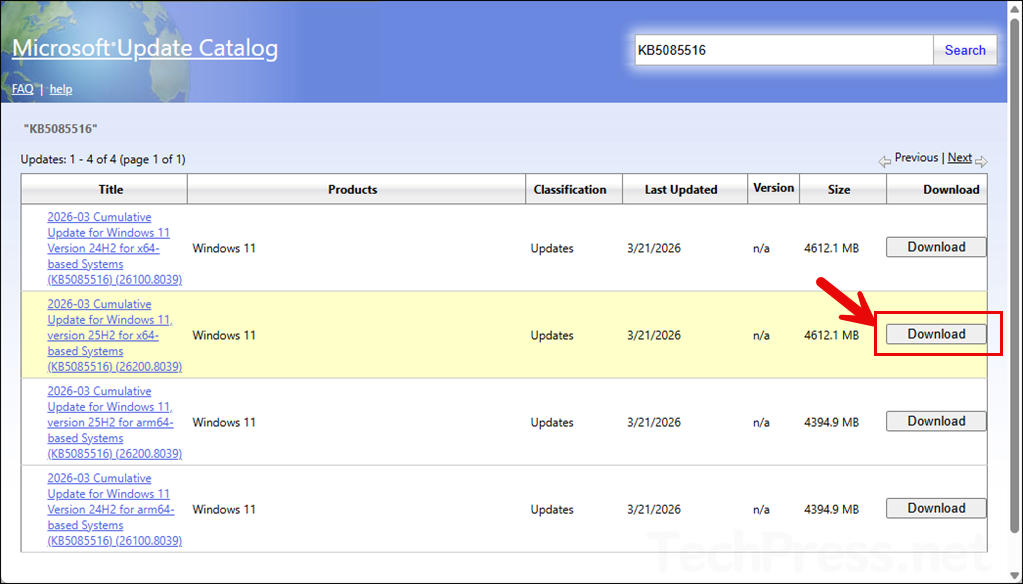
If the update is not offered on your device via Windows Update and you are still experiencing the issue, you can download the update from the Microsoft Update Catalog and install it manually.
- Visit the Microsoft Update Catalog (direct link).
- Click the Download button next to the update that matches your system architecture. For example, the highlighted update applies to x64-based Windows 11 25H2 devices. If you are using Windows 11 24H2 on an x64 or ARM64-based system, download the update that is appropriate for your device.
Method 3: Install KB5085516 OOB Update using Intune
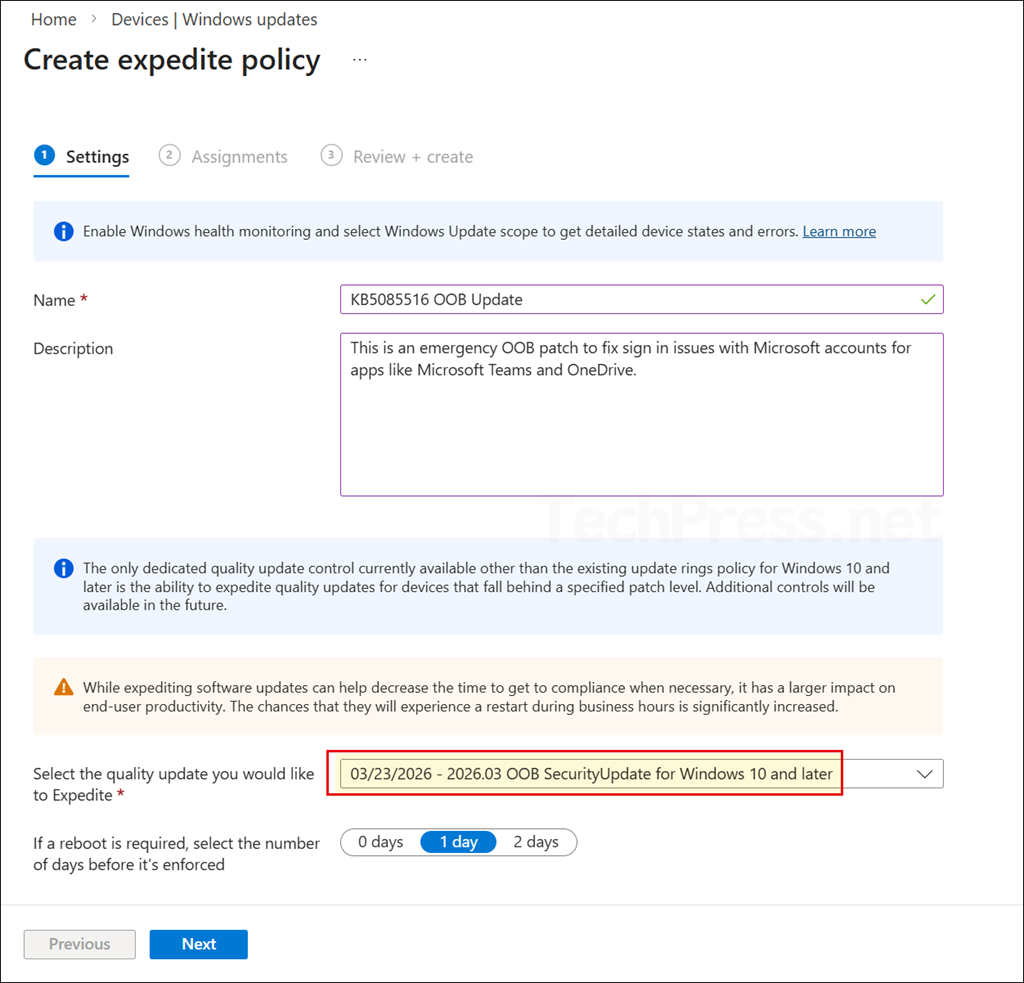
If you are managing Windows 11 devices via Intune, the best way to install the KB5085516 patch is by creating an expedite policy. Select this OOB patch and assign the policy to devices running Windows 11 24H2 and 25H2. The screenshot below shows the OOB patch that you need to select in the policy.
For a step-by-step guide on how to create this policy in Intune, refer to the post Expedite Windows Quality Updates using Intune. There is no requirement to create separate policies for 24H2 and 25H2 devices, as the patch will be applied automatically based on the target OS version.
- Sign in to the Intune admin center > Devices > Windows updates > Under the Quality updates tab, click + Create and then select Expedite policy.
- On the Settings tab, configure the following settings and click Next.
- Name: Use a clear naming convention.
- Description: Include the CVE reference or business reason.
- Select the quality update you would like to Expedite: Use the drop-down to select the quality update you want to expedite. In this case, you will select: 03/23/2026 – 2026.03 OOB SecurityUpdate for Windows 10 and later.
- If a reboot is required, select the number of days before it’s enforced: You can choose the number of days before a device is automatically restarted. If you select 0, the device restarts immediately after the expedited updates are installed. However, if users are actively working on the device, an immediate restart can be disruptive. Although users are notified, they have limited time to save their work.
Method 4: Install KB5085516 OOB Update using WSUS/SCCM
You can also use WSUS or Configuration Manager to deploy the KB5085516 patch on Windows 11 24H2 and 25H2 devices.
Deploy KB5085516 via WSUS
- Search KB5085516 in the Microsoft Update Catalog and copy its UpdateID.
- Use Microsoft’s PowerShell WSUS import script to import the update into WSUS.
- Approve the update for a pilot WSUS computer group.
- Let clients scan, download, and install the update.
- After validation, approve for production. KB5085516 is an OOB update for Windows 11 24H2/25H2.
Important: Do not import the raw .msu directly into WSUS. Use the Catalog UpdateID import method instead.
Deploy KB5085516 via SCCM / ConfigMgr
- First import the update into WSUS if it is not already synced.
- In ConfigMgr, run Software Updates Synchronization.
- Find KB5085516 under All Software Updates.
- Add it to a Software Update Group.
- Download and distribute the content to distribution points.
- Deploy to a pilot collection, then expand to production after testing.
Uninstalling Windows Updates
You can also uninstall an update if it is causing issues. Simply go to Settings > Windows Update > Update history > Uninstall updates, and select the update you want to remove. For more detailed steps, refer to: Uninstall Windows Updates using PowerShell.
Known Issues
As of March 25, 2026, Microsoft says it is not currently aware of any known issues with KB5085516. For more information, refer to the official Microsoft documentation for this KB: March 21, 2026—KB5085516 (OS Builds 26200.8039 and 26100.8039) Out-of-band – Microsoft Support.
