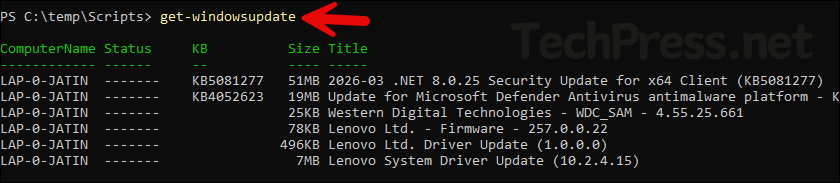
In this blog post, I will show you how to view update history in Windows 11. Keeping track of installed updates is an important part of managing a Windows 11 device. Whether you are troubleshooting a failed patch, confirming that a cumulative update installed correctly, or simply checking when your PC last received security fixes, Windows 11 provides several ways to view update history.
Microsoft regularly releases updates to introduce new features and fix bugs in the operating system. Ensuring that your system is up to date helps reduce the risk of issues while also bringing new features. When troubleshooting problems, it is often necessary to check which update was installed on the device and when, and if required, uninstall a faulty update to resolve the issue.
Update history information is also useful when you need a KB number for troubleshooting, want to compare your device against Microsoft’s release history pages, or need to verify whether a recent update might be related to a new issue on the system.
Let’s look at the different ways to view update history in Windows 11. You can use any of the methods that best suit your troubleshooting needs.
Contents
Method 1: View Update History Using Settings App
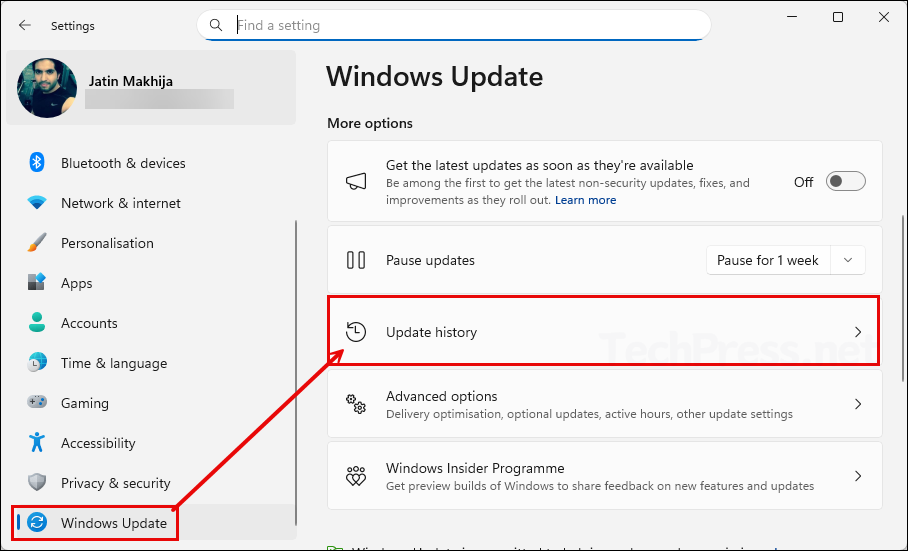
This is the easiest and most user-friendly way to check update history in Windows 11. Open Start > Settings > Windows Update > Update history. On this page, Windows shows the updates that have already been installed, and you can expand categories such as quality updates, driver updates, definition updates, feature updates, and other updates. You can use this page to learn more about updates you installed, including configuration changes listed under other updates.
- Open Settings on your Windows 11 PC.
- Select Windows Update from the left pane.
- Click Update history.
- Review the installed updates by category.
- Click any available Learn more link to open Microsoft’s page for that update.
Method 2: View Update History with PowerShell
2.1 Using Get-HotFix
PowerShell gives administrators a quick way to check installed hotfixes and export the results if needed. The most commonly used command is Get-HotFix. This cmdlet uses the Win32_QuickFixEngineering WMI class to list installed hotfixes on the local or remote computer.
Launch a PowerShell console and run the Get-HotFix cmdlet to retrieve a list of installed updates. The output includes details such as Source, Description, HotFixId, InstalledBy, and InstalledOn. To control the columns displayed, use Select-Object and choose the specific properties you require. The screenshot below shows the execution of Get-HotFix along with its different variations. Let’s take a look.
List Installed Updates
Get-HotfixList Installed Updates (Sort the output by installation date)
Get-HotFix | Sort-Object InstalledOn -DescendingOnly Show Key Columns
Get-HotFix | Select-Object HotFixID, Description, InstalledOnGet only the latest update installed
(Get-HotFix | Sort-Object -Property InstalledOn)[-1]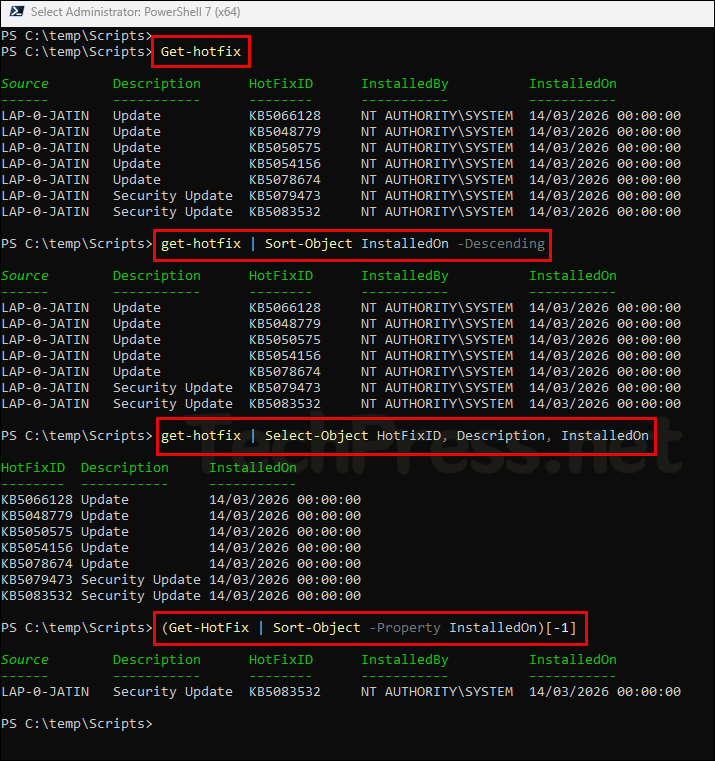
2.2 Using PSWindowsUpdate PowerShell Module
Another way to list Windows update history on a Windows 11 computer is by using the PSWindowsUpdate PowerShell module. Install this module on your device and run its available commands to retrieve Windows update information.
Open a PowerShell console as an administrator and install the PSWindowsUpdate module using the command below. After the installation completes successfully, run the subsequent commands to retrieve the required Windows update history information.
Install PSWindowsUpdate module
Install-Module -Name PSWindowsUpdate -Scope CurrentUser -Force -Confirm:$false -AllowClobber -WarningAction SilentlyContinue -ErrorAction Stop > $null 2>&1Shows the installed Windows Update history
Get-WUHistory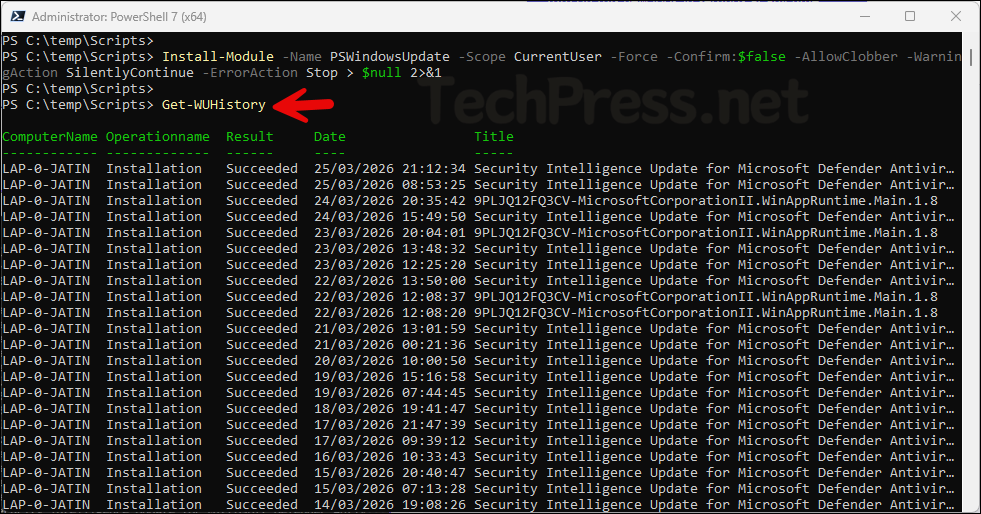
View Windows Update History with specific columns
Get-WUHistory | Sort-Object Date -Descending | Select-Object Date, Title, Result, KB, ComputerNameShows the newest update history entries first
Get-WUHistory | Sort-Object Date -DescendingShows update history for the last 30 days
Get-WUHistory -MaxDate (Get-Date).AddDays(-30)Shows update history for the last 24 hours
Get-WUHistory -MaxDate (Get-Date).AddDays(-1)
Shows the last Windows Update scan and installation results timestamps
Get-WULastResults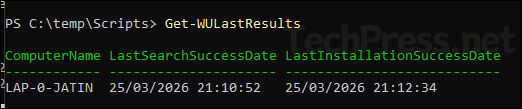
Shows updates that are currently available but not yet installed
Get-WindowsUpdate