In this post, I will show you how to grant a service principal access to a specific folder in a SharePoint Online document library. We will create a Microsoft Entra app registration, assign the required Microsoft Graph application permission, and then use Microsoft Graph Explorer to grant and verify folder-level access for the service principal.
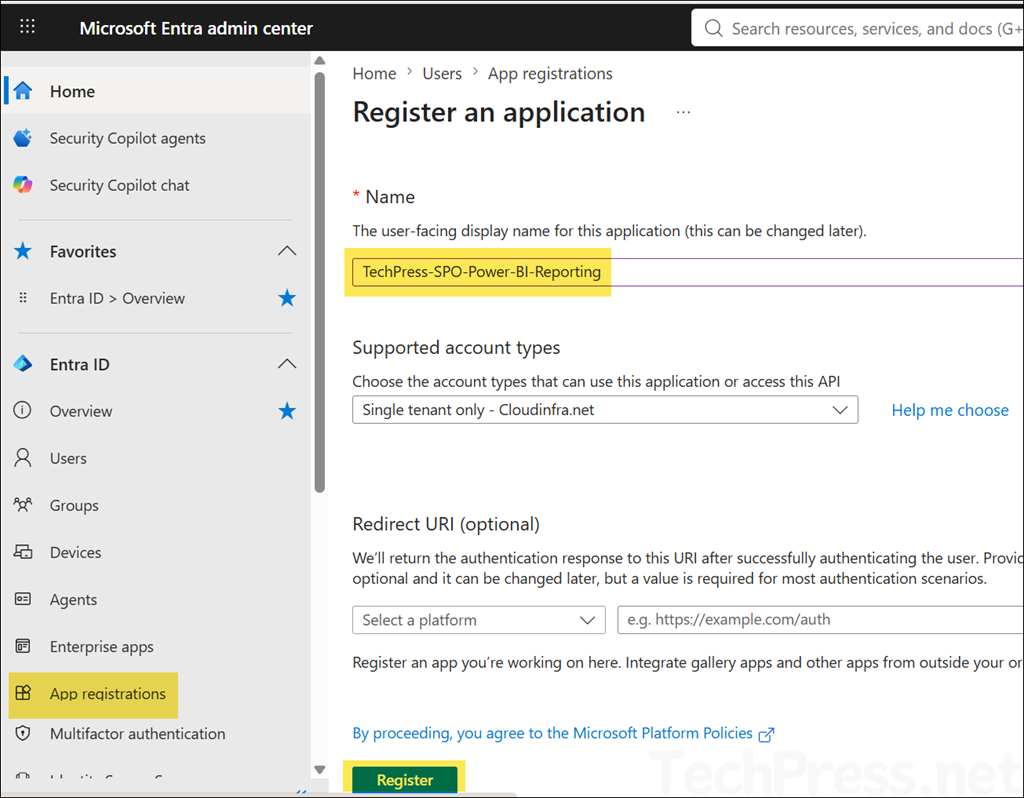
To demonstrate the process, I will create a service principal using a Microsoft Entra app registration and name it TechPress-SPO-Power-BI-Reporting. You can choose any name that suits your requirements.
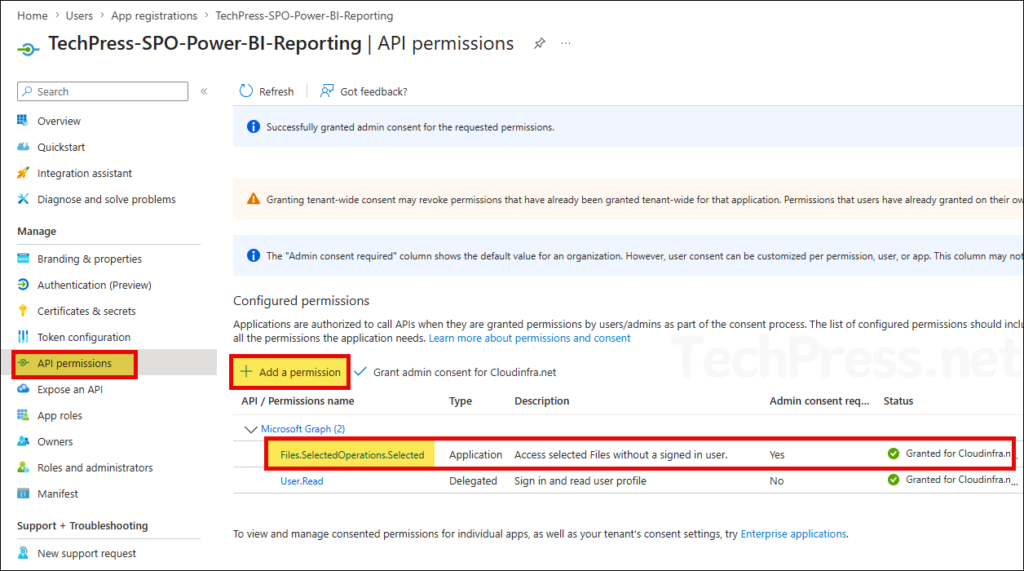
Open the app registration, go to API permissions, and add Files.SelectedOperations.Selected Microsoft Graph application permission. Make sure you also grant admin consent for the permission.
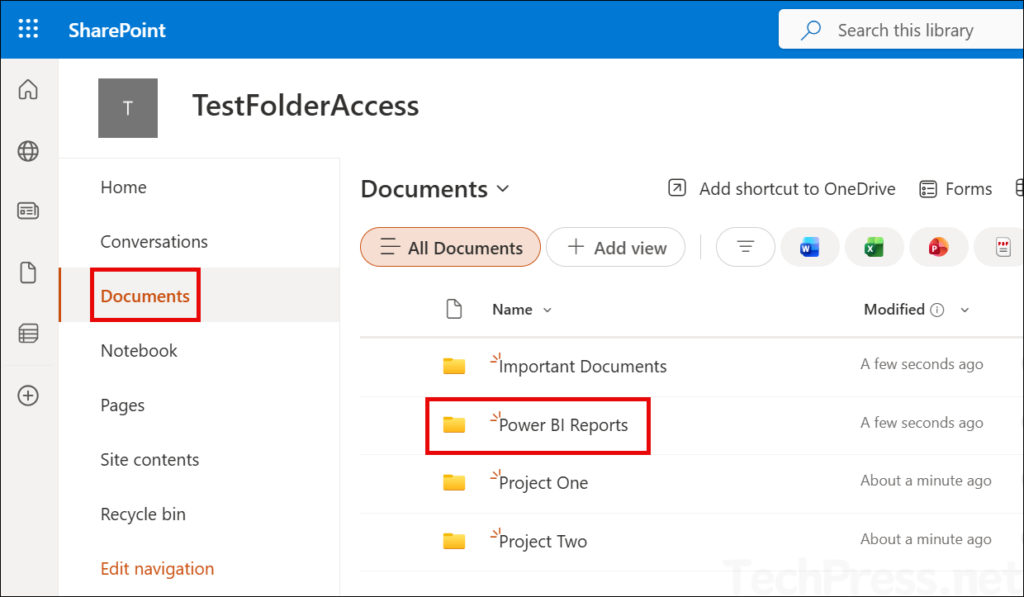
The screenshot below shows the Power BI Reports folder in the TestFolderAccess SharePoint Online site. The service principal created earlier, TechPress-SPO-Power-BI-Reporting, will be granted access only to this folder. It will not have access to any other folders in the site’s document library.
Contents
Configuring Permissions
The basic setup is now complete. We can proceed with configuring folder-level permissions on the Power BI Reports folder for the TechPress-SPO-Power-BI-Reporting service principal.
Step 1: Get the ShrePoint Site ID
Let’s start by retrieving the SharePoint site ID where the folder is located. We will use Microsoft Graph Explorer for this step. To construct the Microsoft Graph query, you will need the tenant domain name and the SharePoint site name. These values are used to retrieve the site ID, which is required for the subsequent Microsoft Graph requests.
- Grab the URL of the SharePoint site. For example: https://73dvgy.sharepoint.com/sites/TestFolderAccess
- Construct the request URL in the format https://graph.microsoft.com/v1.0/sites/{hostname}:/{relative-path}.
- Final URL: https://graph.microsoft.com/v1.0/sites/73dvgy.sharepoint.com:/sites/TestFolderAccess.
- Launch the Microsoft Graph Explorer website and sign in using an administrator account.
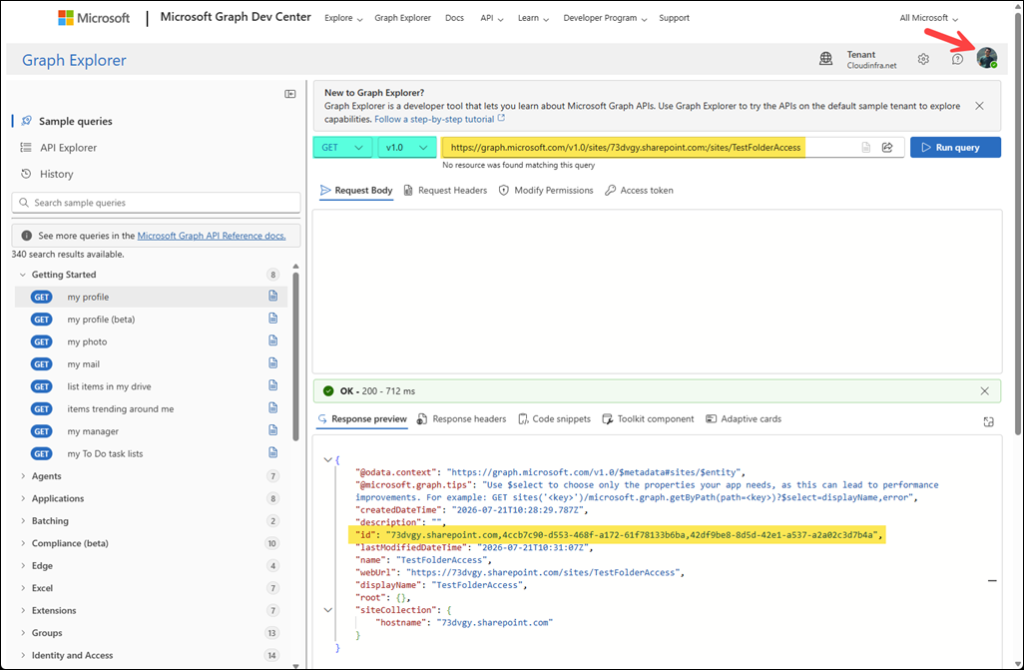
- Run GET v1.0 Microsoft Graph query: https://graph.microsoft.com/v1.0/sites/73dvgy.sharepoint.com:/sites/TestFolderAccess.
- Copy the Site ID information as highlighted in the below screenshot.
Below is the Site ID of the TestFolderAccess SharePoint site:
id": "73dvgy.sharepoint.com,4ccb7c90-d553-468f-a172-61f78133b6ba,42df9be8-8d5d-42e1-a537-a2a02c3d7b4a"
Step 2: Get the Document Library ID
In this step, we will retrieve the document library ID for the TestFolderAccess SharePoint site. We will use the Site ID copied in the previous step to send another Microsoft Graph GET request.
- Construct the request URL in the format: https://graph.microsoft.com/v1.0/sites/<SiteID>/drives. Replace the
<Site ID>with the value copied in the previous step. - Our final constructed URL: https://graph.microsoft.com/v1.0/sites/73dvgy.sharepoint.com,4ccb7c90-d553-468f-a172-61f78133b6ba,42df9be8-8d5d-42e1-a537-a2a02c3d7b4a/drives.
- Run the below GET v1.0 Microsoft Graph query:
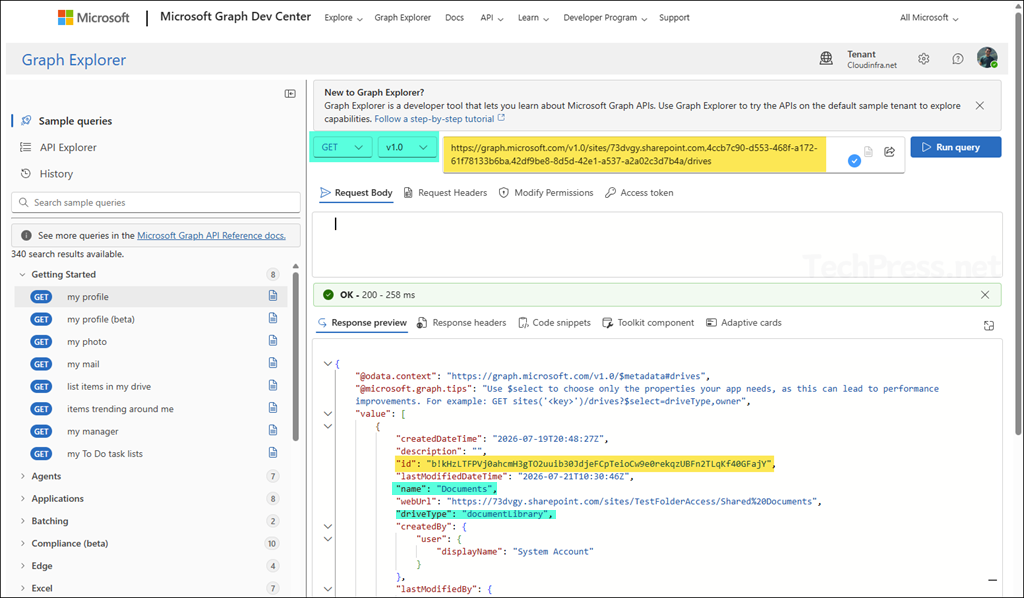
https://graph.microsoft.com/v1.0/sites/73dvgy.sharepoint.com,4ccb7c90-d553-468f-a172-61f78133b6ba,42df9be8-8d5d-42e1-a537-a2a02c3d7b4a/drives
- Copy the ID of the document library where the folder resides. Verify the name and drivetype (as highlighted in the screenshot) to confirm.
Below is the document library ID of TestFolderAccess site.
b!kHzLTFPVj0ahcmH3gTO2uuib30JdjeFCpTeioCw9e0rekqzUBFn2TLqKf40GFajY
Step 3: Get Power BI Reports Folder ID
Now, we will get the ID information of the folder Power BI reports. This is the folder on which we want to provide access to the service principal.
- Construct the request URL in the format: https://graph.microsoft.com/v1.0/sites/<SiteID>/drives/<document library ID>/root/children.
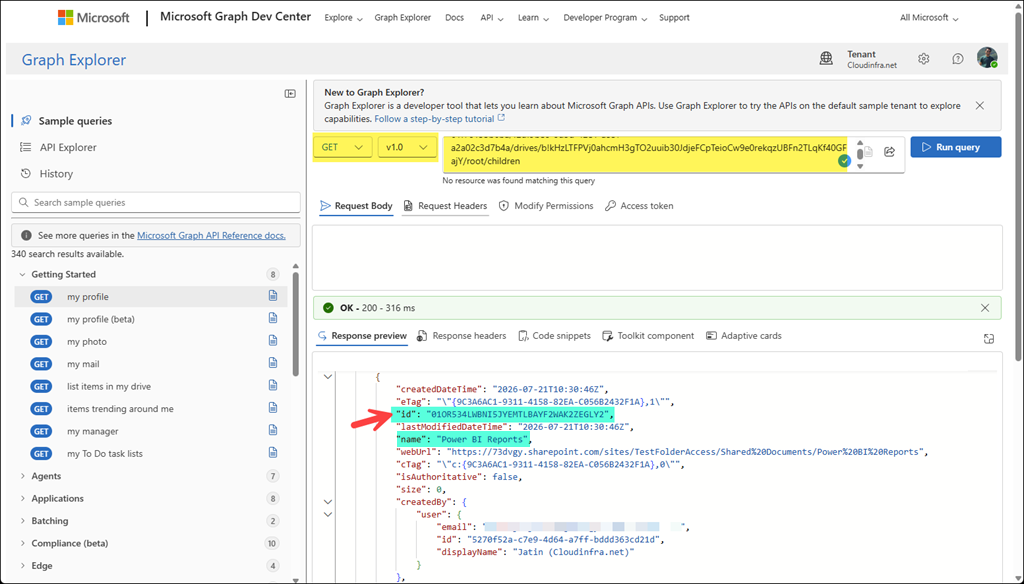
- Our final constructed URL is given below. Use this to run the GET v1.0 Microsoft Graph query.
https://graph.microsoft.com/v1.0/sites/73dvgy.sharepoint.com,4ccb7c90-d553-468f-a172-61f78133b6ba,42df9be8-8d5d-42e1-a537-a2a02c3d7b4a/drives/b!kHzLTFPVj0ahcmH3gTO2uuib30JdjeFCpTeioCw9e0rekqzUBFn2TLqKf40GFajY/root/children
- Run a GET query using the above URL and search for the folder in the output and copy the corresponding ID information for this folder. In my case, the ID is: 01OR534LWBNI5JYEMTLBAYF2WAK2ZEGLY2.
Step 4: Get Current Permissions Assigned to Power BI Reports Folder
Before configuring permissions for the Power BI Reports folder, first review its current permissions. This provides a baseline so that you can compare the permissions before and after granting access to the service principal, making it easy to verify that the new permissions have been applied successfully.
- Construct a graph query in the format:
https://graph.microsoft.com/v1.0/sites/<site ID>/drives/<drive ID>/items/<folder ID>/permissions
Our final constructed URL is given below:
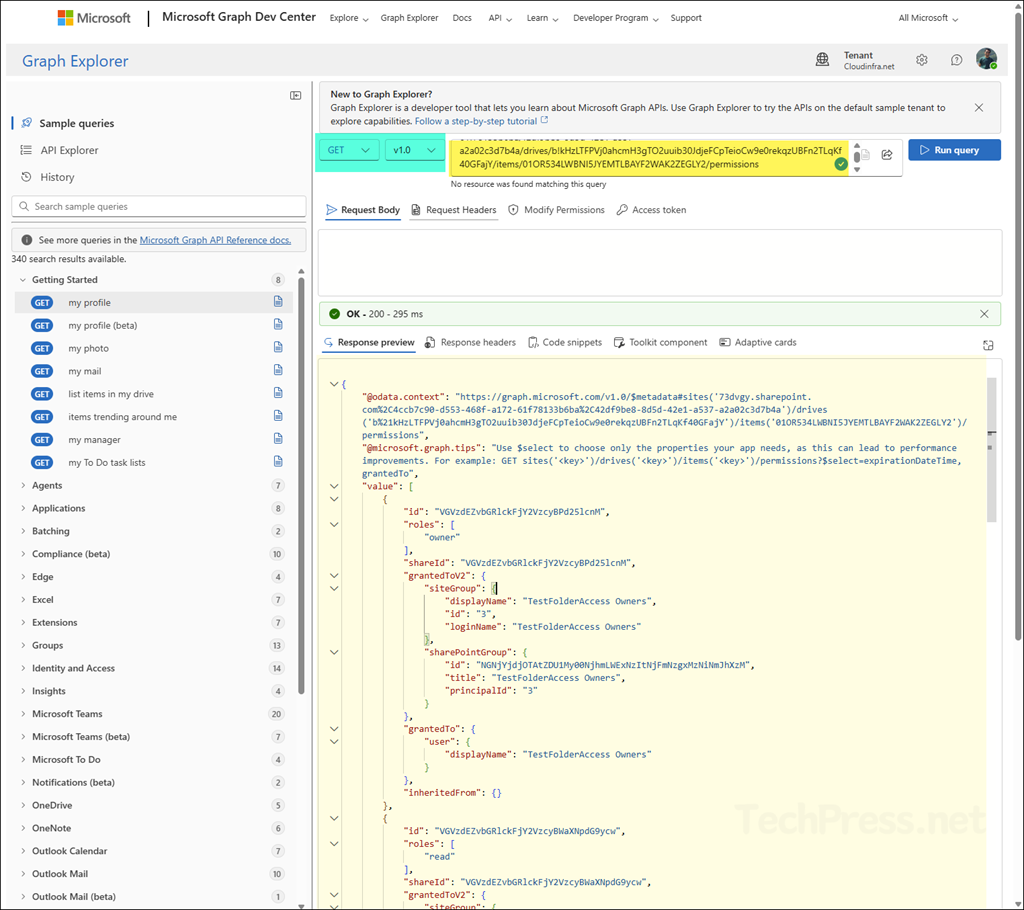
https://graph.microsoft.com/v1.0/sites/73dvgy.sharepoint.com,4ccb7c90-d553-468f-a172-61f78133b6ba,42df9be8-8d5d-42e1-a537-a2a02c3d7b4a/drives/b!kHzLTFPVj0ahcmH3gTO2uuib30JdjeFCpTeioCw9e0rekqzUBFn2TLqKf40GFajY/items/01OR534LWBNI5JYEMTLBAYF2WAK2ZEGLY2/permissions
- Use the above graph URL query to list the current permissions on the folder Power BI Reports.
Step 5: Grant Service Principal Access to the Power BI Reports Folder
Finally, we will grant the necessary permissions to the service principal on the Power BI reports folder. You can provide any of the below permissions to the folder by modifying the JSON response body.
| Role | Access provided |
|---|---|
| read | Read the folder metadata and its contents. |
| write | Read and modify the folder metadata and contents, including creating, updating, and deleting items. |
| owner | Assigns the application an owner-level role. |
| fullcontrol | Gives the application full control over the resource, including permission-management operations. |
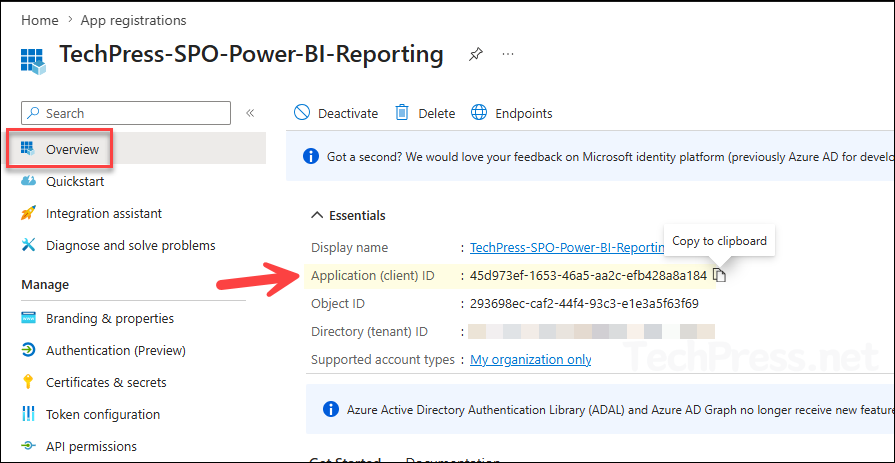
Copy the Client ID of the application (service principal) that you want to grant access to the folder, and replace the placeholder value in the JSON payload below with your application’s Client ID.
Syntax
{
  "grantedToV2": {
    "application": {
      "id": "<Application ID>"
    }
  },
  "roles": [
    "write"
  ]
}
Example:
{
  "grantedToV2": {
    "application": {
      "id": "45d973ef-1653-46a5-aa2c-efb428a8a184"
    }
  },
  "roles": [
    "write"
  ]
}
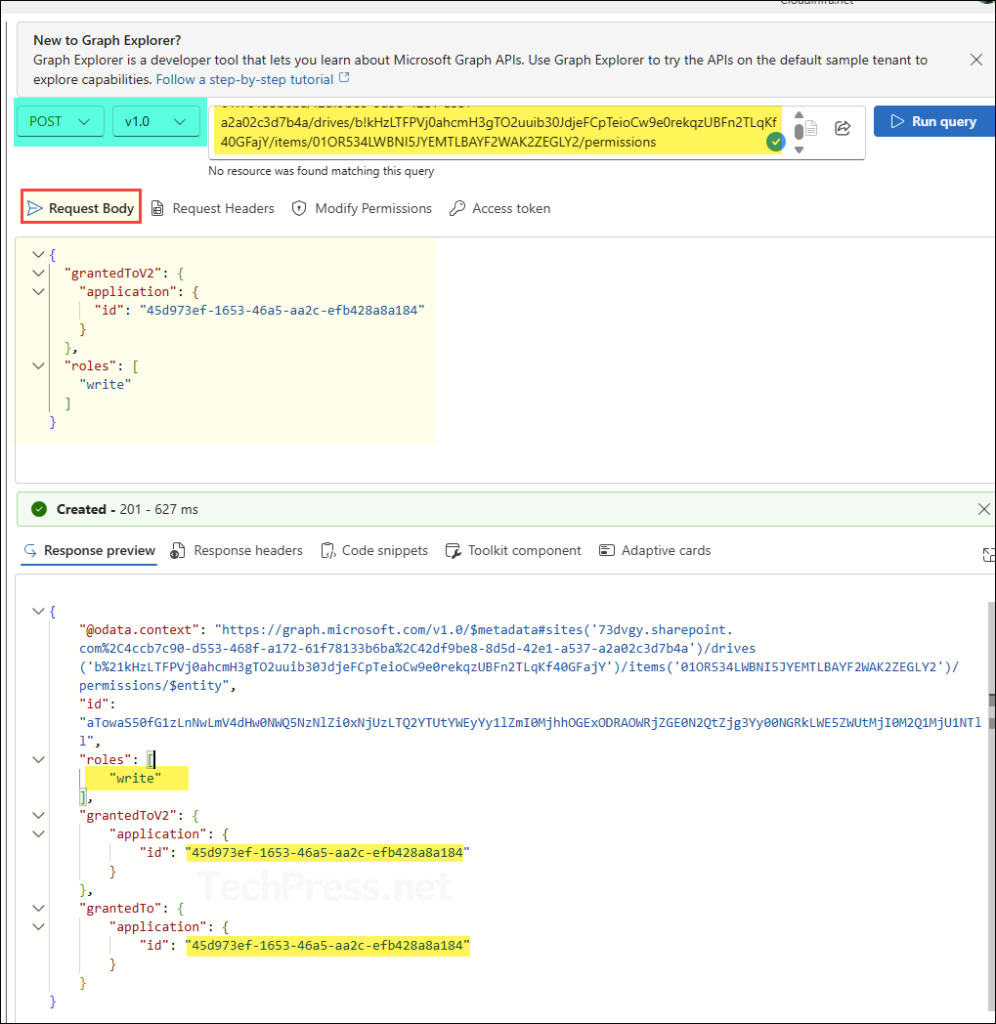
Use the same Microsoft Graph query URL from Step 4, but change the request method from GET to POST. Next, add the required JSON payload to the request body to configure the folder permissions, and then run the query.
https://graph.microsoft.com/v1.0/sites/73dvgy.sharepoint.com,4ccb7c90-d553-468f-a172-61f78133b6ba,42df9be8-8d5d-42e1-a537-a2a02c3d7b4a/drives/b!kHzLTFPVj0ahcmH3gTO2uuib30JdjeFCpTeioCw9e0rekqzUBFn2TLqKf40GFajY/items/01OR534LWBNI5JYEMTLBAYF2WAK2ZEGLY2/permissions
As shown in the screenshot below, the Write permission has been successfully assigned to the service principal for the Power BI Reports folder.
To verify the changes, run the query from Step 4 again by changing the request method back from POST to GET. The response should now include the service principal in the list of permissions assigned to the folder.
That’s it! We have successfully configured Write permissions on the Power BI Reports folder for the TechPress-SPO-Power-BI-Reporting service principal.
If you are using this service principal in an automation or application to upload reports or store files in this folder, it should now work as expected.
An important point to note is that the service principal has access only to the Power BI Reports folder. It does not have access to any other folders or files in the site’s document library unless you explicitly grant additional permissions. This follows the principle of least privilege, ensuring the service principal can access only the resources it needs.
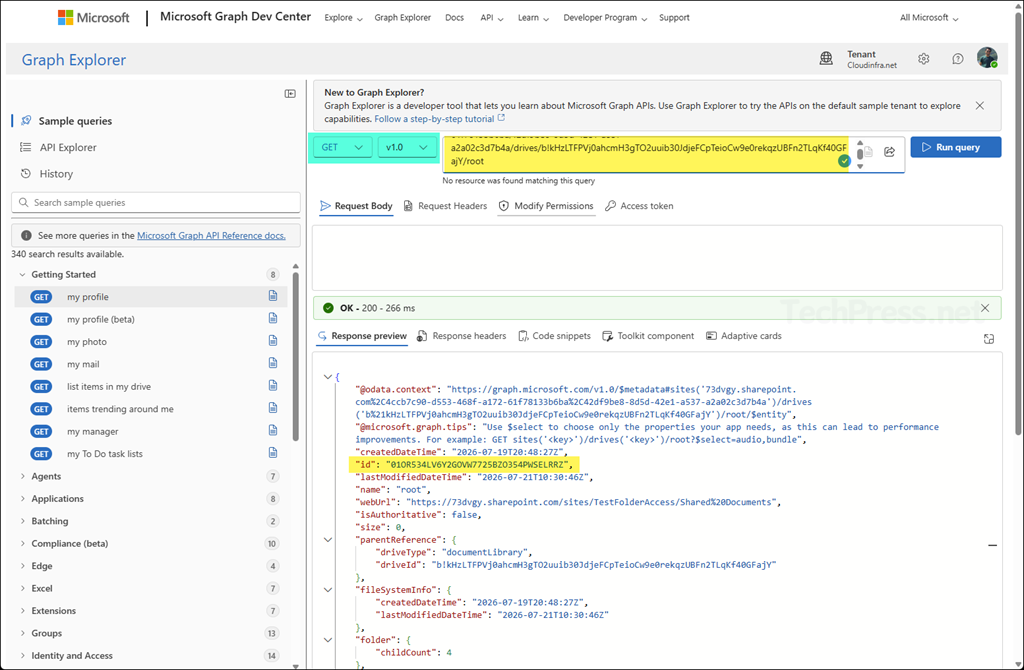
Get the Root Folder ID (Optional)
If needed, you can also retrieve the root folder ID of the document library where the target folder is located.
- Construct the request URL in the format: https://graph.microsoft.com/v1.0/sites/<SiteID>/drives/<document library ID>/root.
- Our final constructed URL is given below. Use this to run the GET v1.0 Microsoft Graph query.
https://graph.microsoft.com/v1.0/sites/73dvgy.sharepoint.com,4ccb7c90-d553-468f-a172-61f78133b6ba,42df9be8-8d5d-42e1-a537-a2a02c3d7b4a/drives/b!kHzLTFPVj0ahcmH3gTO2uuib30JdjeFCpTeioCw9e0rekqzUBFn2TLqKf40GFajY/root
Below is the root folder ID of the document library where the folder resides.
01OR534LV6Y2GOVW7725BZO354PWSELRRZ