
In this post, I will show you multiple ways to find AUMID of apps in Windows 11. Windows uses the Application User Model ID, also called AUMID or AppID or AppUserModelId, to identify apps for launching, switching, telemetry, and other platform features. An AUMID is unique to an installed app and does not depend on the app’s install path or display name. You commonly need it when configuring kiosk mode/Assigned Access, Start layout, taskbar pinning, and some Intune Windows kiosk settings.
Use the methods below while signed in as the user who has the app installed. If you want to enumerate AUMIDs for another user or for all users, use the Get-AppxPackage -User or -AllUsers options from an elevated PowerShell session. For more information about Application User Model ID, refer to the link: Application User Model IDs (AppUserModelIDs) – Win32 apps | Microsoft Learn.
Contents
Method 1: Find AUMID of Apps from File Explorer
The first method to find the Application User Model ID (AUMID) for installed apps on a Windows 11 device is by using File Explorer. Let’s take a look at the steps:
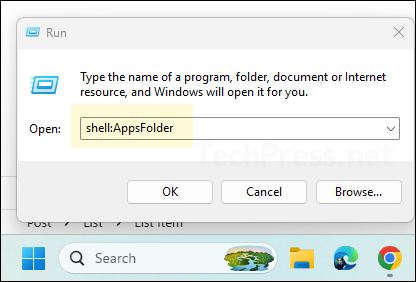
- Press the Windows key + R to open the Run dialog box.
- Type
shell:AppsFolderand press Enter.
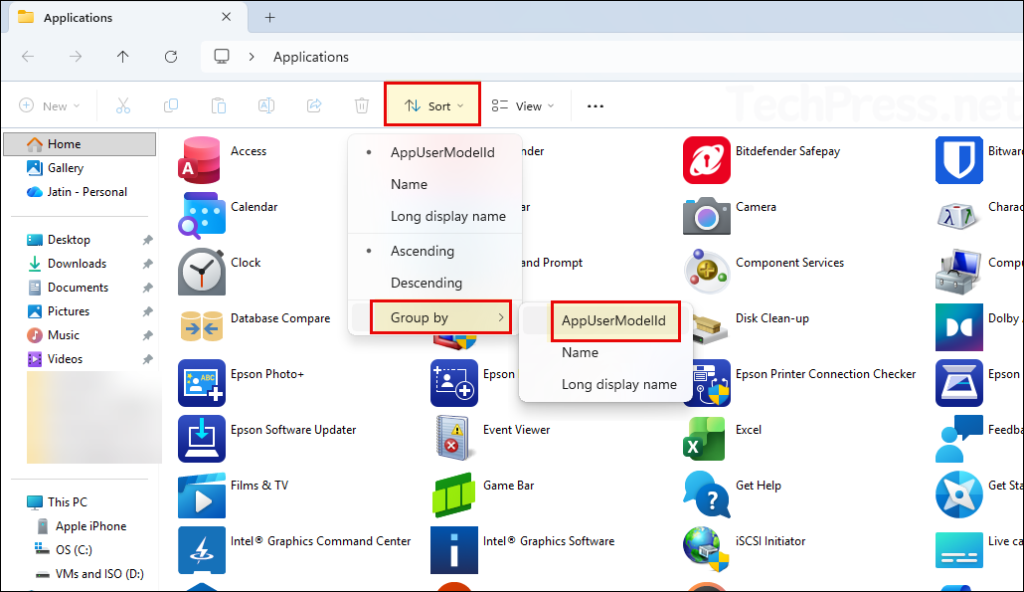
- In File Explorer, click on Sort > Group by > AppUserModelId.
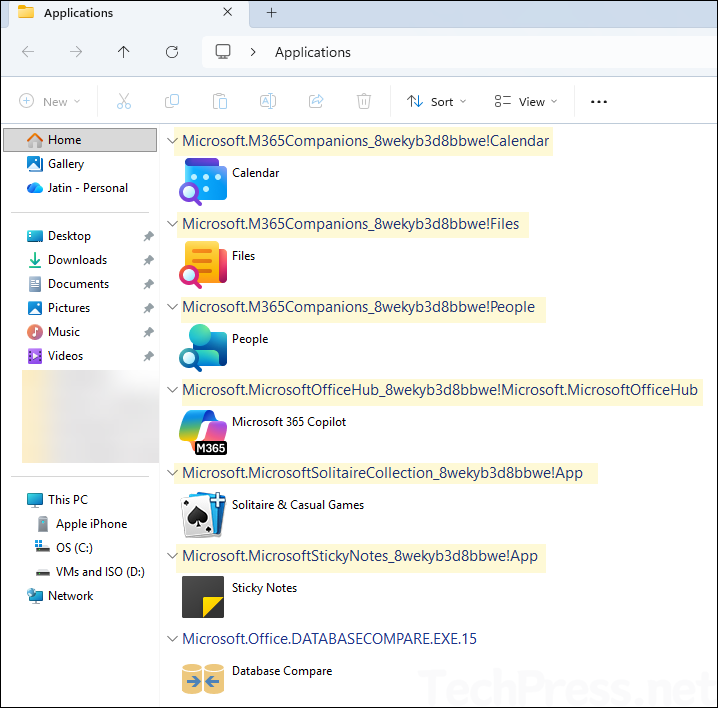
- This will list all the apps with their Application User Model ID (AUMID) displayed at the top of each app. You can view the AUMID information here, but it cannot be copied. If you need to copy or export the AUMID details, use the other methods described in the following sections.
Method 2: Find AUMID of Apps using Command Prompt
You can also use Command Prompt to query the Application User Model ID (AUMID) for installed apps on a Windows 11 device. In this method, the reg query command is used to query the registry and retrieve the required information.
reg query HKEY_CURRENT_USER\Software\Classes\ /s /f AppUserModelID | find "REG_SZ"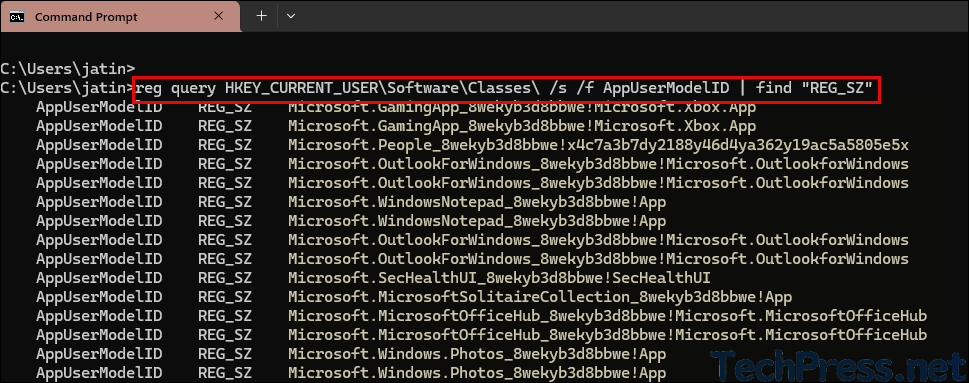
Method 3: Find AUMID of Apps using PowerShell
Use the Get-StartApps PowerShell cmdlet to quickly list app names along with their AppID, which represents the AUMID. Let’s run the command and review the results.
Get-StartApps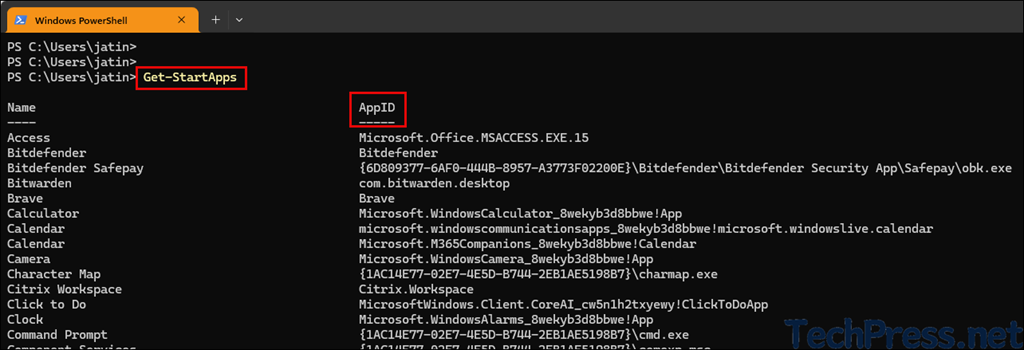
To retrieve AUMID details for specific apps, use the Get-StartApps cmdlet with the app name enclosed in asterisks (*). See the examples below.
Get-StartApps *Notepad*

Get-StartApps *Calculator*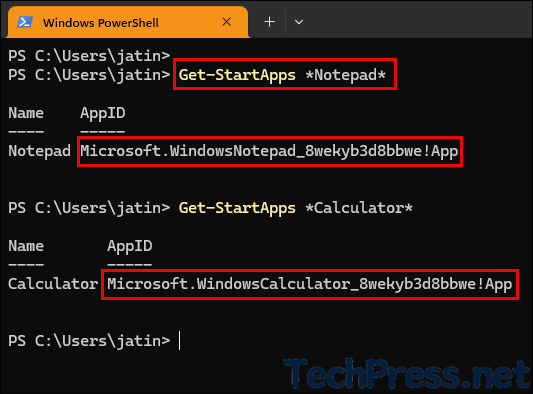
Method 4: Find AUMID of Apps using Start Menu
Microsoft provides a small PowerShell script that can be used to retrieve the Application User Model ID (AUMID) of apps from the Start menu. To download the script, go to Find the Application User Model ID of an installed app | Microsoft Learn. I have also included the script content here for convenience.
Copy the Microsoft-provided PowerShell script below and save it to your system. You can use any file name, for example, Get-AppAUMID.ps1.
Get-AppAUMID.ps1
function Get-AppAUMID {
param (
[string]$AppName
)
$Apps = (New-Object -ComObject Shell.Application).NameSpace('shell:::{4234d49b-0245-4df3-b780-3893943456e1}').Items()
if ($AppName){
    $Result = $Apps | Where-Object { $_.name -like "*$AppName*" } | Select-Object name,@{n="AUMID";e={$_.path}}
        if ($Result){
            Return $Result
        }
    else {"Unable to locate {0}" -f $AppName}
}
else {
    $Result = $Apps | Select-Object name,@{n="AUMID";e={$_.path}}
    Return $Result
}
}
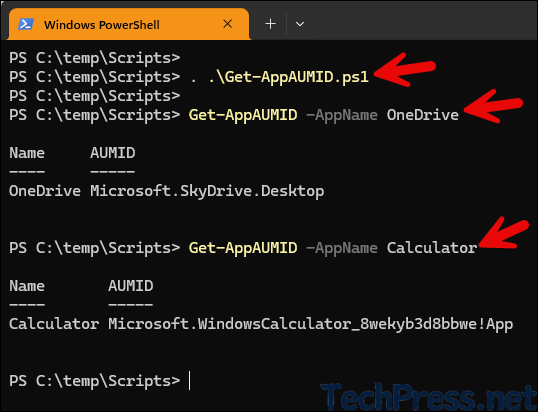
After creating the script, open a PowerShell console and run it to query the AUMID information. Be sure to dot source the script to load its function on the console before you run the commands. Refer to the screenshot on how to dot source the script.
Method 5: Find AUMID of Apps using AppsFolder COM Object
Use the COM object method to query AUMID details for apps. Open a PowerShell or Command Prompt console and run the command below.
(New-Object -ComObject Shell.Application).Namespace('shell:::{4234d49b-0245-4df3-b780-3893943456e1}').Items() | Select-Object Name, @{Name='AUMID';Expression={$_.Path}}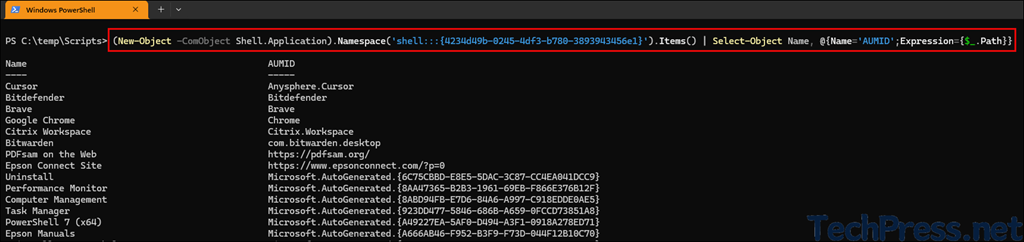
Use the command below to find the AUMID details for a specific app. In the command, replace Notepad with the name of the app for which you want to retrieve the AUMID.
(New-Object -ComObject Shell.Application).Namespace('shell:::{4234d49b-0245-4df3-b780-3893943456e1}').Items() | Where-Object { $_.Name -like '*Notepad*' } | Select-Object Name, @{Name='AUMID';Expression={$_.Path}}
Method 6: Find AUMID of Apps using Registry
The Windows registry stores application AUMID details and can be queried to extract this information directly. You can either navigate to HKEY_CURRENT_USER\Software\Classes\AppUserModelId in the registry to view AUMID details for apps, or run the query below from a Command Prompt (as shown earlier).
reg query HKEY_CURRENT_USER\Software\Classes\ /s /f AppUserModelID | find "REG_SZ"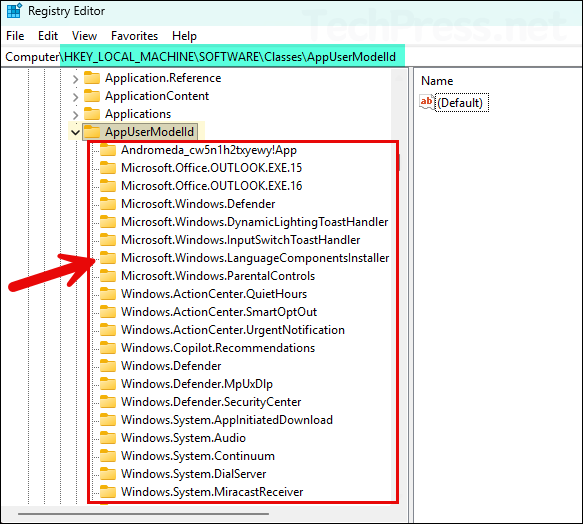
Method 7: Find AUMID of Apps using Get-AppxPackage and App Manifest
This is one of the most useful additions because it helps when Get-StartApps does not show the app. This method for building the AUMID uses the PackageFamilyName and the Application ID from the app manifest. It also supports checking apps for another user or all users with Get-AppxPackage -User or -AllUsers in an elevated session.
Copy the code below into Notepad and save it as a .ps1 file, for example AUMID_Values.ps1. Then open a Powershell console and run the script.
AUMID_Values.ps1
$installedapps = Get-AppxPackage

$aumidList = @()
foreach ($app in $installedapps)
{
    foreach ($id in (Get-AppxPackageManifest $app).package.applications.application.id)
    {
        $aumidList += $app.packagefamilyname + "!" + $id
    }
}

$aumidList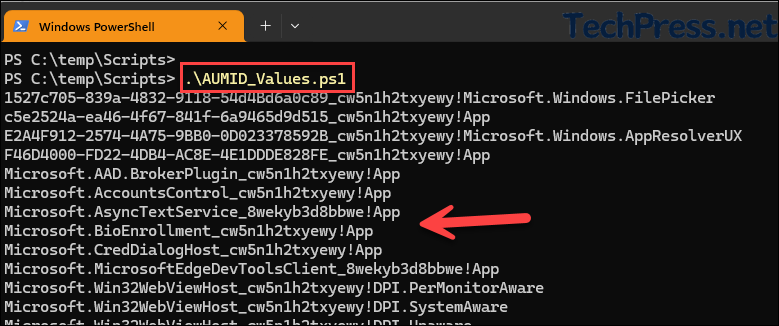
Exporting the Application User Model IDs (AUMIDs) of all installed apps
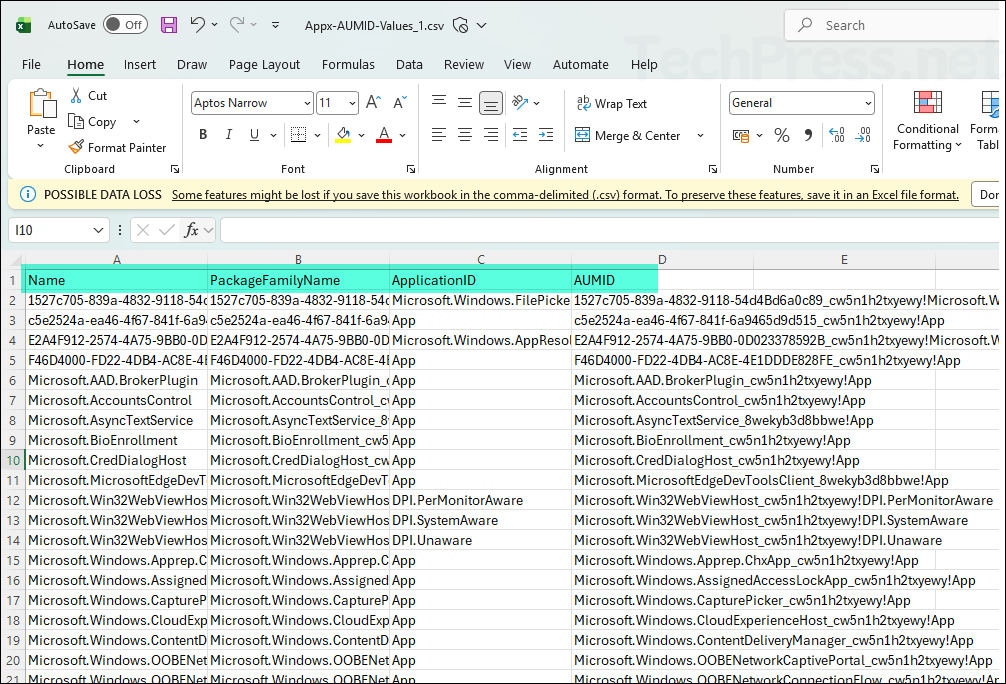
Now let’s export Application User Model IDs (AUMIDs) information of all apps to a CSV file. This is useful for sharing the data with other team members. Use any of the scripts below to get the required information. Use script 3 if you also want to get the PackageFamilyName information.
Script 1
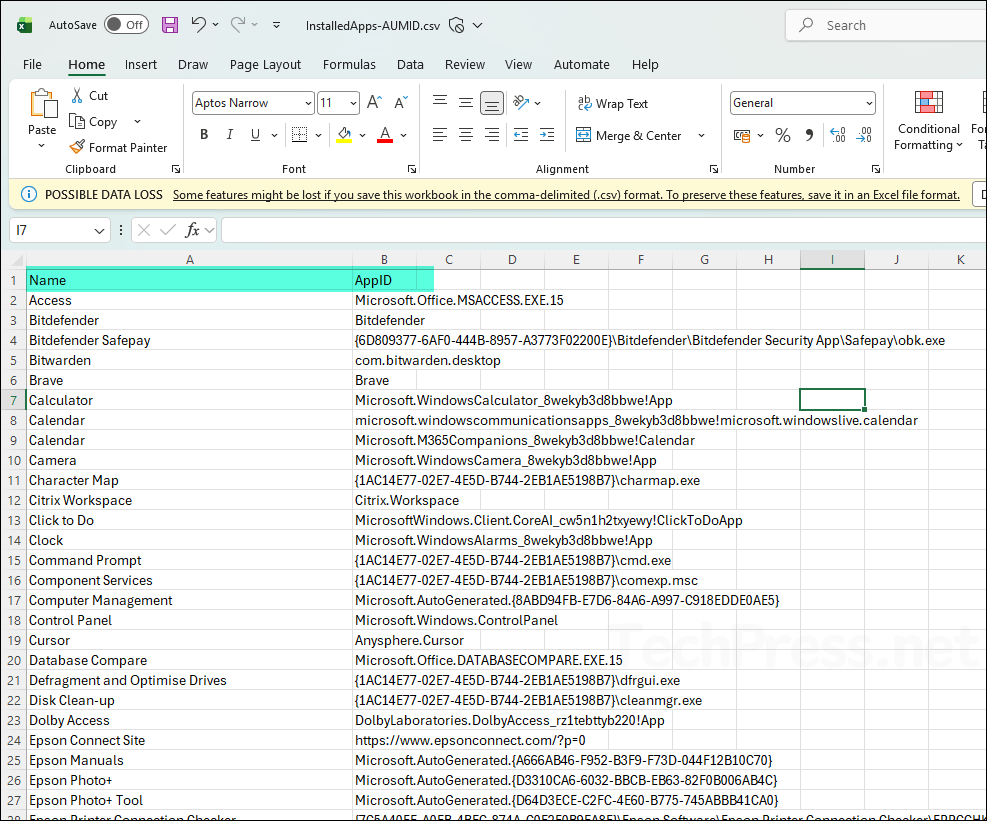
Get-StartApps | Export-Csv -Path "C:\temp\InstalledApps-AUMID.csv" -NoTypeInformation -Encoding UTF8
Name and AppID or AUMID information exported to CSV file
Script 2
$Apps = (New-Object -ComObject Shell.Application).NameSpace('shell:::{4234d49b-0245-4df3-b780-3893943456e1}').Items() |
    Select-Object Name, @{Name="AUMID";Expression={$_.Path}}

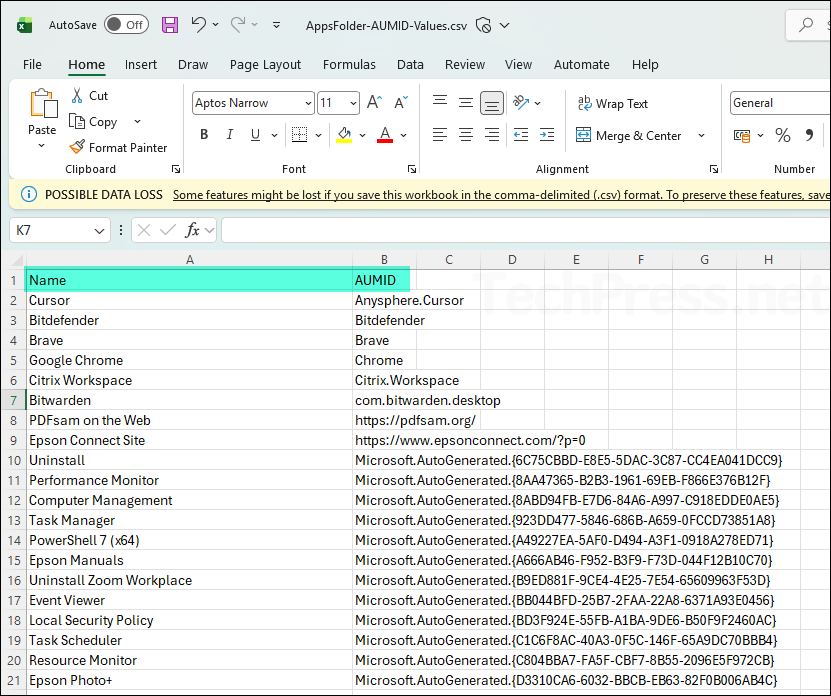
$Apps | Export-Csv -Path "C:\temp\AppsFolder-AUMID-Values.csv" -NoTypeInformation -Encoding UTF8
Name and AUMID information exported to CSV file.
Script 3: Get-AppxPackage.ps1
$installedapps = Get-AppxPackage
$result = foreach ($app in $installedapps) {
    foreach ($id in (Get-AppxPackageManifest $app).package.applications.application.id) {
        [PSCustomObject]@{
            Name              = $app.Name
            PackageFamilyName = $app.PackageFamilyName
            ApplicationID     = $id
            AUMID             = "$($app.PackageFamilyName)!$id"
        }
    }
}

$result | Export-Csv -Path "C:\temp\Appx-AUMID-Values_1.csv" -NoTypeInformation -Encoding UTF8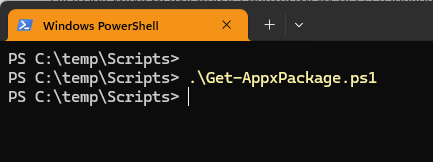
Name and AppID + PackageFamilyName information exported to CSV file.
Comparison between different options
The key distinction Microsoft makes is that Get-StartApps is tied to apps visible in Start, while registry lookup is limited to current-user Store apps, and Appx manifest parsing is broader for packaged apps.
| Method | Best For | Returns | Notes |
|---|---|---|---|
| File Explorer | Visual lookup | Current-user app AUMIDs | Simple GUI method |
| CMD Prompt | Quick registry query | Current-user Store apps | Limited scope |
PowerShell Get-StartApps | Fast admin lookup | Start-listed app AUMIDs | Easiest method |
| Start menu app lookup | Single app search | One or more matching AUMIDs | Filtered Get-StartApps |
| AppsFolder COM Object | Scripted discovery | App name + AUMID | Flexible |
| Registry query | Underlying stored values | Current-user Store app values | Same scope as CMD query |
Get-AppxPackage + manifest | Complete packaged app lookup | Package-based AUMIDs | Best fallback when app is missing from Start |
For taskbar pinning and Assigned Access, not every app uses AUMID. Microsoft also supports Desktop Application ID and Desktop Application Link Path in some taskbar and kiosk scenarios.
Which Method Should You Use?
For most cases, start with Get-StartApps because it is quick and directly returns the app name and AUMID for the signed-in user. If the app is missing there, use the Get-AppxPackage + manifest method because Get-StartApps only shows apps that are listed in Start. If you want a GUI method, use shell:AppsFolder. Use the registry query only when you specifically need current-user Store app information.
Troubleshooting Tips
If an app does not show up in Get-StartApps, that usually means it is not listed in Start for that user. In that case, use the AppxPackage manifest method or the Explorer Apps folder method instead. If you are checking another user’s apps, remember that Get-AppxPackage -User and -AllUsers require an elevated PowerShell window.
FAQs
What is an AUMID in Windows 11?
AUMID stands for Application User Model ID. Windows uses it to uniquely identify an installed application for launching, switching, telemetry, taskbar pinning, Start layout, and kiosk scenarios. For more information, refer to the Microsoft page: Find the Application User Model ID of an installed app | Microsoft Learn.
Why do I require the AUMID of an app?
You commonly require an AUMID when configuring Assigned Access (kiosk mode), Start layout, and taskbar pinned apps in Windows.
What is the easiest way to find the AUMID of an installed app?
The easiest method is to open the PowerShell console on a device and run Get-StartApps.
Get-StartAppsThis cmdlet returns the names and AppIDs/AppUserModelID of installed apps for the current user.
Why does Get-StartApps not show every installed app?
Get-StartApps only lists apps that appear in the Start menu for the current user. Apps not listed in Start won’t appear in the output.
Can I find the AUMID of a specific app only?
Yes. You can filter by app name:
Get-StartApps *Notepad*You can also use the AppsFolder COM object method or browse shell:AppsFolder in File Explorer to locate a specific app visually.
Why is the Registry or CMD method failing on my device?
The Registry/CMD method is limited. Using Registry is just one of the way to retrieve AUMIDs, but it is narrower than the PowerShell approaches and may not return results for every user profile or every app type. That is why Get-StartApps, shell:AppsFolder, or Get-AppxPackage are usually more reliable.
What is the best alternative if the registry method fails?
Use one of these methods instead. These are the more dependable methods for most Windows 11 scenarios.
Get-StartAppsshell:AppsFolderGet-AppxPackagewith app manifest parsing
Can desktop apps also have an AUMID?
Yes, some desktop apps do have an AUMID, especially newer packaged desktop apps. Some classic Windows apps such as Notepad and File Explorer are packaged differently than in older Windows versions, so you should make sure you use the correct application ID.
Do all desktop apps have an AUMID?
No. For some desktop apps, you may need to use a Desktop Application ID or Desktop Application Link Path instead of an AUMID, depending on the scenario. For a step-by-step guide on finding the desktop application ID, refer to this link: #desktop-application-id, and for the desktop application link path, refer to the link: #desktop-application-link-path.
Can I export all installed app AUMIDs to a CSV file?
Yes. One of the easiest ways is using the below command. This exports the apps returned by Get-StartApps for the current user. If the command fails, then change the export CSV patch to some other folder that exists on your device, like C:\temp.
Get-StartApps | Export-Csv -Path "$env:USERPROFILE\Desktop\InstalledApps-AUMID.csv" -NoTypeInformation -Encoding UTF8Can I get AUMIDs for all users on the device?
Yes, for packaged apps you can use Get-AppxPackage -User <username> or Get-AppxPackage -AllUsers, but you must run those options from an elevated PowerShell session.
Which method should I use for kiosk or Assigned Access?
For kiosk and Assigned Access, use the app’s correct AUMID when needed. In practice, Get-StartApps, shell:AppsFolder, and Get-AppxPackage are the best methods to identify the correct app value before adding it to your kiosk configuration.
Can I use File Explorer to find an app’s AUMID?
Yes. Open:
shell:AppsFolderThen add the AppUserModelId column in File Explorer. This is the first method discussed in this post.
Is the AppsFolder COM object method different from Get-StartApps?
Yes. Get-StartApps is a built-in PowerShell cmdlet, while the AppsFolder method uses the Shell.Application COM object to enumerate apps from the Windows AppsFolder namespace. Both can help you retrieve AUMIDs for Start-listed apps, but they are different techniques.
Can I use AUMID for taskbar pinning in Windows 11?
Yes, for supported apps and scenarios, use AUMID as one of the identifiers that can be used for taskbar pinning, along with Desktop Application ID and Desktop Application Link Path. For more information about taskbar pinning, refer to the guide here: Configure Taskbar Pins On Windows 11 With Intune.
Conclusion
If you just need a quick answer, run Get-StartApps first. If you need broader coverage for packaged apps, use Get-AppxPackage + Get-AppxPackageManifest. For admins who prefer a graphical method, shell:AppsFolder works well. And if you only need current-user Microsoft Store app entries, the registry query is another supported option.
