
This post is about showing you how to enable/disable Copilot in Notepad app. Microsoft Notepad now includes AI features powered by Copilot, such as Rewrite, Summarize, and Write. If you want to use those features, you can leave them enabled in Notepad. If you do not want AI assistance in Notepad, you can turn the features off in Notepad settings, and IT admins can also disable them centrally by using Group Policy, Intune, or Registry.
Contents
What does Copilot in Notepad include?
Copilot in the Notepad app includes Rewrite for rephrasing selected text, Summarize for shortening selected text, Write for generating new text from a prompt. For more information, refer to the link: Enhance Your Writing with AI in Notepad – Microsoft Support. Let’s now explore multiple ways to enable or disable Copilot in Notepad.
Method 1: Enable/Disable Copilot from Notepad Settings
For a personal PC, this is the simplest method. If you do not want to use AI features, including Rewrite and Summarize, you can turn them off in Notepad settings.
Steps
- Open Notepad.
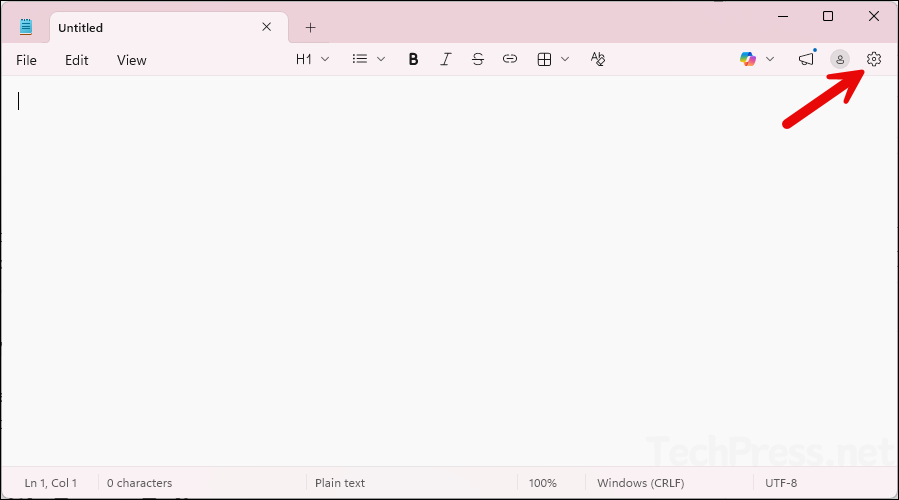
- Open Settings inside Notepad.
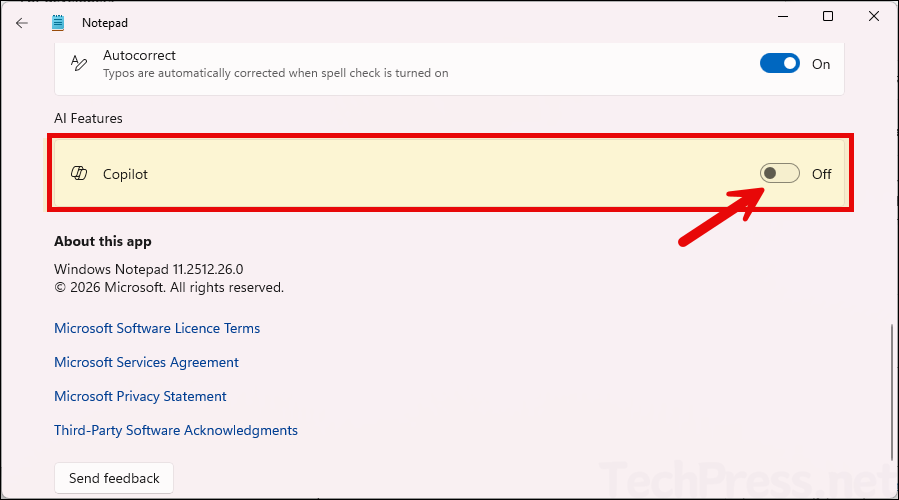
- Under AI Features, use the Copilot toggle to turn it off or on based on your requirement. The screenshot below shows the Copilot toggle switched off.
Method 2: Enable/Disable Copilot in Notepad using Group Policy
For organizations, there is a Notepad policy named DisableAIFeaturesInNotepad. If this policy is enabled, users cannot access AI features in Notepad. If the policy is disabled or not configured, users can access them. This policy is supported on Windows 11 version 22H2 or later with Notepad version 11.2503.16.0 or later.
Steps
- Download Notepad Administrative Template (ADMX) template files.
- Copy the ADMX and ADML files into your local PolicyDefinitions folder or Central Store.
- Open Group Policy Management Console or Local Group Policy Editor.
- Navigate to the below GPO path:
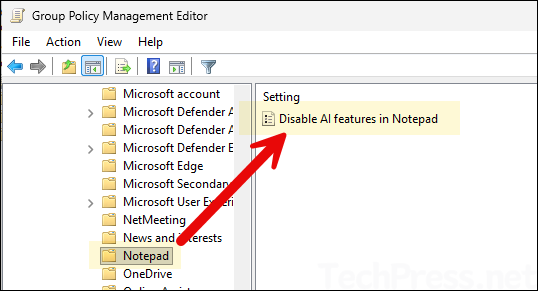
Computer Configuration > Policies > Administrative Templates > Windows Components > Notepad
- Configure the policy Disable AI features in Notepad.
Method 3: Enable/Disable Copilot in Notepad using Registry
You can also enable or disable Copilot features in Notepad using the Windows Registry Editor. Let’s take a look at the steps:
Steps
- Press Windows key + R to open the Run dialog box.
- Type regedit and press enter to open the Windows registry editor.
- Navigate to below registry key:
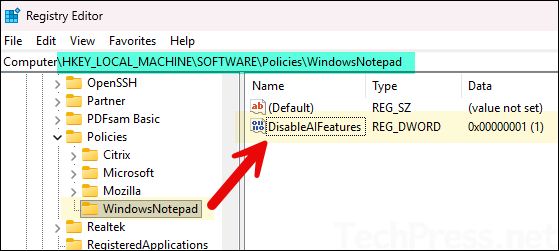
HKEY_LOCAL_MACHINE\SOFTWARE\Policies\WindowsNotepad- Create or modify a DWORD (32-bit) value named:
DisableAIFeatures- Setting DisableAIFeatures to 1 means that Copilot AI features are disabled in Notepad app.
- Setting DisableAIFeatures to 0 means that Copilot AI features are enabled in Notepad app.
The screenshot below shows that the DisableAIFeatures value is set to 1, which means Copilot features are disabled in the Notepad app.
Method 4: Manage Copilot in Notepad using Intune
You can manage Notepad AI features through Microsoft Intune by importing the Notepad ADMX files and creating a configuration profile based on the imported template. Notepad ADMX depends on Windows.admx, so that template must also be imported. If you do not import windows.admx files first, you will get this error: NamespaceMissing: Microsoft.Policies.Windows. Please upload it first ADMX Import Intune.
Requirements
- Windows 11 version 22H2 or later.
- Notepad version 11.2503.16.0 or later for the admin policy support.
Troubleshooting
I cannot find the Copilot setting in Notepad
Make sure you are using a current Notepad version. Microsoft’s commercial policy support starts with Notepad 11.2503.16.0 or later, and newer AI features like Write were introduced later than Rewrite and Summarize.
The setting is turned off but users still see AI options
If the device is managed, check whether Group Policy, Intune, or a registry policy is enforcing the setting.
Users want AI features back after policy-based disablement
Set the policy to Disabled or Not Configured, or change the registry value from 1 to 0.
Best practice
For personal PCs, use Notepad settings to turn AI features on or off. For business devices, use Group Policy, Intune, or Registry so the setting is applied consistently across all users on the device.
Conclusion
Enabling or disabling Copilot in Notepad is straightforward once you know which method applies to your device. On a personal Windows 11 PC, Microsoft says you can turn AI features off directly in Notepad settings. In an organization, admins can centrally control the same functionality through the DisableAIFeaturesInNotepad policy using Intune, Group Policy, or Registry.
