In this blog post, I will demonstrate 5 ways to check defender AV signature version. Microsoft Defender for Endpoint is an enterprise-level endpoint security solution that can prevent, detect, investigate, and respond to advanced threats. Defender Antivirus (AV) is one of the major components of this entire security platform.
Microsoft Defender Antivirus, or simply Defender Antivirus, is integrated into Windows and operates with Microsoft Defender for Endpoint. It can be centrally managed through the Intune Admin Center.
There are various methods to verify the Defender Antivirus signature version or security intelligence update build number. If you only have a few devices, you can manually check the Defender AV signature version through the Windows Security App.
However, if you are managing all your organization’s devices using Intune, you can also download a report from the Intune Admin Center that shows the Defender AV signature version information. Let’s check the steps.
The defender signature data files are stored in %ProgramData%\Microsoft\Windows Defender\Definition Updates\ path.
Contents
Method 1: Check Defender Signature Version from Intune Admin Center
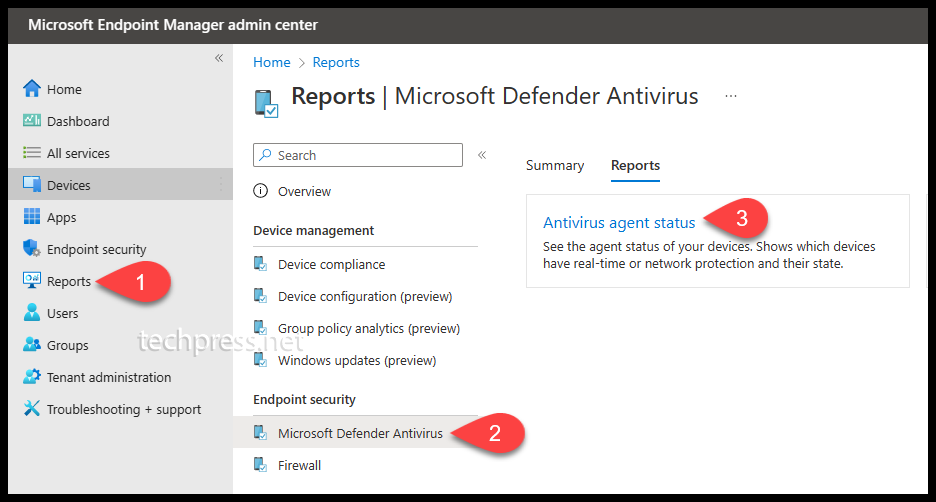
- Sign in to the Intune admin center > Reports > Microsoft Defender Antivirus.
- Click on the Reports tab and then click on Antivirus agent status.
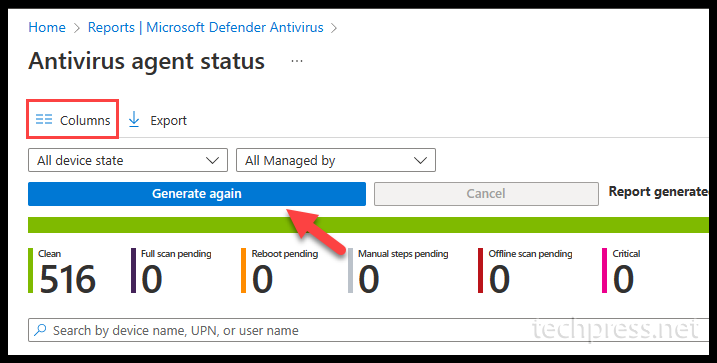
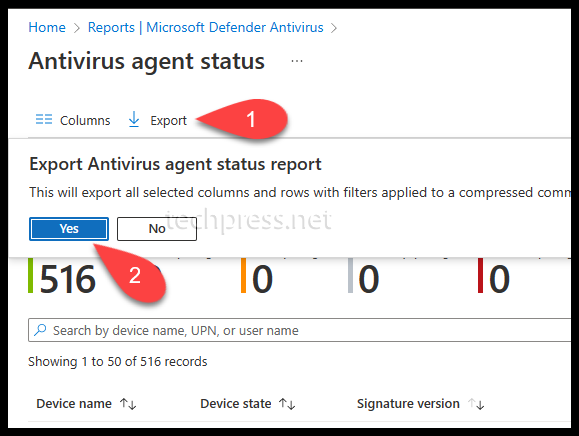
- Click on Generate report button to generate the report, which shows defender AV Signature version.
The report will contain all information that is displayed on the Intune admin center. You can filter the columns that are not required and simplify the report.
Click on Columns and uncheck the information you do not want to see on the console and also in the exported report. For example, I have selected only two columns from the list: Device state and Signature Version. After selecting the desired columns, click on the Generate again button to generate the report with only the selected columns.
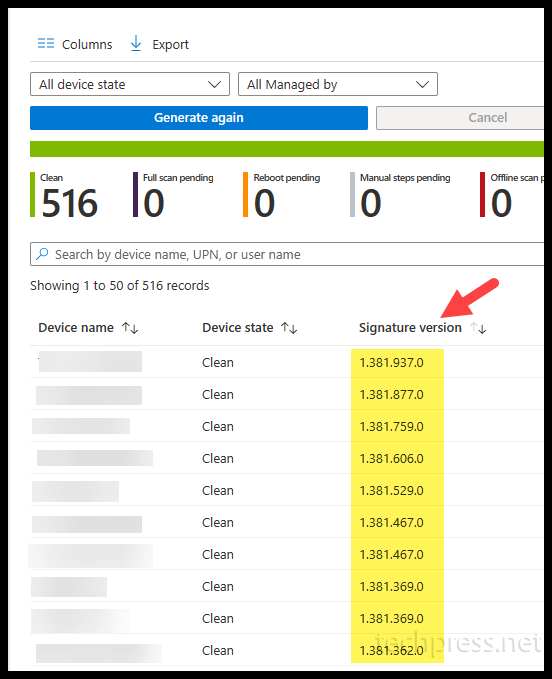
Export Defender Signature Version Information to a CSV file
- Sign in to the Intune admin center > Reports > Microsoft Defender Antivirus.
- Click on the Reports tab and then click on Antivirus agent status.
- Click on Columns and select the information you do not want to export. Click on Generate again button. Click on Export option to export the report in the CSV file.
Method 2: Manually Check Defender Antivirus Signature Version
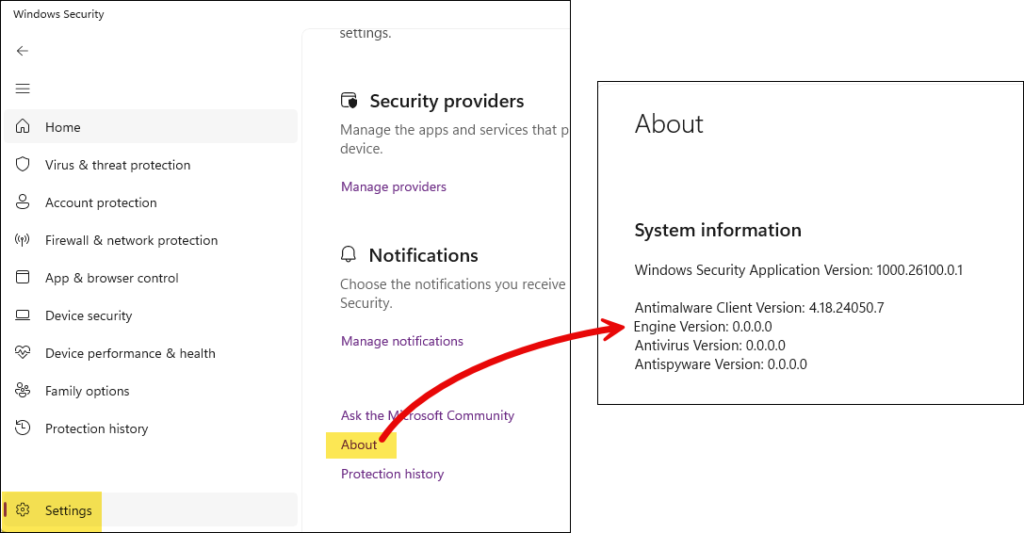
Another method to check defender antivirus signature version is manually by using the Settings app. Let’s go through the steps:
- Sign in to a Windows 11 device.
- Go to Start and search for Windows Security.
- Click on Settings in the bottom left corner of the window.
- Click on the About link to find the below information.
- Antimalware Client Version.
- Engine Version.
- Antivirus Version.
- Antispyware Version.
Method 3: Check Defender Antivirus Signature Version Using PowerShell
You can also use PowerShell to quickly check and find out the Defender Antivirus signature version on your Windows 11 computer. Let’s check the steps:
- Open the PowerShell console as administrator.
- Type the following command and press Enter.
Get-mpcomputerstatus | fl *signatureversion*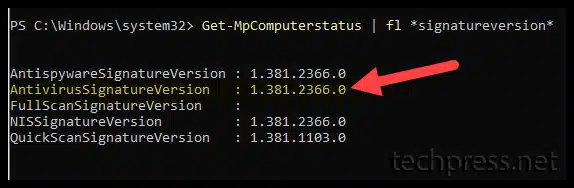
Method 4: Check Defender Antivirus Signature Version Using Command Prompt (CMD)
You can also use the command prompt to check the defender Antivirus signature version instead of using PowerShell. Below command will update the AV signature version and show you the antivirus signature version on the console.
"%ProgramFiles%\Windows Defender\MpCmdRun.exe" -SignatureUpdate -MMPC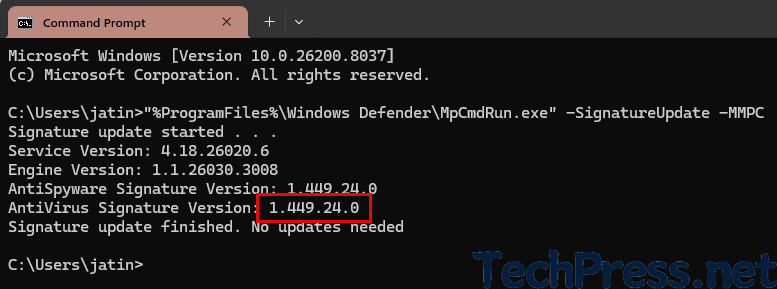
Method 5: Check Defender Antivirus Signature Version Using Registry
Follow below steps to check and confirm the defender antivirus signature version using Windows registry:
- Press the Windows + R keys to open the Run dialog box.
- Type regedit and press Enter to open the Registry editor
- Navigate to HKEY_LOCAL_MACHINE\SOFTWARE\Microsoft\Windows Defender\Signature Updates and on the right-hand side, find
AVSignatureVersionwhich shows the current antivirus signature version. ASSignatureVersion value shows the anti-spyware signature version information.
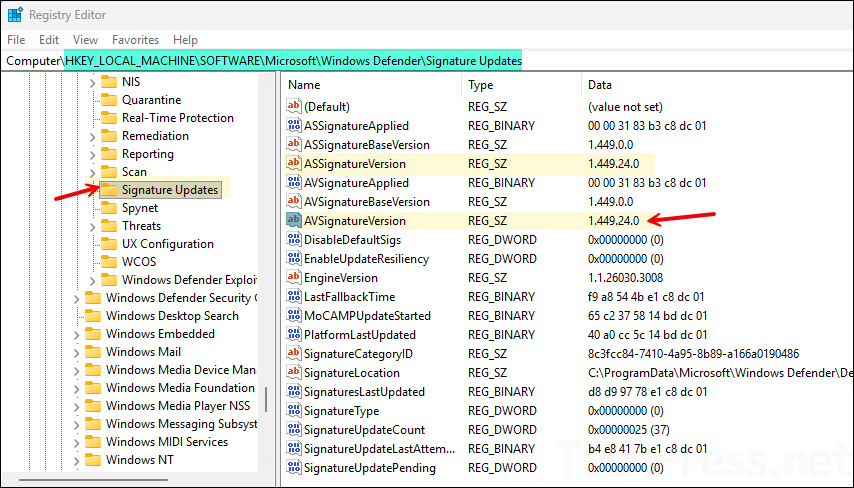
You can fetch the value of AVSignatureVersion directly using below PowerShell command
(Get-ItemProperty -Path "HKLM:\SOFTWARE\Microsoft\Windows Defender\Signature Updates").AVSignatureVersion
Updating Microsoft Defender Security Intelligence Version
Microsoft Defender security intelligence version is the version number of Defender’s malware detection data, previously called the definition version. It identifies which threat signatures, heuristics, and related detection intelligence your device currently has installed.
You can update it by following below steps:
- Go to the Settings app > Privacy & Security > Windows Security.
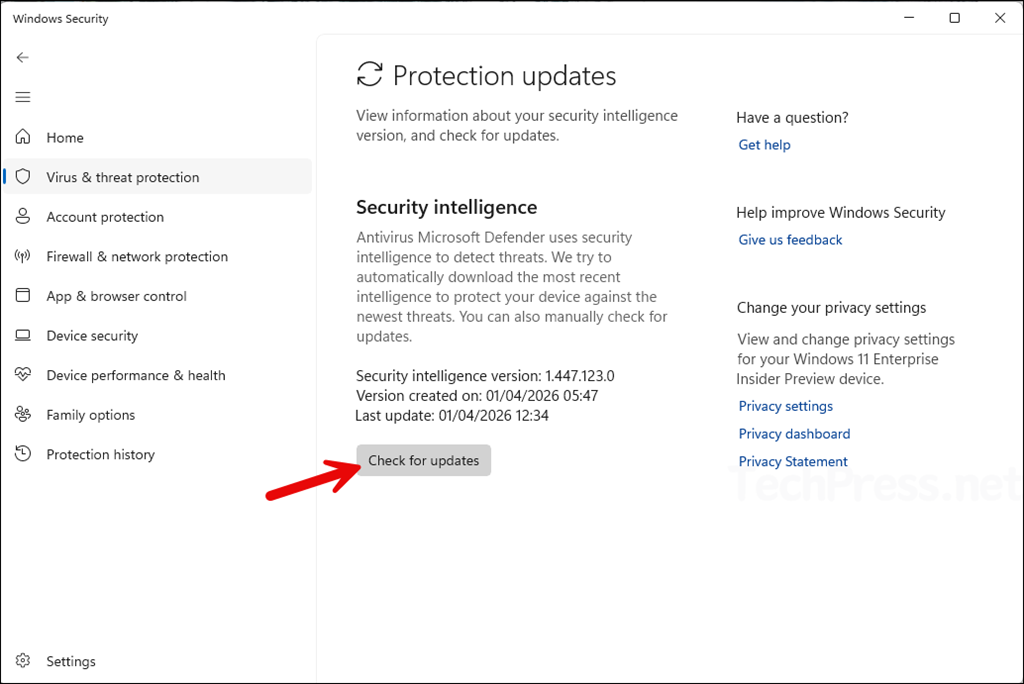
- Navigate to Virus & threat protection > Under Virus & threat protection updates, click on Protection updates and then click Check for updates.