
Microsoft has released Windows 11 KB5083769 as part of the April 2026 Patch Tuesday rollout. This cumulative security update is available for Windows 11 version 24H2 and version 25H2, and it upgrades devices to OS Build 26100.8246 and OS Build 26200.8246 respectively. For more information about the KB5083769 patch, refer to the Microsoft Learn article April 14, 2026—KB5083769 (OS Builds 26200.8246 and 26100.8246) – Microsoft Support.
If you manage Windows 11 devices in Intune, ConfigMgr, WSUS, or Windows Update for Business, this is one of the key updates to validate and deploy this month. In addition to security fixes, KB5083769 also includes improvements for Secure Boot, SMB compression over QUIC, Remote Desktop .rdp file protections, and a fix for a Reset this PC known issue seen after a March 2026 hotpatch update.
This security update contains fixes and quality improvements from KB5079473 (released March 10, 2026), KB5085516 (released March 21, 2026), KB5079391 (released March 26, 2026, no longer offered), and KB5086672 (released March 31, 2026).
Contents
What is new in KB5083769
The April 2026 Patch Tuesday KB5083769 rolls in the below fixes and quality improvements. The most important changes in KB5083769 include:
- Secure Boot improvements: Microsoft has added Secure Boot certificate update status visibility in the Windows Security app (Settings > Privacy & security > Windows Security). Some devices may now show status alerts, badges, or notifications related to Secure Boot certificate updates. These enhancements are disabled by default on commercial devices. The update also includes additional targeting logic so eligible devices can receive newer Secure Boot certificates through a phased rollout.
- BitLocker recovery issue related to Secure Boot updates addressed: This update resolves an issue where some devices could enter BitLocker Recovery after Secure Boot updates.
- SMB compression over QUIC reliability improvements: KB5083769 improves reliability when Windows uses SMB compression over QUIC. Requests should now complete more consistently, reducing timeouts and improving overall stability for this networking scenario.
- Better protection against malicious Remote Desktop files: Microsoft has strengthened protections against phishing attacks that use Remote Desktop (.rdp) files. After installing this update, Remote Desktop shows the requested connection settings before connecting, with each setting turned off by default, and also displays a one-time warning the first time you open an .rdp file on a device.
- Reset this PC failure fixed: Microsoft also fixed a known issue that could cause Reset this PC to fail when using Keep my files or Remove everything. This issue could happen after the March 2026 KB5079420 Hotpatch security update.
Servicing stack update included
This release also includes the latest Servicing Stack Update (SSU) KB5088467, which brings the servicing stack to 26100.8247. Microsoft combines the latest SSU with the latest cumulative update so devices can install Windows updates more reliably.
Installing KB5083769 on Windows 11 24H2 and 25H2
There are various ways to install the KB5083769 update on your Windows 11 version 24H2 and version 25H2 systems.
| Installation | Steps to Install KB5083769 |
|---|---|
| Windows Update | KB5083769 is offered through Windows Update. Open Settings > Windows Update and click Check for updates to download and install the patch. |
| Microsoft Update Catalog | Visit the Microsoft Update Catalog (direct link). Click the Download button next to the update that matches your system architecture. |
| Microsoft Intune | If your devices are managed with Microsoft Intune, create an Expedited Update policy to deploy KB5083769 quickly to managed devices. |
| WSUS / SCCM | If you manage devices with WSUS or SCCM, sync the latest software updates in the respective console so KB5083769 appears, then approve or deploy it to target devices. |
Let’s go through all of these options in more detail.
Option 1: Install KB5083769 from Windows Update
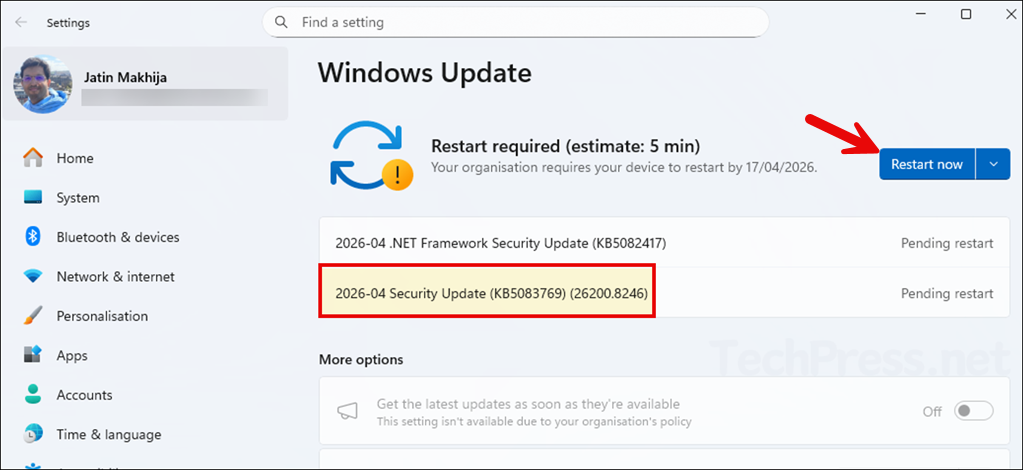
For most users, the easiest method is Windows Update. Devices running Windows 11 24H2 or 25H2 can receive KB5083769 through Windows Update. If you do not see the update offered on your device, enable the toggle Get the latest updates as soon as they’re available and click on the Check for updates button.
Option 2: Download KB5083769 and Install it Manually
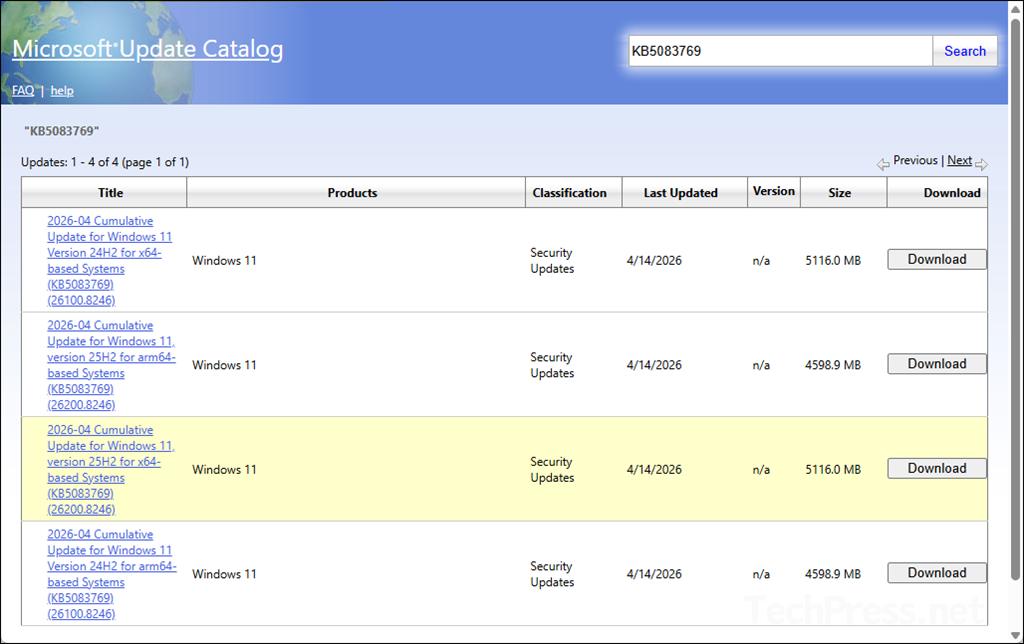
If the update is not offered on your device via Windows Update and you are still experiencing the issue, you can download the update from the Microsoft Update Catalog and install it manually.
Steps
- Visit the Microsoft Update Catalog (direct link).
- Click the Download button next to the update that matches your system architecture.
Option 3: Install KB5083769 Update using Intune
If you are managing Windows 11 devices via Intune, the best way to install the KB5083769 patch is by creating an expedite policy. Select this patch and assign the policy to devices running Windows 11 24H2 and 25H2.
For a step-by-step guide on how to create this policy in Intune, refer to the post Expedite Windows Quality Updates using Intune. There is no requirement to create separate policies for 24H2 and 25H2 devices, as the patch will be applied automatically based on the target OS version.
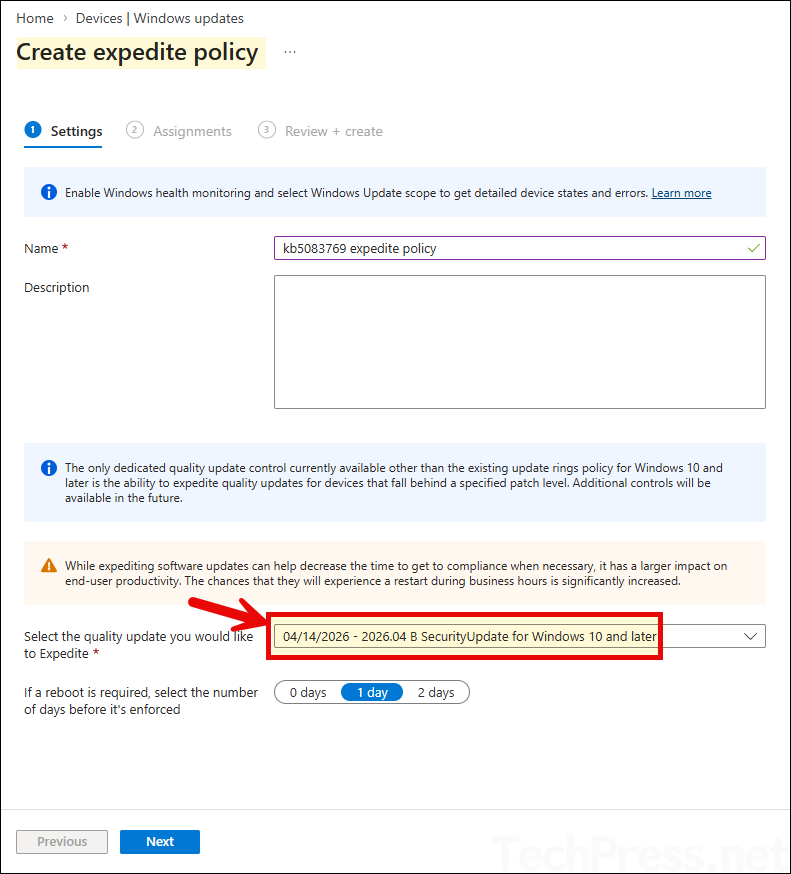
- Sign in to the Intune admin center > Devices > Windows updates > Under the Quality updates tab, click + Create and then select Expedite policy.
- On the Settings tab, configure the following settings and click Next.
- Name: Use a clear naming convention.
- Description: Include the CVE reference or business reason.
- Select the quality update you would like to Expedite: Use the drop-down to select the quality update you want to expedite. In this case, you will select: 04/14/2026 – 2026.04 SecurityUpdate for Windows 10 and later.
- If a reboot is required, select the number of days before it’s enforced: You can choose the number of days before a device is automatically restarted. If you select 0, the device restarts immediately after the expedited updates are installed. However, if users are actively working on the device, an immediate restart can be disruptive. Although users are notified, they have limited time to save their work.
Option 4: Install KB5083769 Update using WSUS/SCCM
You can also use WSUS or Configuration Manager to deploy the KB5083769 patch on Windows 11 24H2 and 25H2 devices.
Deploy KB5083769 via WSUS
- Search KB5083769 in the Microsoft Update Catalog and copy its UpdateID.
- Use Microsoft’s PowerShell WSUS import script to import the update into WSUS.
- Approve the update for a pilot WSUS computer group.
- Let clients scan, download, and install the update.
- After validation, approve for production.
Important: Do not import the raw .msu directly into WSUS. Use the Catalog UpdateID import method instead.
Deploy KB5083769 via SCCM / ConfigMgr
- First, import the update into WSUS if it is not already synced.
- In ConfigMgr, run Software Updates Synchronization.
- Find KB5083769 under All Software Updates.
- Add it to a Software Update Group.
- Download and distribute the content to distribution points.
- Deploy to a pilot collection, then expand to production after testing.
Verify if KB5083769 is installed
Use any of the below options to verify if KB5083769 is installed on your device:
- Settings > Windows Update > Update history.
- Press the Windows key + R and type winver.
- Control Panel > Programs and Features > View installed updates
What to do if KB5083769 still does not install?
If KB5083769 itself does not install, start with Microsoft’s standard Windows Update troubleshooting steps. Run Windows Update troubleshooter from Settings > System > Troubleshoot > Other troubleshooters, then retry the update.
Disconnect unnecessary external devices and temporarily remove non-Microsoft antivirus software if update installation continues to fail. If Windows Update still does not offer the update, install it manually from the Microsoft Update Catalog instead (one of the above options in this post).
Uninstalling KB5083769
You can also uninstall an update if it is causing issues. Simply go to Settings > Windows Update > Update history > Uninstall updates, and select the update you want to remove. For more detailed steps, refer to: Uninstall Windows Updates using PowerShell.
Known Issue in KB5083769
At the time of release, Microsoft has documented one known issue. Some devices with an unrecommended BitLocker Group Policy configuration may be prompted for their BitLocker recovery key on the first restart after installing this update. This issue affects only a limited set of managed systems where all the following are true:
- BitLocker is enabled on the OS drive
- The policy Configure TPM platform validation profile for native UEFI firmware configurations is configured.
- PCR7 is included in that validation profile.
- msinfo32.exe reports Secure Boot State PCR7 Binding as Not Possible.
- The Windows UEFI CA 2023 certificate is present.
- The device is not already using the 2023-signed Windows Boot Manager.
Microsoft recommends removing that Group Policy setting before installation where applicable. For organizations that cannot do that before deployment, a Known Issue Rollback (KIR) is available through Microsoft Support for Business. Microsoft also planned a permanent resolution in a future Windows update.
Conclusion
Windows 11 KB5083769 is the April 14, 2026 Patch Tuesday security update for Windows 11 24H2 and 25H2. It is not just a routine cumulative update. It includes important security content, Secure Boot-related improvements, networking reliability fixes, stronger Remote Desktop protections, and a fix for the Reset this PC issue. Administrators should also review the documented BitLocker known issue before broad deployment, especially in managed enterprise environments that use custom BitLocker policy settings.
