In this post, I will show you how to check Windows 11 version and edition information. If you are using a Windows 11 PC, there are times when you need to know the exact version and edition installed on the device. This is especially important when you are troubleshooting update issues, checking feature availability, verifying support eligibility, or confirming whether a machine is running Windows 11 Home, Pro, Enterprise, or Education.
The good news is that Windows 11 provides several easy ways to check this information, including the Settings app, the winver command, System Information, and command-line tools. Let’s explore.
Contents
Difference Between Version, Edition, and OS Build
Before we look at the methods, it helps to understand the terminology. In Windows 11, edition refers to the product type, such as Windows 11 Home, Pro, Enterprise, or Education. Version refers to the feature update release, such as 24H2 or 25H2. OS build is the more specific build number installed on the device. If you want to learn more information about Windows updates versions/build information, refer to my post: Windows 11 Updates, Versions/Build Number & Release Dates.
Option 1: Check Windows 11 Version and Edition from Settings
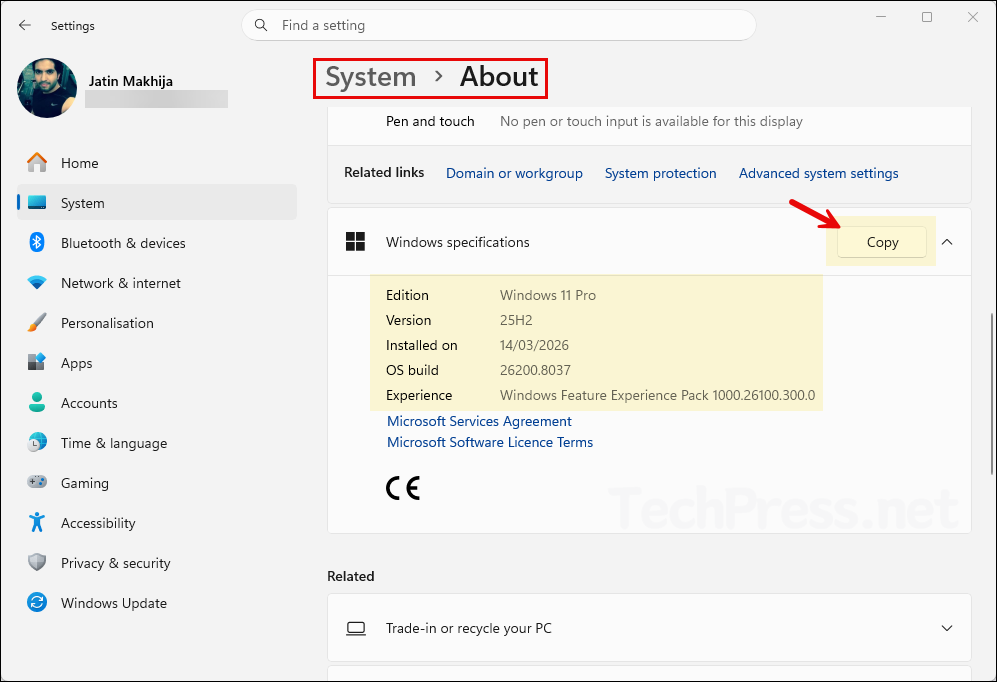
This is the easiest and most reliable method for most users. Open Start > Settings > System > About. Under Windows specifications, you will find Edition, Version, Installed on, OS build, and Experience. Click on the Copy button to copy this information to the clipboard.
Option 2: Check Windows 11 Version and Edition via WinVer
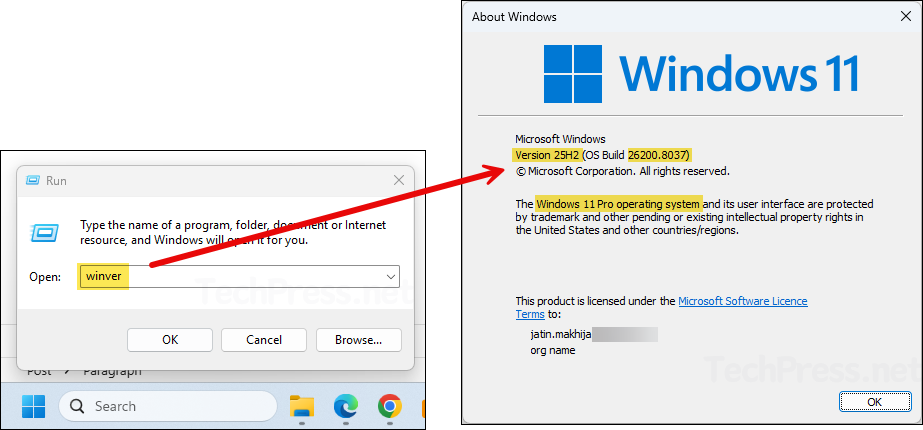
The winver command is one of the quickest ways to see your Windows 11 version information. When you run it, Windows opens the About Windows dialog box, which shows the Windows version and OS build. Winver is the quickest method for checking which version of Windows is installed.
Steps
- Press Windows + R to open the Run dialog.
- Type winver and press Enter.
- The About Windows window will appear and display your Windows version and build information.
Option 3: Use System Information (msinfo32)
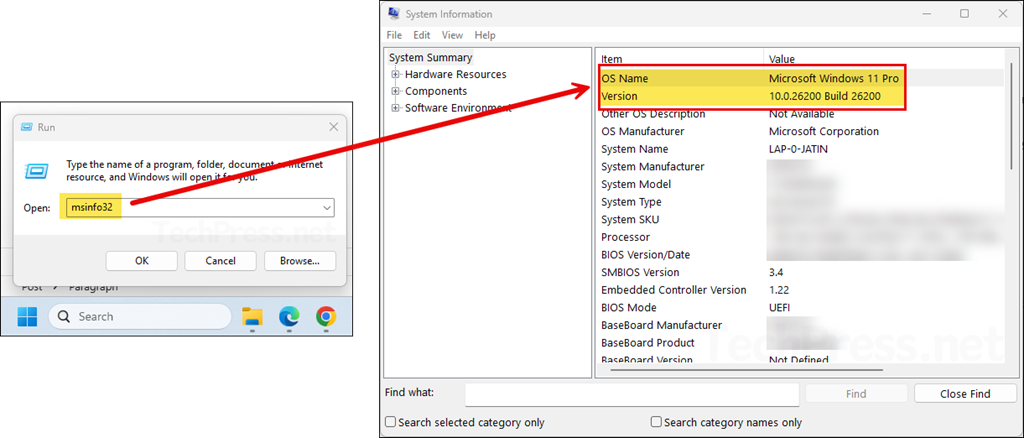
Windows 11 also includes the System Information tool, which gives you a broader overview of the operating system and hardware. The msinfo32 command opens this too that displays a comprehensive view of the hardware, system components, and software environment on the local computer.
Steps
- Press Windows + R.
- Type msinfo32 and press Enter.
- In System Summary, look for operating system details such as the OS name and version.
Option 4: Check Windows 11 Version and Edition using Command Prompt
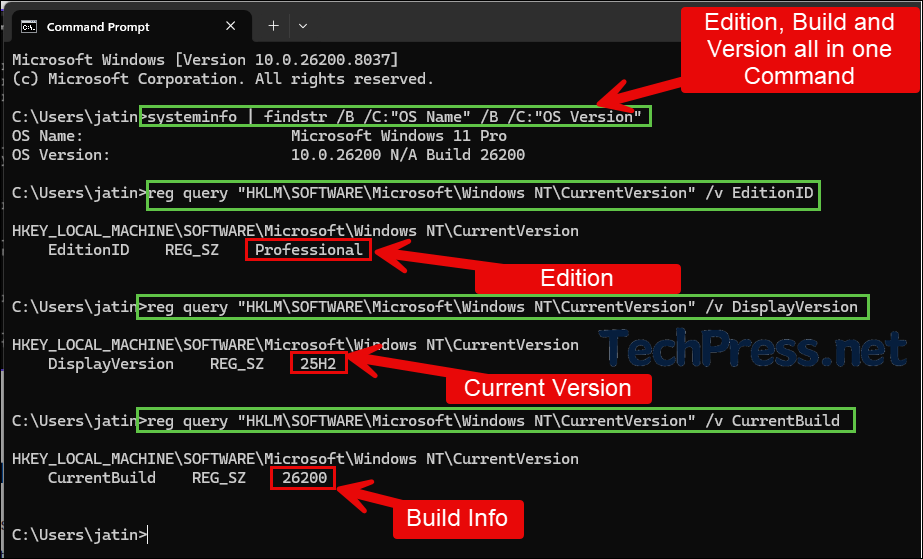
You can also use Command Prompt to retrieve Windows version details. The first command, systeminfo, displays the Windows edition, build, and version information. The remaining commands query the Windows registry to retrieve these values individually. Use the command that best suits your requirements.
Get Windows Edition, Build, and Version (All in One Command)
systeminfo | findstr /B /C:"OS Name" /B /C:"OS Version"Get Windows Edition Information
reg query "HKLM\SOFTWARE\Microsoft\Windows NT\CurrentVersion" /v EditionIDGet Current Installed Version Information
reg query "HKLM\SOFTWARE\Microsoft\Windows NT\CurrentVersion" /v DisplayVersionGet Current Install Build Number
reg query "HKLM\SOFTWARE\Microsoft\Windows NT\CurrentVersion" /v CurrentBuild