
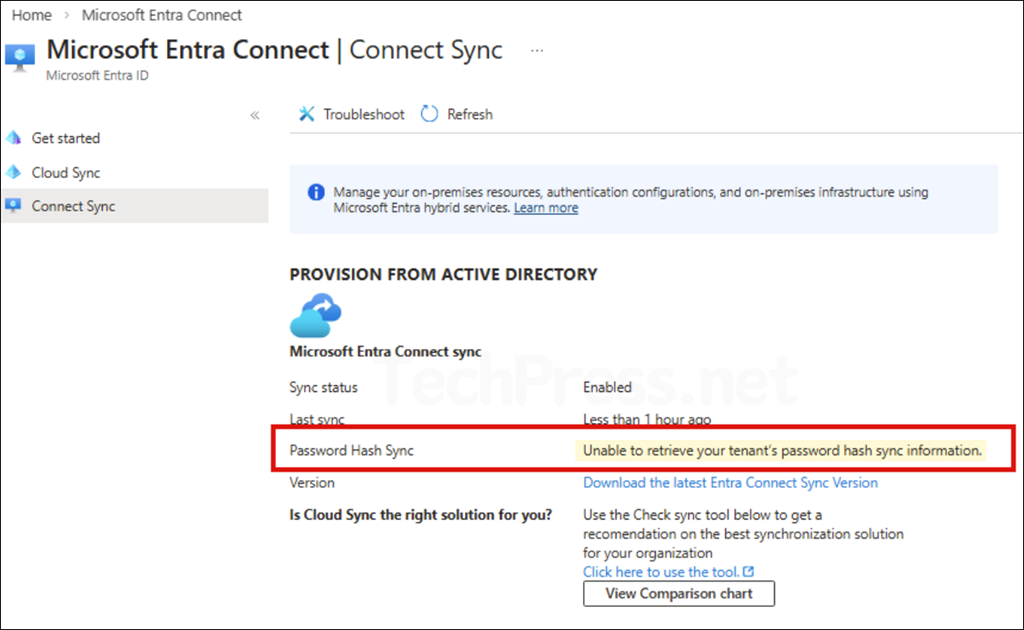
If you open Microsoft Entra Connect or the Entra admin center and see the message “Unable to retrieve your tenant’s password hash sync information”, it can look like Password Hash Synchronization (PHS) has failed. In many cases, however, the issue is not an actual sync outage. It is usually caused by missing permissions to view the status, missing Microsoft Entra Connect Health access, or a Connect Health sync agent that is not properly registered or reporting.
What this error usually means
This message commonly appears when the signed-in account does not have enough rights to read Password Hash Sync status in the portal. Global Administrator or Hybrid Identity Administrator are the primary roles for Microsoft Entra Connect configuration and health-related operations. Microsoft Entra Connect Health also supports its Azure RBAC roles, such as Reader, Contributor, and Owner, which can be used to grant visibility into the health portal without giving broad tenant-wide admin rights.
Contents
Before you start
Make sure these prerequisites are in place before troubleshooting further:
- The latest version of Microsoft Entra Connect installs the sync health agent automatically. You can verify this by checking for the services Microsoft Entra Connect Agent Updater and Microsoft Entra Connect Health Agent on the sync server.
- Microsoft Entra Connect Health requires Microsoft Entra ID P1 or P2. If the tenant does not have P1/P2, Connect Health configuration and monitoring for sync cannot be completed in the Entra admin center.
- Use a current version of Microsoft Entra Connect. Microsoft now states that all synchronization services will stop working on September 30, 2026, if the server is not on at least version 2.5.79.0.
1. Confirm whether it is a permissions issue
The first thing to check is the account you are using to view the Password Hash Sync status. If the account is not a Global Administrator or Hybrid Identity Administrator, the portal may not be able to retrieve the PHS details. In that scenario, the error can be a visibility issue rather than a synchronization failure.
Option 1: Assign Hybrid Identity Administrator or Global Administrator Role
- Sign in to entra.microsoft.com with a role that can assign Entra roles, such as Privileged Role Administrator.
- Go to Entra ID > Roles & admins. Select Hybrid Identity Administrator or Global Administrator.
- Click Add assignments. Select the required admin account. Click Add.
Option 2: Grant Microsoft Entra Connect Health Reader access
If you do not want to assign a broad admin role just to let someone view the sync health details, Microsoft Entra Connect Health supports scoped RBAC roles:
- Reader can view all information
- Contributor can view information and change settings
- Owner can manage access, view information, and change settings
To grant read-only access:
- Open Microsoft Entra Connect Health > Under Configure, select Users.
- Click Add. Choose Reader. Select the target user or group.
- Click OK.
If it was a permission issue, then using either option 1 or option 2 should resolve this issue. Go back to the Entra ID and check the Password Hash Sync status now. If it does not show Unable to retrieve your tenants password hash sync information error and shows the status of Password Hash Sync (PHS), then the issue is resolved.
2. Check Connect Health Agent
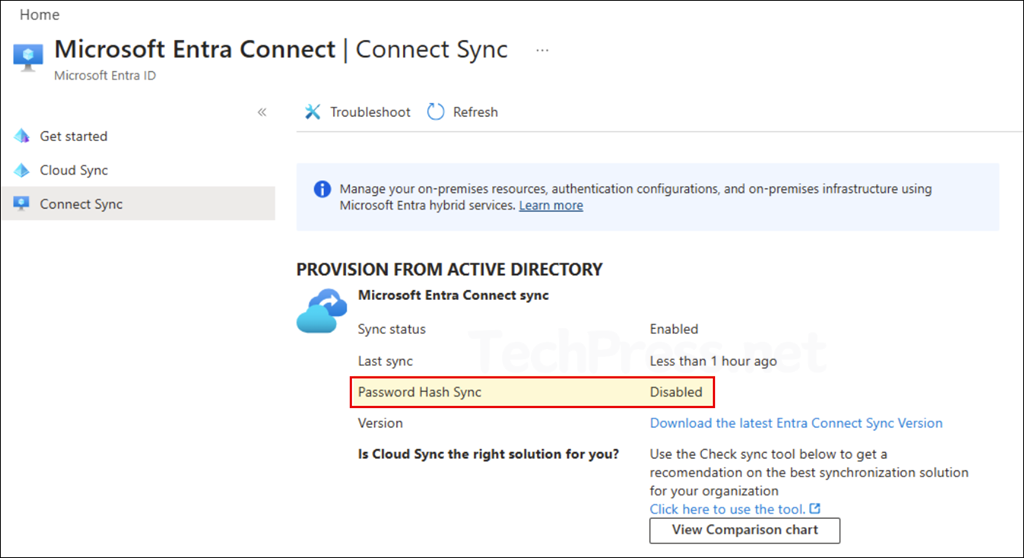
Sync Health agent is installed automatically with the latest Microsoft Entra Connect builds. However, if Microsoft Entra Connect for sync was installed using a Hybrid Identity Administrator account instead of a Global Administrator, the sync health agent can be installed in a disabled state. That means you might have working directory sync, but the portal still cannot retrieve password hash sync health information. On the Microsoft Entra Connect server, open Services.msc and verify these services exist and are running:
- Microsoft Entra Connect Health Agent
- Microsoft Entra Connect Agent Updater
If these services are missing, stopped, or never fully registered, the portal can fail to display PHS information.
Manually register the Microsoft Entra Connect Health sync agent
If the health agent registration failed, Microsoft provides a supported PowerShell command to register it manually. Run the following on the Microsoft Entra Connect server in an elevated PowerShell session:
Register-MicrosoftEntraConnectHealthAgent -AttributeFiltering $true -StagingMode (Get-ADSyncScheduler).StagingModeEnabledWhen prompted, sign in with the same Global Administrator or Hybrid Identity Administrator account used to configure Microsoft Entra Connect.
3. Run built-in Password Hash Sync troubleshooting task
If the issue is not just access-related, use the built-in troubleshooting workflow on the Microsoft Entra Connect server. The wizard can validate several PHS prerequisites, including:
- Password Hash Synchronization is enabled for the tenant.
- Microsoft Entra Connect server is in staging mode.
- Password hash synchronization heartbeat events are present.
- Each domain is reachable.
- AD DS connector account has the correct credentials and permissions for PHS.
Steps to run the troubleshooting task
- Open a new Windows PowerShell session on the Microsoft Entra Connect server as administrator.
- Run Set-ExecutionPolicy RemoteSigned or Set-ExecutionPolicy Unrestricted.
- Launch the Microsoft Entra Connect wizard. Go to Additional Tasks. Select Troubleshoot. Follow the prompts for password hash synchronization checks.
This is one of the best supported ways to determine whether PHS is genuinely failing or whether the portal just cannot read the status correctly.
4. Validate AD DS connector permissions for Password Hash Sync
If the troubleshooting task points to connector account permission problems, Microsoft provides a built-in cmdlet to set the required permissions for Password Hash Synchronization.
You can first identify the current AD DS connector account:
Get-ADSyncADConnectorAccountThen import the configuration module and apply the required password hash sync permissions:
Import-Module "C:\Program Files\Microsoft Azure Active Directory Connect\AdSyncConfig\AdSyncConfig.psm1"

Set-ADSyncPasswordHashSyncPermissions -ADConnectorAccountName <ADAccountName> -ADConnectorAccountDomain <ADDomainName>
Or, if you prefer Distinguished Name:
Set-ADSyncPasswordHashSyncPermissions -ADConnectorAccountDN <ADAccountDN>This cmdlet applies the required Replicating Directory Changes and Replicating Directory Changes All permissions at the domain root for Password Hash Synchronization.
5. Check whether sync itself is healthy
Even if the portal shows the error, verify whether directory sync is actually healthy. Microsoft 365 provides a separate place to check sync status:
- Sign in to the Microsoft 365 admin center.
- Open DirSync Status from the home page, or go to Users > Active users > Directory synchronization.
- Review the latest directory synchronization status and any sync-related warnings or errors.
If directory sync is healthy there, and users can sign in with recently changed passwords, the issue is more likely related to permissions or Connect Health telemetry than to a broken PHS engine.
Best practices
A few best practices can help prevent this issue from coming back:
- Keep Microsoft Entra Connect updated and do not wait until the mandatory 2026 service deadline.
- Use Microsoft Entra Connect Health properly with the required P1/P2 licensing.
- Grant Reader access in Connect Health for operations teams that only need visibility, instead of handing out broader administrative roles.
- Treat the Entra Connect server as a highly privileged identity system and secure it accordingly. Microsoft explicitly recommends treating it as a critical control plane component.
Conclusion
The error “Unable to retrieve your tenant’s password hash sync information” does not always mean Password Hash Synchronization is broken. In many cases, it points to one of three things: insufficient permissions, missing Connect Health access, or an unregistered or unhealthy sync Health agent. Start with access and health visibility first, then move into deeper PHS troubleshooting only if the built-in wizard or sync status confirms a real synchronization problem.
