
In this post, I will show you 4 ways to set default zoom level in Microsoft Edge browser. A “one size fits all” zoom level rarely works in the real world. On high-DPI laptops, ultra-wide monitors, or when users switch between office and home screens, the default 100% page zoom can make websites feel either cramped or oversized. The good news is that Microsoft Edge lets you set a default page zoom for all websites and also maintain per-site zoom overrides where needed. For enterprise admins, it is equally important to understand what can and cannot be enforced centrally.
This post covers multiple practical ways to set and manage default zoom in Microsoft Edge, including user settings, per-site zoom control, shortcuts, and what options exist (and don’t exist) for organizations. For more information, refer to the link: Accessibility features in Microsoft Edge – Microsoft Support.
Contents
Option 1: Set Default Zoom Level for All Websites
This is the simplest and most reliable approach. Edge stores this preference and uses it automatically in future browsing sessions.
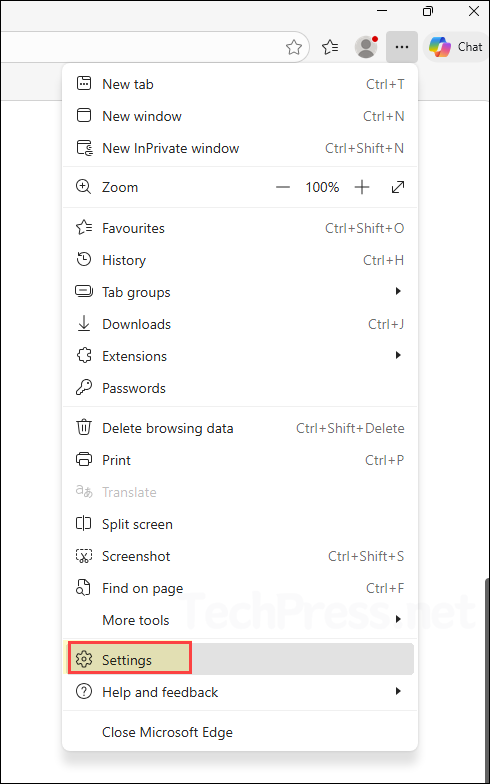
- Open Microsoft Edge browser > Settings.
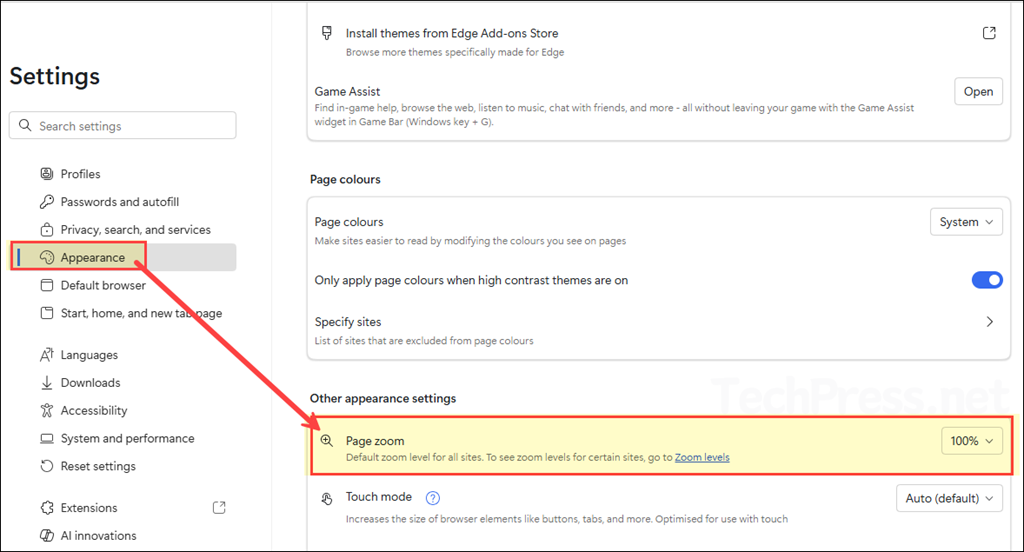
- Choose your preferred default (for example, 110%, 125%, 150%). You can jump directly to the setting by entering this in the address bar:
edge://settings/appearance.
Option 2: Set Default Zoom Level for Specific Websites
Every so often you want a global default (like 110%) but still need certain legacy or line-of-business sites at 125% or 90%. In that case, you can set the default zoom level for specific sites by following the steps below:
- Open the website.
- Use
Ctrl +to zoom in orCtrl -to zoom out. - Edge remembers that zoom level for that site and applies it next time (unless cleared).
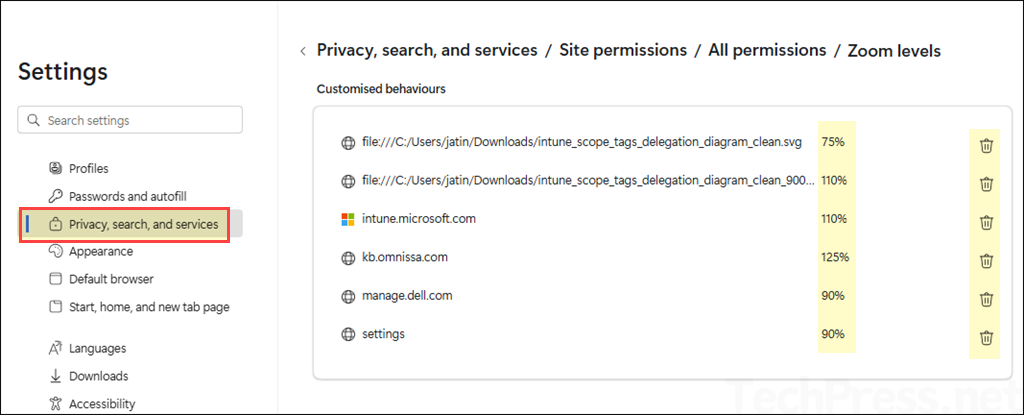
You can check the default zoom levels that Microsoft Edge has saved for specific sites by going to Microsoft Edge > Settings > Privacy, search, and services > Site permissions > All permissions > Zoom levels. The screenshot below shows different zoom levels configured for individual sites. If you want to clear the saved zoom level for a particular site, click the Delete icon next to that site. The next time you open it, the site will use the default zoom level configured in Edge, which applies to all websites.
Option 3: Keyboard Shortcuts for Edge Zoom Level
To adjust the zoom level in Microsoft Edge, you can also use keyboard shortcuts. After opening the Edge browser, try the shortcuts below. These are useful when a user needs to quickly adjust the zoom for a page without modifying long-term default settings.
| Action | Windows / Linux Shortcut | macOS Shortcut |
|---|---|---|
| Zoom in | Ctrl + + | ⌘ + + |
| Zoom out | Ctrl + – | ⌘ + – |
| Reset zoom to 100% | Ctrl + 0 | ⌘ + 0 |
| Zoom in/out using mouse wheel / trackpad scroll | Ctrl + Mouse wheel | ⌘ + Scroll (trackpad/mouse) |
| Open Edge menu to adjust Zoom (UI control) | Alt + F (then use Zoom controls) | Ctrl + F2 (focus menu bar, then use Zoom controls) |
Option 4: Group Policy and Intune Control
As of now, there is no Group Policy or Intune policy available to centrally manage the zoom level in Microsoft Edge. Zoom level is a user profile preference that can be configured by the end user based on their requirements. You can use any of the methods described above to control the zoom level for all websites or for specific sites.
