
In this post, I will show you how to enable God mode in Windows 11. God Mode in Windows 11 is a popular nickname for a special Explorer folder that gives you one place to access many Control Panel settings and administrative tasks. It is not a separate app that you install. Instead, you create a folder with a specific name, and Windows converts it into an all-tasks shortcut-like view. Windows exposes many Control Panel items and tasks through the shell.
Besides showing you how to enable God Mode in Windows 11, I will also show you how to remove it if you no longer want it and what to do if the folder name disappears or looks blank after creation.
Contents
What is God Mode in Windows 11?
God Mode is essentially a convenient all-settings folder that surfaces many Control Panel items and tasks in one place. Control Panel items are used to configure system-level features and related tasks.
Enabling God Mode in Windows 11
It’s quite straightforward to enable God mode in Windows 11. Let’s take a look at the steps:
- Go to your Desktop.
- Right-click an empty area and select New > Folder.
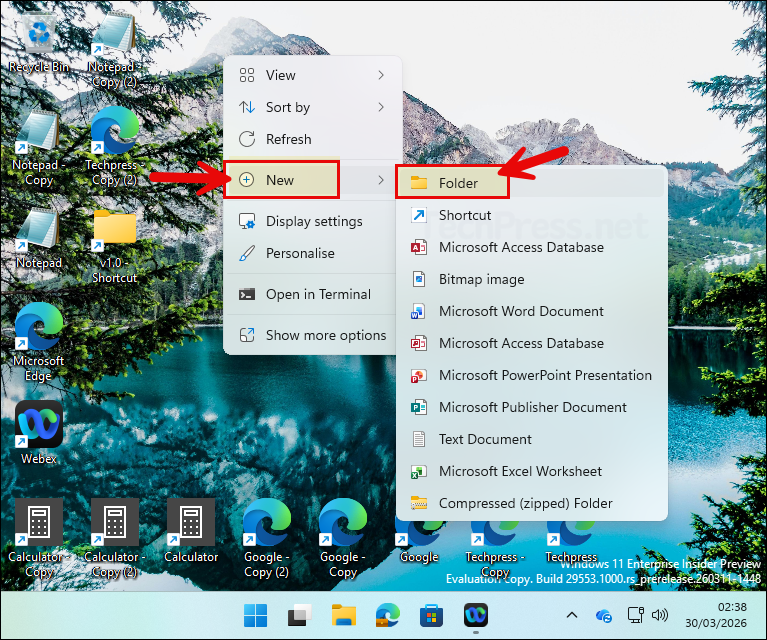
- Rename the folder to below name and press Enter.
GodMode.{ED7BA470-8E54-465E-825C-99712043E01C}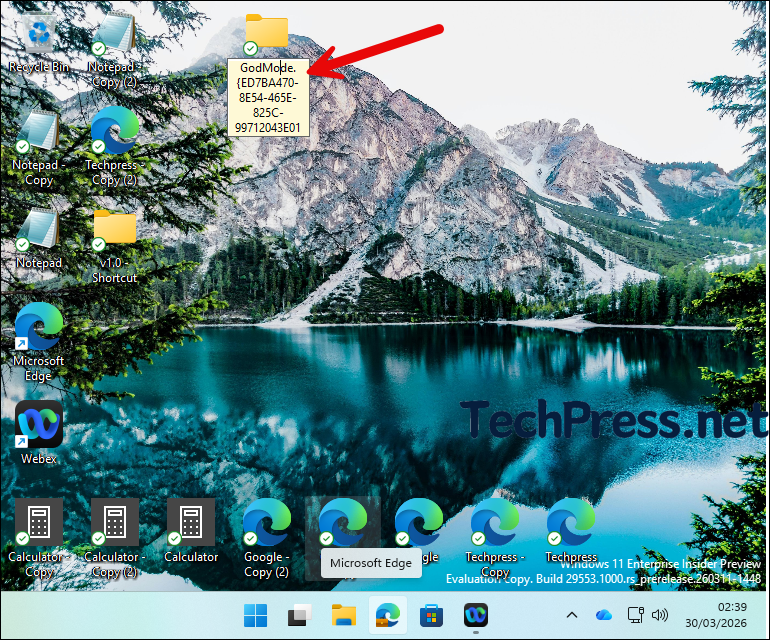
- The folder icon should change to a Control Panel-style icon. The icon will not have any name.
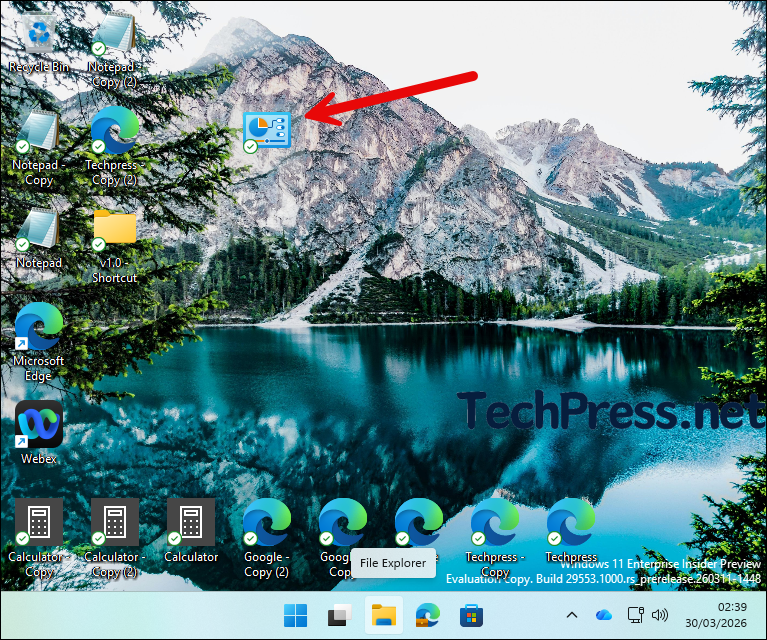
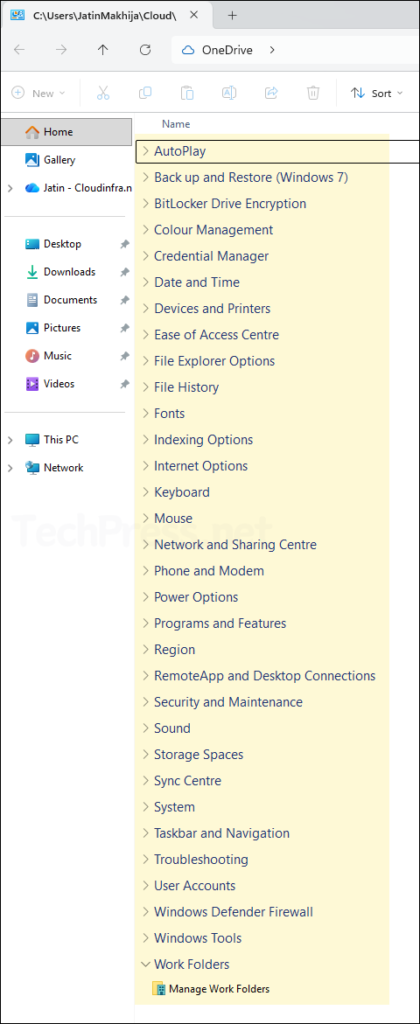
- Double-click the folder (control panel-style icon) to open the God Mode view. Below is the view you should see when you double-click on the icon. You can view the list of all administrative actions in one place.
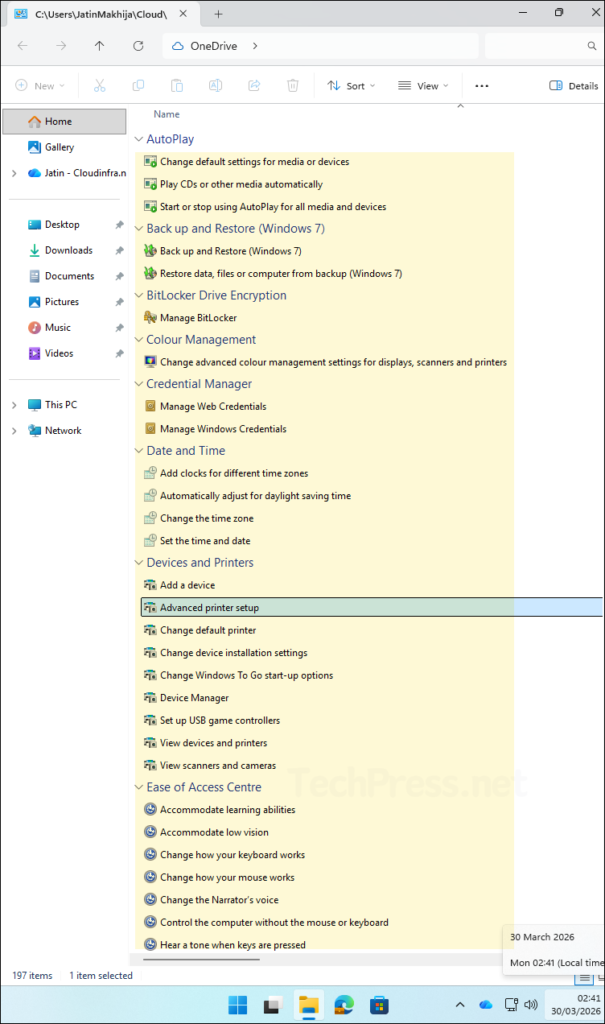
- Below is the collapsible view of all tasks by category. Expand each category to learn which administrative tasks are available.
What happens after you enable it?
Once you rename the folder correctly, Windows turns it into a special shell folder. Opening it shows a long list of settings and tasks that are normally spread across different parts of Control Panel and Windows management interfaces. Control Panel items are meant for system-level setup, configuration, maintenance, and user account tasks, which is why many of those entries appear in this view.
God Mode Folder Name
In Windows 11, the label on the God Mode folder may appear blank after you create it. This is the expected behavior. The folder itself still works, but the displayed name may disappear in File Explorer or on the desktop.
Using God Mode
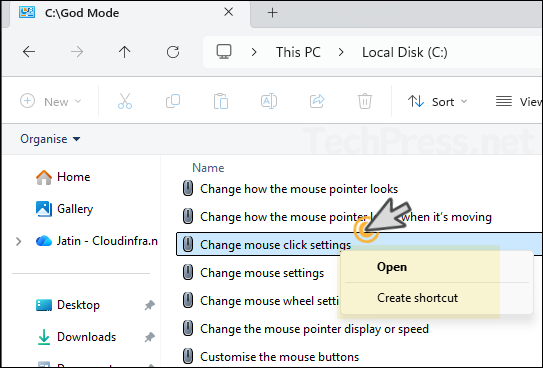
When you open the God Mode folder, it will list all the administrative actions and settings you can access from one place. Right-click any item, and you will see options such as Open and Create shortcut. Selecting Open launches that setting or tool immediately, while Create shortcut places a shortcut on the desktop so you can access that specific setting faster in the future.
Disable or Remove God Mode in Windows 11
God Mode is not a Windows feature toggle, so there is nothing to uninstall. If you want to remove it, simply delete the folder or shortcut you created.
Is God Mode safe to use?
In normal use, God Mode is just a convenient way to open many system settings from one place. It does not unlock secret administrator privileges by itself. However, because it surfaces many system tools and configuration items, you should be careful when changing settings you do not understand.
Troubleshooting
The folder does not change icon
This usually means the folder name was not typed exactly right. Make sure you use the full string:
GodMode.{ED7BA470-8E54-465E-825C-99712043E01C}The folder name becomes blank
That can happen on newer Windows versions. The folder can still work, and you can use the shortcut workaround if you want a visible name.
Nothing opens when I click it
Delete the folder, create a new one, and rename it again carefully. If the syntax is not exact, Windows will treat it as a normal folder instead of the special shell folder.
Best practices
The safest way to use God Mode is to treat it as a shortcut hub for settings rather than a place to make random changes. It is most useful for quickly reaching administrative and Control Panel tasks without opening separate windows. Since Control Panel items are meant for system configuration and maintenance, they are best used by users who know what setting they want to open.
Conclusion
God Mode in Windows 11 is a simple but handy way to place many Windows settings in one folder. To enable it, you only need to create a new folder and rename it to GodMode.{ED7BA470-8E54-465E-825C-99712043E01C}. It is not a hidden admin upgrade or downloadable tool, just a special Windows shell folder that makes Control Panel tasks easier to reach.
All God Mode Settings
The table below lists all God mode settings you can access from the God mode folder.
| Category | Available settings/tasks |
|---|---|
| Administrative Tools | Create and format hard disk partitions Defragment and optimize your drives Diagnose your computer’s memory problems Free up disk space by deleting unnecessary files Manage computer certificates Schedule tasks Set up iSCSI initiator Set up ODBC data sources (32-bit) Set up ODBC data sources (64-bit) View event logs View local services |
| AutoPlay | Change default settings for media or devices Play CDs or other media automatically Start or stop using AutoPlay for all media and devices |
| Backup and Restore | Backup and Restore (Windows 7) Restore data, files, or computer from backup |
| BitLocker Drive Encryption | Manage BitLocker |
| Color Management | Change advanced color management settings for displays, scanners, and printers |
| Credential Manager | Manage Web Credentials Manage Windows Credentials |
| Date and Time | Add clocks for different time zones Automatically adjust for daylight saving time Change the time zone Set the time and date |
| Devices and Printers | Add a Bluetooth device Add a device Advanced printer setup Change Bluetooth settings Change default printer Change device installation settings Change Windows To Go startup options Device Manager Scan a document or picture Set up USB game controllers View devices and printers View scanners and cameras |
| Ease of Access Center | Accommodate learning abilities Accommodate low vision Change how your keyboard works Change how your mouse works Change the Narrator voice Control the computer without the mouse or keyboard Hear a tone when keys are pressed Hear text read aloud with Narrator Ignore repeated keystrokes using FilterKeys Let Windows suggest Ease of Access settings Magnify portions of the screen using Magnifier Move the pointer with the keypad using MouseKeys Optimize for blindness Optimize visual display Press key combinations one at a time Replace sounds with visual cues Turn High Contrast on or off Turn Magnifier on or off Turn off automatic window arrangement Turn off background images Turn off unnecessary animations Turn on easy access keys Turn On-Screen keyboard on or off Use audio description for video Use screen reader View current accessibility settings |
| File Explorer Options | Change search options for files and folders Change the file type associated with a file extension Show hidden files and folders Show or hide file extensions Specify single- or double-click to open |
| File History | Restore your files with File History Save backup copies of your files with File History |
| Fonts | Change Font Settings Preview, delete, or show and hide fonts Private Character Editor View installed fonts |
| Indexing Options | Change how Windows searches |
| Internet Options | Block or allow pop-ups Block or allow third-party cookies Change how web pages are displayed in tabs Change security settings Change temporary Internet file settings Change the search provider in Internet Explorer Change your homepage Choose how you open links Configure proxy server Delete browsing history Delete cookies or temporary files Enable or disable session cookies Manage browser add-ons Tell if an RSS feed is available on a website Turn autocomplete in Internet Explorer on or off |
| Keyboard | Change cursor blink rate Check keyboard status |
| Mouse | Change how the mouse pointer looks Change how the mouse pointer looks when it’s moving Change mouse click settings Change mouse settings Change mouse wheel settings Change the mouse pointer display or speed Customize the mouse buttons Make it easier to see the mouse pointer |
| Network and Sharing Center | Connect to a network Identify and repair network problems Manage advanced sharing settings Media streaming options Set up a broadband connection Set up a connection or network Set up a dial-up connection Set up a virtual private network (VPN) connection View network computers and devices View network connections View network status and tasks |
| Phone and Modem | Set up dialing rules |
| Power Options | Change power-saving settings Change screen saver Change what the power buttons do Change when the computer sleeps Choose a power plan Choose when to turn off display Edit power plan Turn screen saver on or off |
| Programs and Features | Add or remove programs Change or remove a program How to install a program Run programs made for previous versions of Windows Show which programs are installed on your computer Turn Windows features on or off Uninstall a program View installed updates |
| Region | Change date, time, or number formats Change the way currency is displayed Change the way dates and lists are displayed Change the way measurements are displayed Change the way time is displayed |
| RemoteApp and Desktop Connections | Access RemoteApp and desktops |
| Security and Maintenance | Change Automatic Maintenance settings Change User Account Control settings Check security status Fix problems with your computer Review your computer’s status and resolve issues View all problem reports View recent messages about your computer View recommended actions to keep Windows running smoothly View reliability history |
| Sound | Adjust system volume Change sound card settings Change system sounds Manage audio devices |
| Speech Recognition | Change text to speech settings Set up a microphone Start speech recognition |
| Storage Spaces | Manage Storage Spaces |
| Sync Center | Manage offline files |
| System | Adjust the appearance and performance of Windows Allow remote access to your computer Allow Remote Assistance invitations to be sent from this computer Change workgroup name Check processor speed Configure advanced user profile properties Create a recovery drive Create a restore point Edit environment variables for your account Edit the system environment variables How to change the size of virtual memory Invite someone to connect to your PC and help you, or offer to help someone else Rename this computer See the name of this computer See which processes start up automatically when you start Windows Show how much RAM is on this computer Show which operating system your computer is running Show which workgroup this computer is on Task Manager View advanced system settings View system resource usage in Task Manager |
| Taskbar and Navigation | Auto-hide the taskbar Customize the taskbar Group similar windows on the taskbar Lock or unlock the taskbar Navigation properties What happened to the Quick Launch toolbar |
| Troubleshooting | Find and fix audio playback problems Find and fix audio recording problems Find and fix bluescreen problems Find and fix keyboard problems Find and fix networking and connection problems Find and fix printing problems Find and fix problems Find and fix problems with Windows Search Find and fix Windows Update problems Perform recommended maintenance tasks automatically Record steps to reproduce a problem Troubleshooting History |
| User Accounts | Change account type Create a password reset disk Create an account Create standard user account Make changes to accounts Manage network passwords Manage user certificates Remove user accounts |
| Windows Defender Firewall | Allow an app through Windows Firewall Check firewall status |
| Work Folders | Manage Work Folders |
