
In this post, I will show you how to enable or disable Sudo command in Windows 11. Sudo for Windows is Microsoft’s built-in way to run elevated commands directly from a non-elevated console session in Windows 11. It is designed for command-line workflows where you want to prefix a command with sudo instead of opening a separate administrator console first. Sudo for Windows is available in Windows 11 version 24H2 and later. For more information, refer to the link Sudo for Windows | Microsoft Learn.
In this guide, apart from showing you how to enable or disable Sudo, I will also show you its available modes and cover the different ways to manage it from settings, command line, and registry. The Sudo setting is under the Settings > System > Advanced. On Windows 11 version 25H2 and later devices.
Contents
What is Sudo for Windows?
Sudo for Windows lets you run administrator-level commands from an unelevated console by prefixing the command with sudo. For example sudo netstat -ab, when you use sudo, Windows still prompts you to confirm the elevation request.
Prerequisites
Before you begin, make sure the PC is running Windows 11 24H2 or later, because Sudo for Windows is not available on earlier Windows 11 releases. Also note that on managed devices, Advanced settings can be missing or disabled if your organization applies policies that restrict them. Therefore, if you do not see Advanced settings in the Settings app on a managed device, most probably it’s disabled by a Group Policy or Intune policy.
How to Enable Sudo for Windows 11
The easiest way to turn on Sudo for Windows is from the Settings app. Open Settings > System > Advanced and switch Enable sudo to On. If you do not configure the setting how sudo runs applications, then by default it’s set to In a new window. For information about different modes, refer to the next sections of this post.
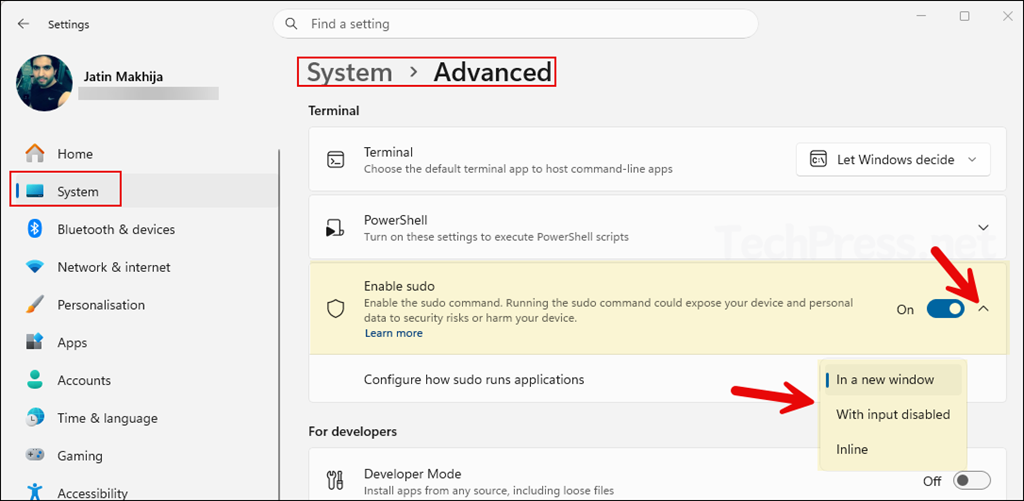
After enabling it, you can run commands with sudo from a normal Command Prompt, PowerShell, or Terminal session. In the next section of the post, I will show you how to use Sudo command in Windows 11.
How to Disable Sudo for Windows 11
If you no longer want users to run elevated commands through sudo, you can turn it off from the same Settings page. Go to the Settings App > System > Advanced > Switch off Enable Sudo toggle.
Alternatively, you can open a command prompt as administrator and run below command to turn off or disable Sudo.
sudo config --enable disable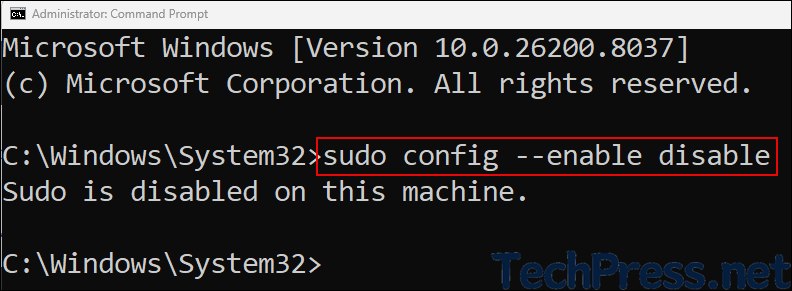
Sudo Modes in Windows 11
Microsoft currently supports three Sudo for Windows modes. The default mode is In a new window (forceNewWindow). There are also Input closed (disableInput) and Inline (normal) modes. Go through the security considerations section on this link before selecting the mode for Sudo: Sudo for Windows | Microsoft Learn.
Difference Between Sudo Modes
| Mode | Configuration name | Behavior | Notes |
|---|---|---|---|
| In a new window | forceNewWindow | Runs the elevated command in a new console window | This is the default mode and is similar to runas /user:admin |
| Input closed | disableInput | Runs the elevated command in the current window, but the app cannot receive input from that console | This reduces some of the risks compared to inline mode. |
| Inline | normal | Runs the elevated command in the current window and allows input | This is the closest behavior to sudo on other operating systems, but it has a higher security risk. |
Configure Sudo Mode from Command Line
You can change the Sudo mode programmatically from an elevated command line. Update <configuration_option> to either forceNewWindow, disableInput, or normal. You can run below commands on an elevated command prompt or PowerShell console.
Enable and configure Sudo (Syntax)
sudo config --enable <configuration_option>Enable and Configure Sudo (various options)
sudo config --enable forceNewWindow
sudo config --enable disableInput
sudo config --enable normal
Example
To enable inline mode from an elevated console, run the below command:
sudo config --enable normalTo switch back to the default new-window behavior, run the below command:
sudo config --enable forceNewWindowUsing Sudo Command in Windows 11
Once enabled, you simply place sudo before the command you want to run as administrator. For example:
Example 1
sudo netstat -abExample 2
sudo diskpart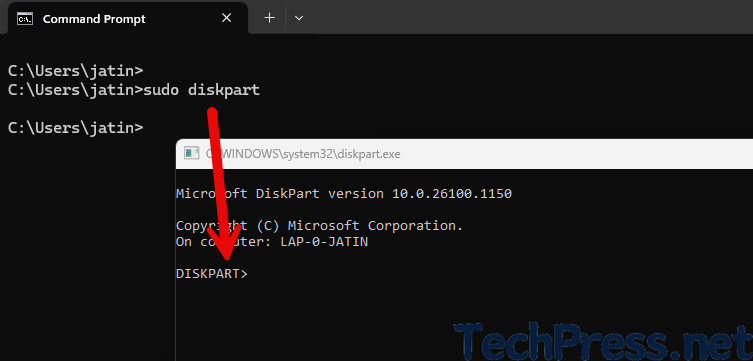
Example 3
sudo notepad C:\Windows\System32\drivers\etc\hosts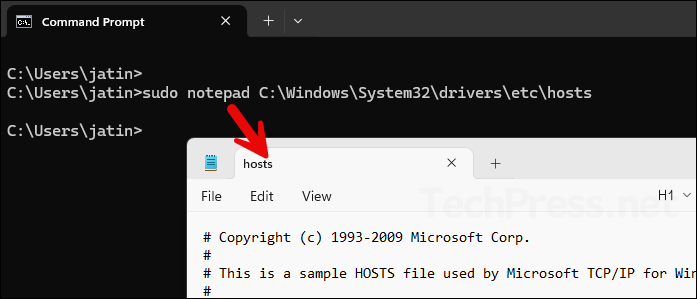
Enable or Disable Sudo Command using Registry
You can also use Windows Registry to enable or disable the Sudo command on Windows 11 devices. Let’s take a look at the steps:
- Press the Windows key + R to open the Run dialog box.
- Type regedit and press Enter to open the registry editor.
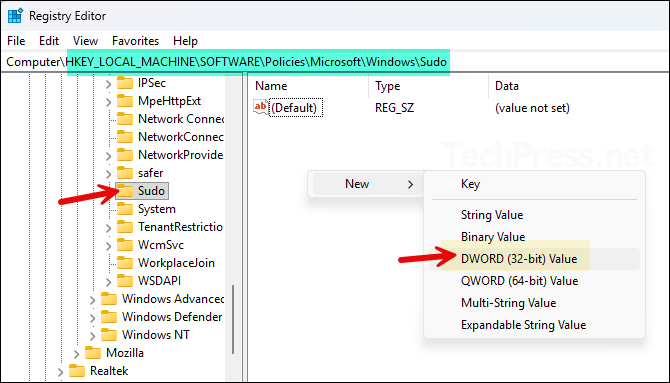
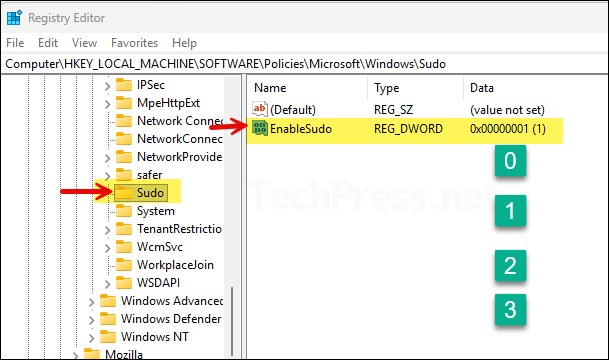
- Navigate to HKEY_LOCAL_MACHINE\SOFTWARE\Policies\Microsoft\Windows\Sudo and create a DWORD registry entry called EnableSudo and set its value to one of the below:
Key:   HKEY_LOCAL_MACHINE\SOFTWARE\Policies\Microsoft\Windows\Sudo
Value: EnableSudo
Type:  REG_DWORD
Use these values:
0= Sudo disabled1= Allow Sudo in force new window mode2= Allow Sudo in disable input mode3= Allow Sudo in inline mode
Troubleshooting
Sudo option is missing in Settings
If you do not see the Enable sudo option, first confirm the device is running Windows 11 24H2 or later. Sudo for Windows as available starting with 24H2.
Sudo setting is greyed out or unavailable
Devices managed by an organization may have policies that disable Advanced settings toggles. In that case, check whether Group Policy or MDM is controlling the Sudo setting.
Best Practices
Use forceNewWindow if you want the safest and simplest configuration. Use disableInput if you want some of the convenience of the current console window with reduced input risk. Use normal only when you specifically need inline elevation behavior and understand the security trade-offs.
Final Thoughts
Sudo for Windows is a useful addition to Windows 11 for administrators, developers, and power users who frequently run elevated commands. Enabling it is straightforward from Settings > System > Advanced, and there are policies and command-line options to control how it behaves. For most environments, the safest approach is to enable sudo only when required and keep it in In a new window mode unless you have a specific reason to choose a different configuration.
