
In this post, I will show you how to disable startup programs in Windows 11. Startup programs can slow down sign-in, increase background resource usage, and make a Windows 11 PC feel heavier than it should. Startup apps can be managed from Settings, Task Manager, or File Explorer, depending on how the app is registered in Windows.
Contents
Why Disable Startup Programs?
Applications that run automatically when your device starts can affect both startup speed and overall system performance. Disabling apps you do not need at sign-in can help streamline startup and reduce unnecessary background activity. For more information, refer to the link: Configure Startup Applications in Windows – Microsoft Support.
Method 1: Disable Startup Programs from Settings
This is the simplest method for most users. Go to Settings > Apps > Startup and use the toggle beside each listed app to control whether it launches automatically when you sign in.
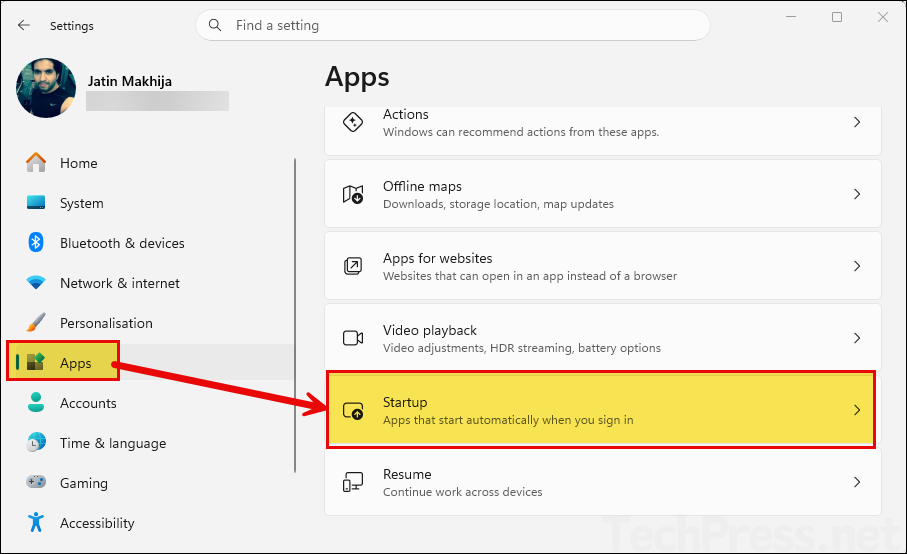
Disable the toggle next to the app to remove the app from Startup programs.
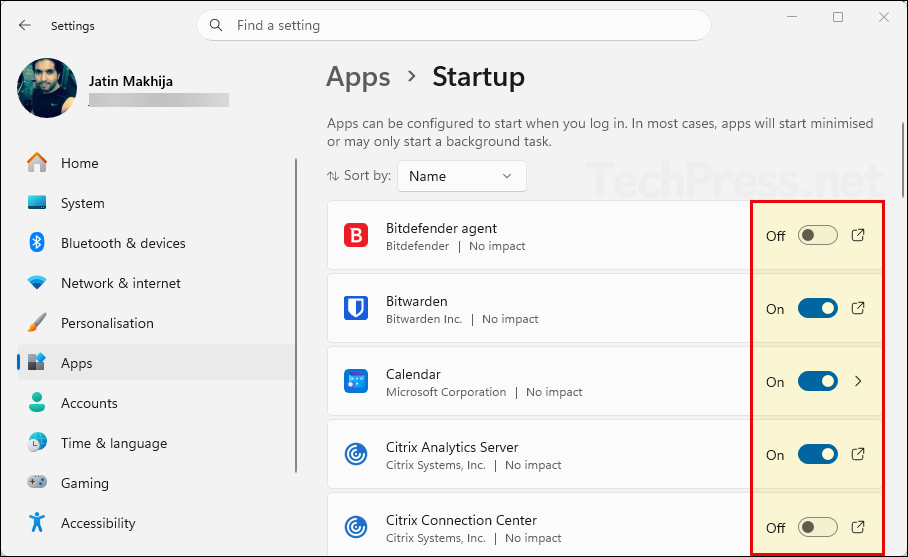
Apps shown in Settings are the same startup apps that can be managed from Task Manager.
Method 2: Disable Startup Programs from Task Manager
Task Manager gives you the same startup app list, but with more detail. Task Manager shows the startup impact of each app, which can help you identify programs that are contributing most to slow sign-in performance. It also supports enabling or disabling each startup app directly from the Startup apps tab.
Steps
- Right-click anywhere on the taskbar and select Task Manager.
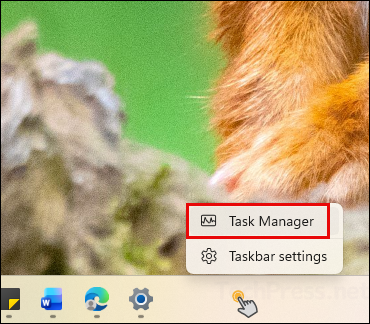
- Click on the Startup apps tab.
- Right-click the startup program you want to disable and select Disable. Repeat this for each app you want to prevent from starting automatically with Windows.
Check the Status column to confirm the current state of each program. If it shows Enabled, the program will start automatically with Windows. If it shows Disabled, the program will not start automatically.
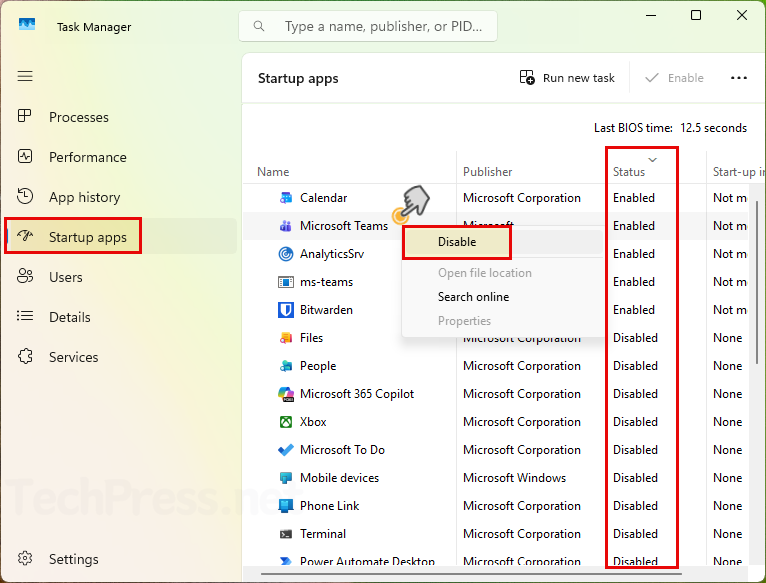
Task Manager start-up impact labels as None, Not measured, Low impact, Medium impact, and High impact, based on CPU and disk usage during startup. That makes Task Manager the better option when you want to identify which startup apps are the most expensive.
Method 3: Disable Startup Programs from the Startup folder
Not every program appears in Settings or Task Manager as a registered startup app. Apps not registered with a startup task can be managed through File Explorer by using the Startup folders. For the current user, use shell:startup. For all users on the device, use shell:common startup.
Steps
- Right-click Start and select Run.
- Type shell:startup and press Enter to open the current user’s Startup folder.
- If needed, repeat with shell:common startup to open the all-users Startup folder.
- Delete the shortcut for any program you do not want to start automatically.
Actual paths behind these commands are %userprofile%\AppData\Roaming\Microsoft\Windows\Start Menu\Programs\Startup for the current user and %ProgramData%\Microsoft\Windows\Start Menu\Programs\Startup for all users.
Method 4: Check the registry locations for Startup Entries
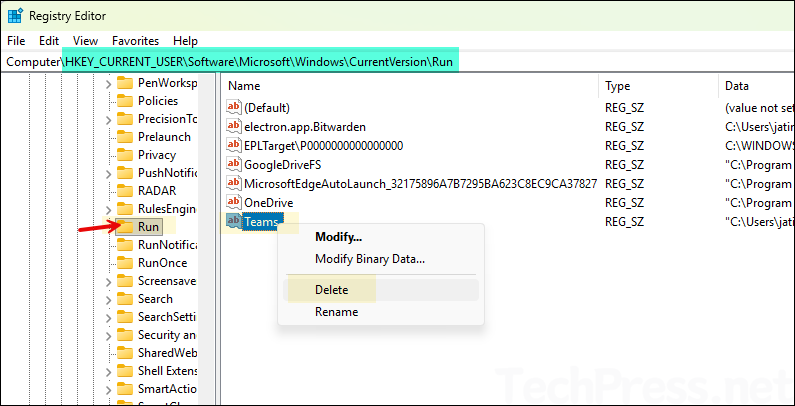
For advanced troubleshooting, use the registry locations where startup applications can be stored. These include the machine-wide Run keys and the current-user Run key. Delete the entry under the Run registry key to remove the app from startup.
Startup registry paths
- HKLM\Software\Wow6432Node\Microsoft\Windows\CurrentVersion\Run
- HKLM\Software\Microsoft\Windows\CurrentVersion\Run
- HKCU\Software\Microsoft\Windows\CurrentVersion\Run
If a startup entry is broken or still appears after an app has been removed, Settings can sometimes show, We couldn’t find this app. The details pane can help you identify the registry location or file path behind the broken startup item.
Method 5: Use a clean boot when troubleshooting Startup issues
If you are trying to find which startup program or service is causing slow boot, crashes, or app conflicts, Use clean boot. In that process, you disable non-Microsoft services in System Configuration, then disable startup apps in Task Manager and restart the PC to isolate the problem.
Basic clean boot startup-app steps
- Search for msconfig and open System Configuration.
- On the Services tab, select Hide all Microsoft services, then click Disable all.
- On the Startup tab, click Open Task Manager.
- In Task Manager > Startup apps, disable the enabled startup items.
- Restart the PC.
After troubleshooting, you should return Windows to normal startup by re-enabling the services and startup apps you disabled.
Method 6: Disable Startup Programs Using Group Policy
On Windows 11 Pro or Enterprise systems managed by the organization, use Active Directory group policy to disable startup programs.
- Launch the Group Policy Management Console (gpmc.msc) on a domain controller or gpedit.msc on a local Windows 11 computer. Use GPMC for centralized management of the policy and Local GPO editor for policy management on that system itself.
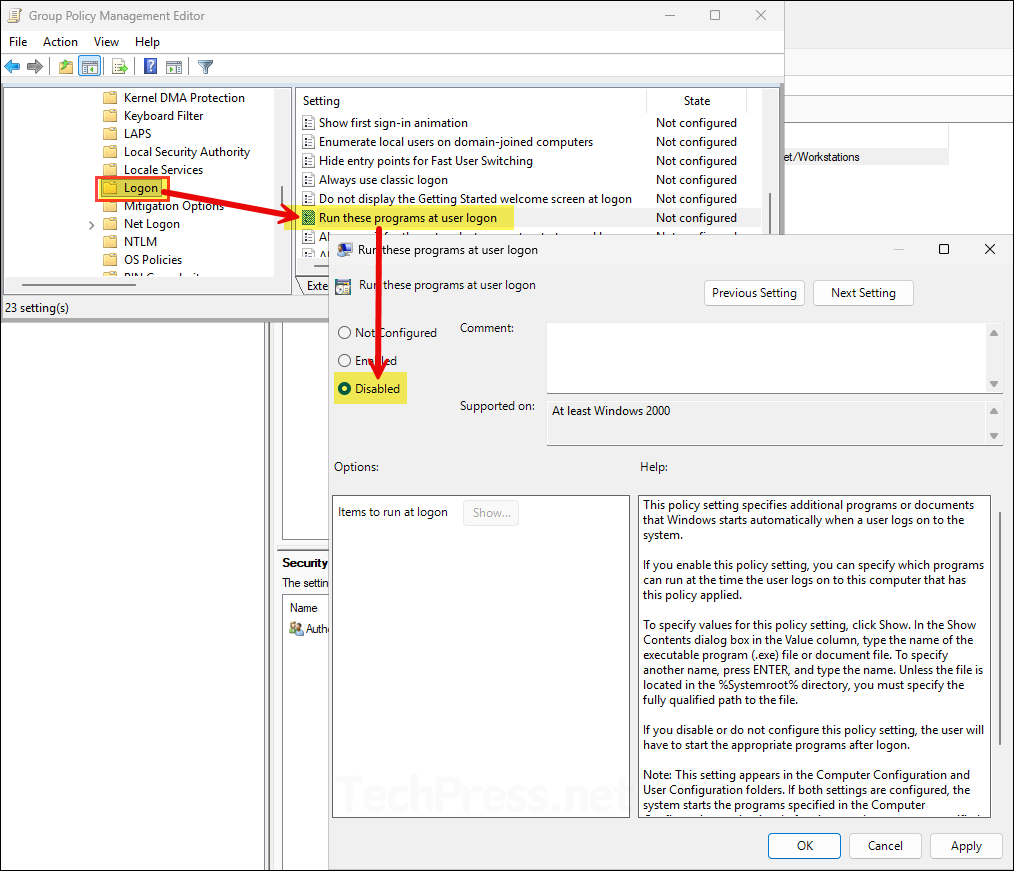
- Navigate to Computer Configuration > Policies > Administrative Templates > System > Logon.
- Open the policy Run these programs at user logon and set it to Disabled.
- Link the policy to the Workstations OU.
This policy setting specifies additional programs or documents that Windows starts automatically when a user logs on to the system.
If you enable this policy setting, you can specify which programs can run at the time the user logs on to this computer that has this policy applied.
To specify values for this policy setting, click Show. In the Show Contents dialog box in the Value column, type the name of the executable program (.exe) file or document file. To specify another name, press ENTER, and type the name. Unless the file is located in the %Systemroot% directory, you must specify the fully qualified path to the file.
If you disable or do not configure this policy setting, the user will have to start the appropriate programs after logon.
Note: This setting appears in the Computer Configuration and User Configuration folders. If both settings are configured, the system starts the programs specified in the Computer Configuration setting just before it starts the programs specified in the User Configuration setting.
Also, see the “”Do not process the legacy run list”” and the “”Do not process the run once list”” settings.
About Run these programs at user logon policy setting
Which method should you use?
For most users, Settings > Apps > Startup is the easiest method. Task Manager is the better choice when you want more detail about startup impact. Startup folders are useful for apps launched by shortcuts, and the registry is best for advanced cleanup and troubleshooting only. If the issue seems broader than one app, a clean boot is the most structured troubleshooting method.
Best practices
Disable only apps you recognize and do not need at sign-in. Be cautious with security software, hardware utilities, sync clients, or drivers that may provide essential background functions. For troubleshooting, Microsoft’s clean boot method works best when you record what you disabled so you can re-enable the right items later.
Conclusion
Windows 11 gives you several ways to disable startup programs, and the right one depends on how the app was added to startup. In most cases, the job can be done in Settings or Task Manager in a few clicks. For apps that do not appear there, check the Startup folders or, if required, the documented Run registry locations.
