
In this post, I will show you how to archive or delete a Team in Microsoft Teams. As projects finish and collaboration spaces become inactive, it is important to decide whether a Team in Microsoft Teams should be archived or deleted.
Archiving is the safer option when you want to preserve the Team for reference, while deletion is intended for Teams you no longer need at all. Archiving stops activity and makes the Team read-only, whereas deleting a Team removes its associated channels, files, chats, and connected Microsoft 365 resources. For more information on archiving or deleting a team, refer to the link Archive or delete a team in Microsoft Teams – Microsoft Teams | Microsoft Learn.
Contents
Archive vs. Delete a Team in Microsoft Teams
Before you make any changes, it is important to understand the difference between archiving and deleting a Team. When you archive a Team, all activity in that Team stops, conversations and files become read-only, and the Team can still be searched and restored later. Team owners can still manage members and roles, and admins can reactivate the Team if needed.
When you delete a Team, Microsoft deletes the Team’s standard and private channel activity, associated site collections, files, chats, and other connected Microsoft 365 resources. Deletion also removes the team mailbox and calendar from Exchange, deletes the related SharePoint site and files, and removes connected resources such as OneNote notebooks, Planner plans, Power BI workspaces, and Stream group content tied to the Team.
Archive the Team first if you are not completely sure the Team is no longer needed, because archived Teams can be restored directly. While a deleted Team cannot be directly restored and instead must be recovered through the underlying Microsoft 365 group during the 30-day soft-delete window.
| Archive a Team | Delete a Team |
|---|---|
| Best when the Team is no longer active but still needed for reference or possible reuse later. | Best when the Team is no longer required at all and should be removed. |
| Puts the Team into read-only mode in Teams. Users can view and search content, but normal activity stops. | Removes the Team from Teams for members after deletion. |
| Existing content remains available for viewing and searching. Channels stay with the Team in archived state. | Team content is removed, and restoring it later depends on restoring the associated Microsoft 365 group. |
| Files remain available. You can optionally make the connected SharePoint site read-only for team members during archiving. | The related SharePoint site and files are deleted along with other connected resources, subject to retention/compliance controls. |
| You can select Make the SharePoint site read-only for team members when archiving. Team owners can still edit that content. | No read-only option. The Team’s connected resources are deleted instead of preserved in place. |
| It can be restored back to active status from the archived state. | It can be restored only during the soft-delete period (30-days) by restoring the associated Microsoft 365 group. |
| No 30-day soft-delete dependency for normal archive/restore. It stays archived until you restore or delete it. This is an inference from Microsoft’s archive/restore flow. | By default, deleted Microsoft 365 groups are recoverable for 30 days, after which they are permanently deleted. |
| Keeps the Team and its connected content in place for reference. | Deleting a Team also deletes connected resources such as the team mailbox/calendar, SharePoint site, OneNote notebook, Planner plan, Power BI workspace, and Stream group content affiliated with the Team. |
| When to Archive: Completed project, closed initiative, or inactive Team that may still need to be searched or reactivated. | When to Delete: Duplicate Team, test Team, or Team that is definitely no longer required. |
Important Points
Before archiving or deleting a Team, keep these requirements in mind:
- Team owners can archive a Team from the Teams desktop or web app.
- Teams admins can archive or delete Teams from the Teams admin center.
- Deleted Teams are recoverable only by restoring the associated Microsoft 365 group, and by default that recovery window is 30 days. For more information, refer to the link: 3 Ways To Restore A Deleted Team In Microsoft Teams.
Method 1: Archive a Team in Microsoft Teams (as a team owner)
If you are a Team owner, you can archive a Team directly from the Teams app. This is the most common method for end users who manage their own Teams. When archived, the Team’s conversations and files become read-only but remain searchable.
Steps to archive a Team
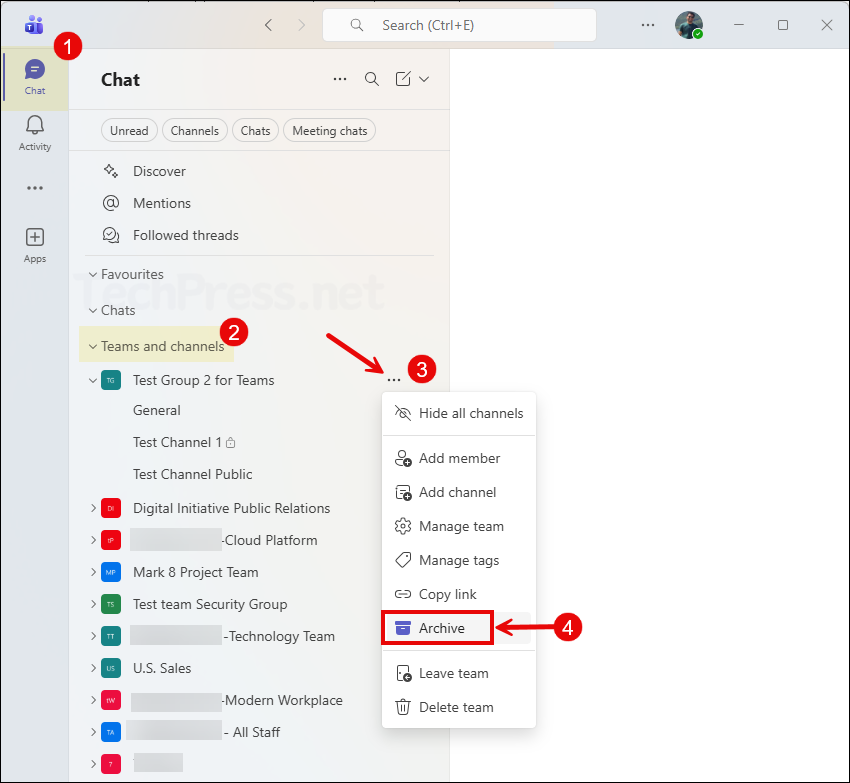
- Open Microsoft Teams on the desktop app or web app.
- Go to your Teams and channels.
- Under the list of Teams, locate the Team you want to archive.
- Select More options next to the Team.
- Click Archive.
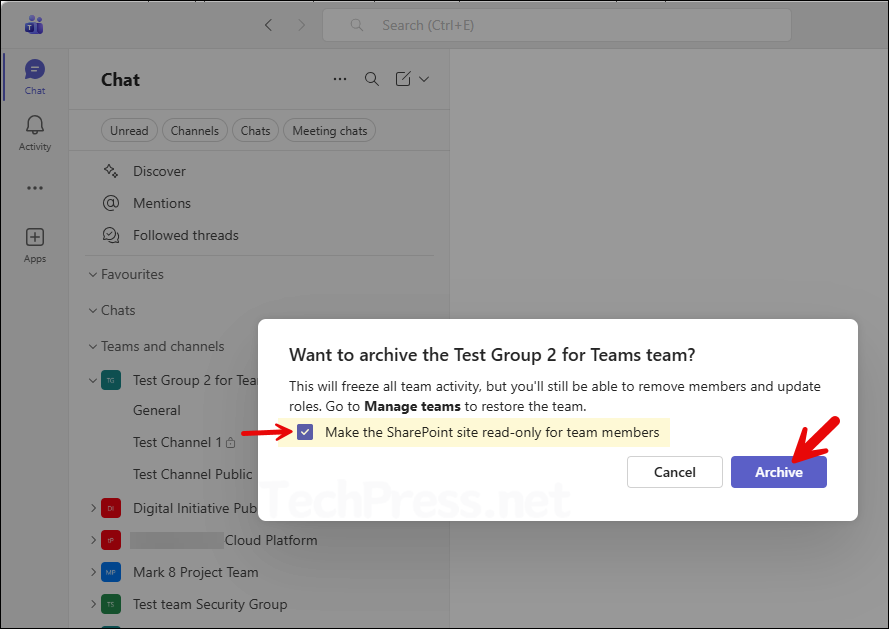
- If required, select Make the SharePoint site read-only for team members.
- Click on the Archive button once again to archive the team.
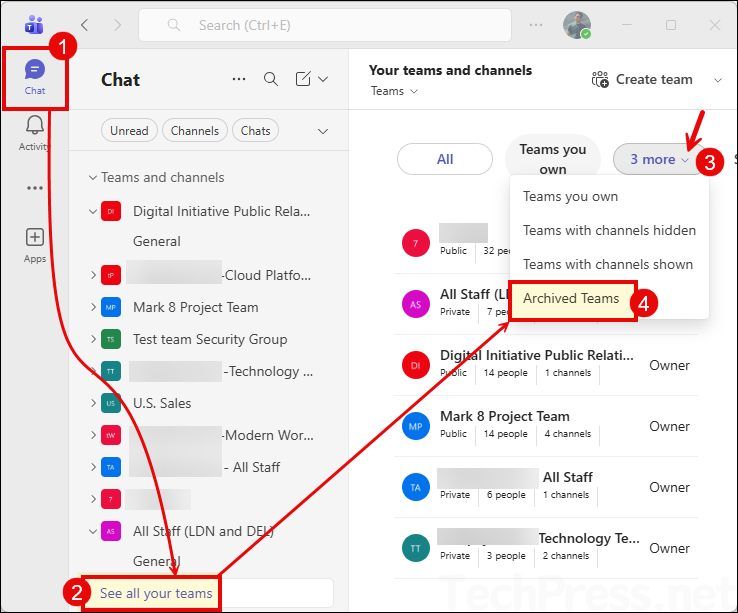
After a team is archived, it appears under Archived Teams. You can view all archived teams by clicking See all your teams then using the drop-down menu to select Archived Teams.
The screenshot below shows the list of Archived Teams. It shows the Team we just archived.
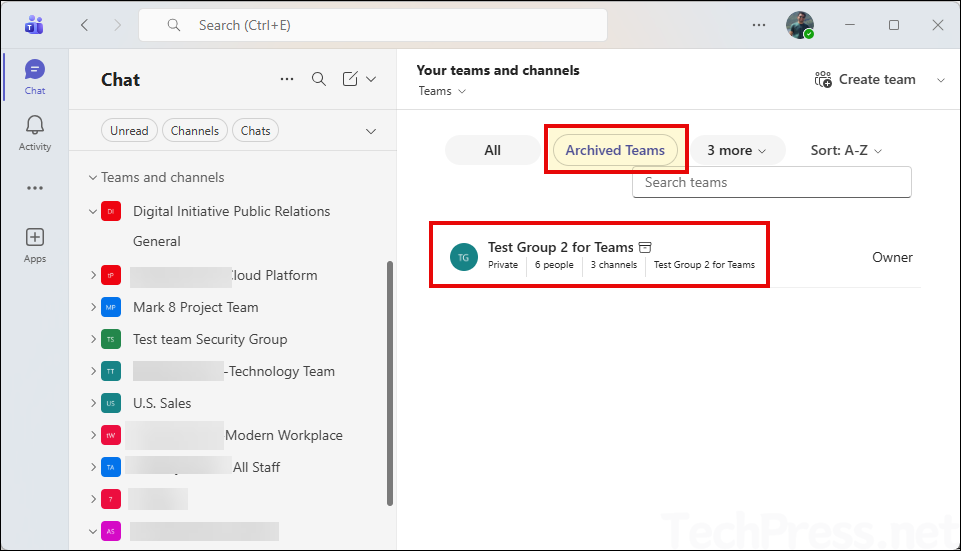
After archiving, the Team moves into an archived state. Team activity is frozen; no new conversations can be started, no replies can be posted, channels cannot be added or removed, and team settings cannot be edited by regular users. Team owners can still manage membership, roles, and restoration.
Method 2: Archive a Team in the Teams Admin Center
Admins can also archive a Team from the Teams admin center from the Manage teams page. Let’s take a look.
Steps for admins
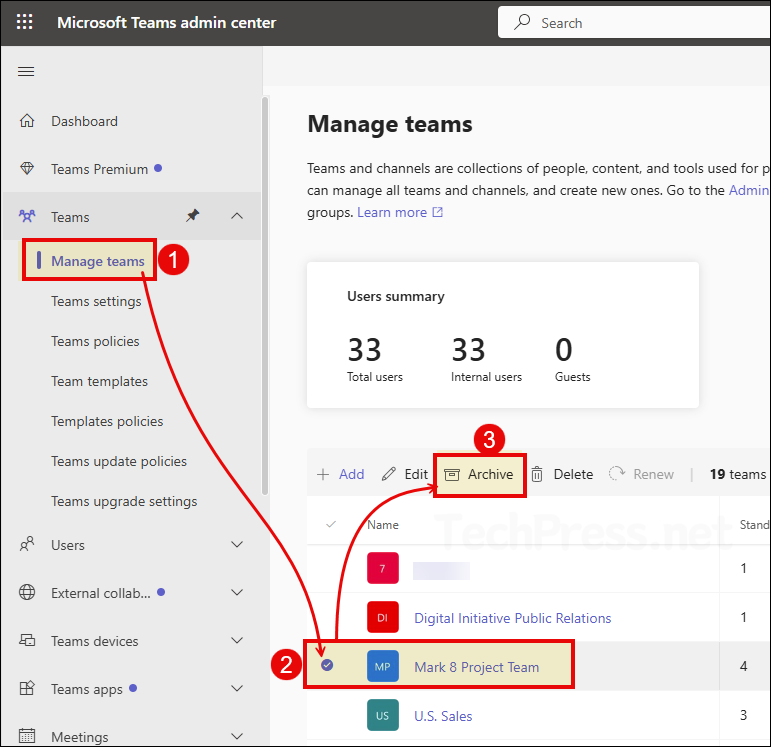
- Open the Microsoft Teams admin center > Teams > Manage teams.
- Select the Team you want to archive.
- Click Archive.
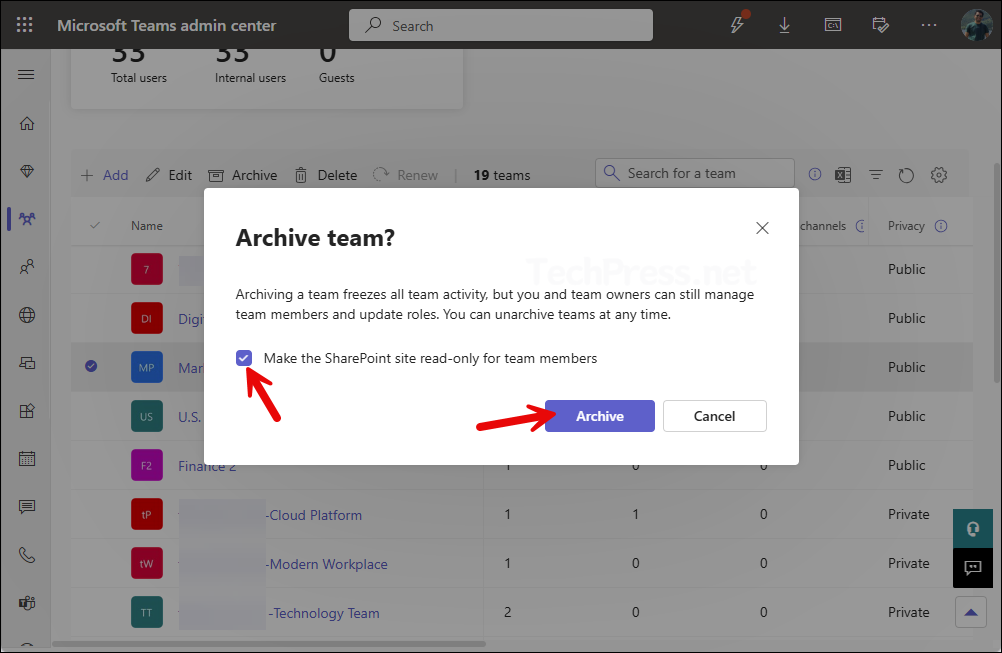
- Optionally select Make the SharePoint site read-only for team members.
- Click Archive again to confirm.
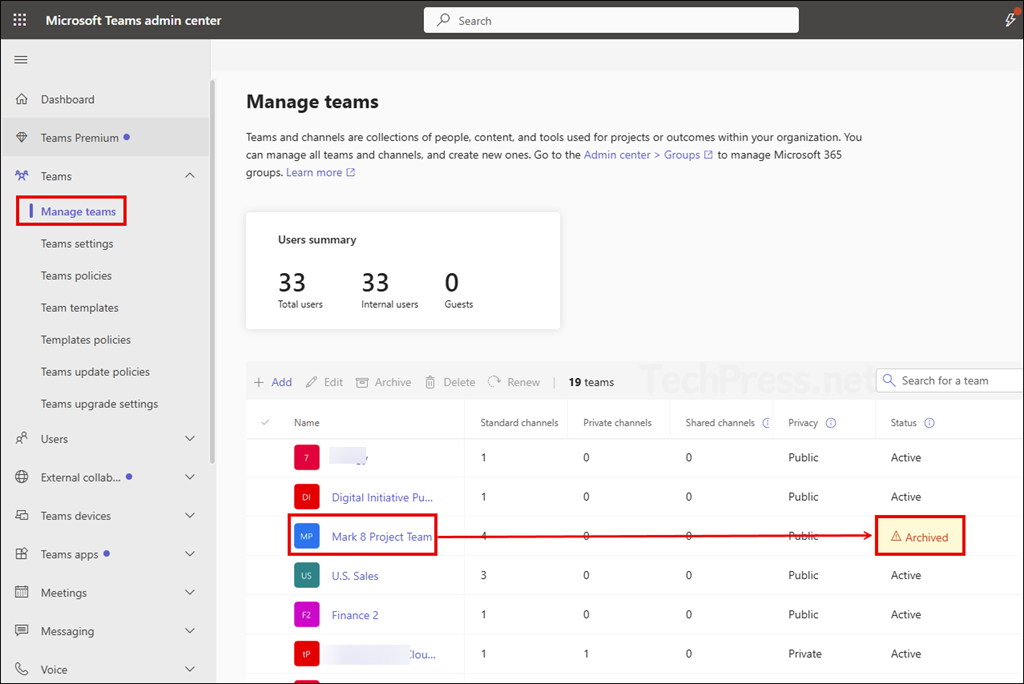
The screenshot below shows the status of the team we just archived. Under the Status column, the archived team will now be displayed as Archived.
Restoring an Archived Team
If you archived a Team and later need it again, you can make it active. Archived Teams can be restored, although it may take some time for the status to change back to Active.
Steps to restore an archived Team as an admin
- Open the Microsoft Teams admin center > Teams > Manage teams.
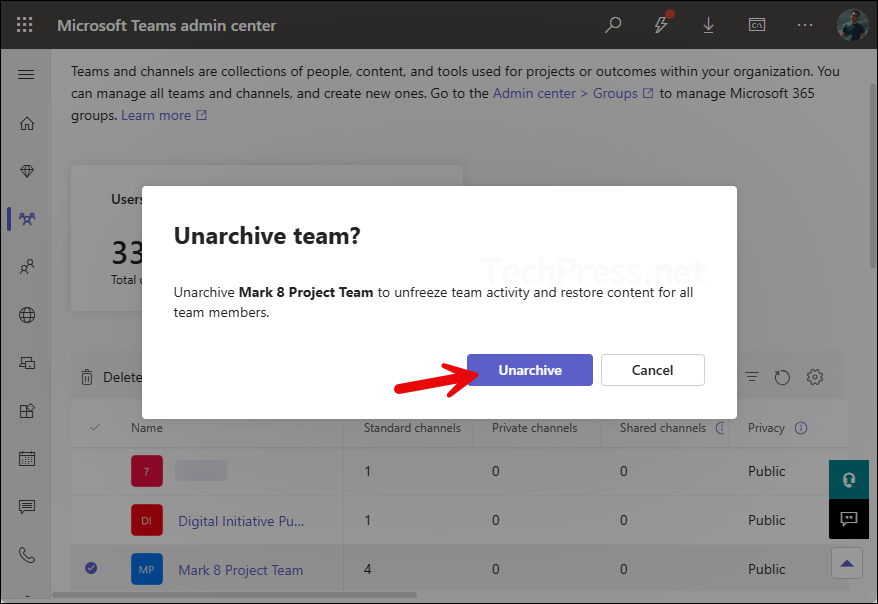
- Select the archived Team and click Unarchive.
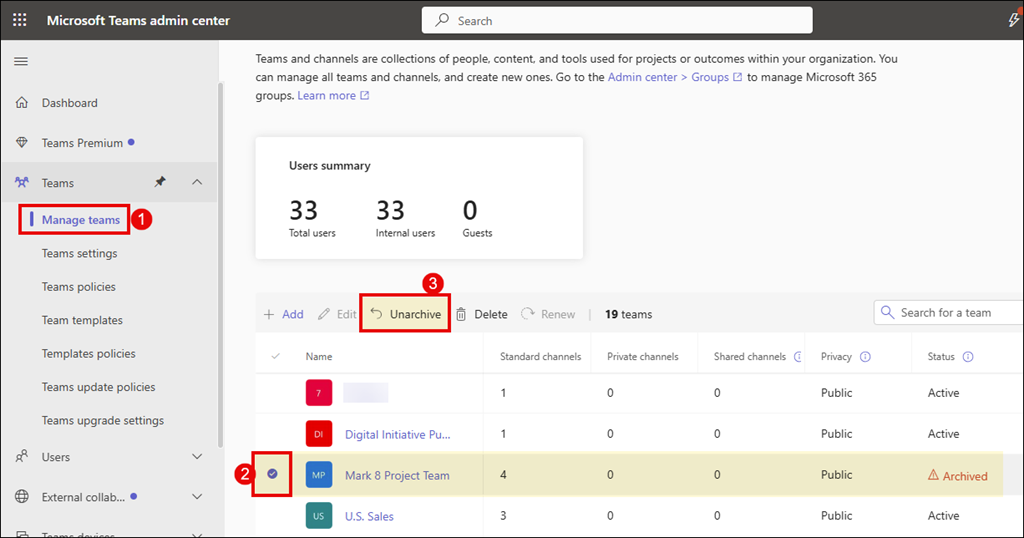
- Click on the Unarchive button again to confirm.
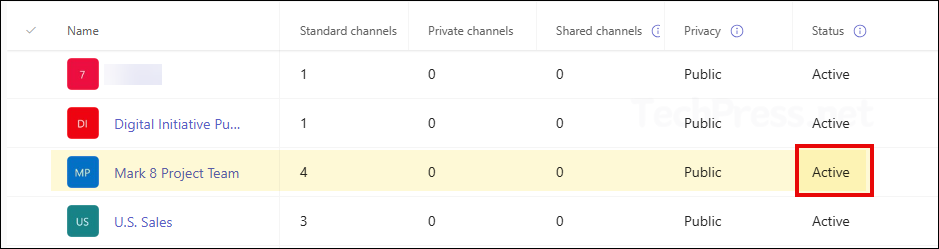
The screenshot below shows that the status of the Team is now showing as Active instead of Archived.
Steps to restore an archived Team as an owner
- Open Teams.
- Go to your Teams and channels.
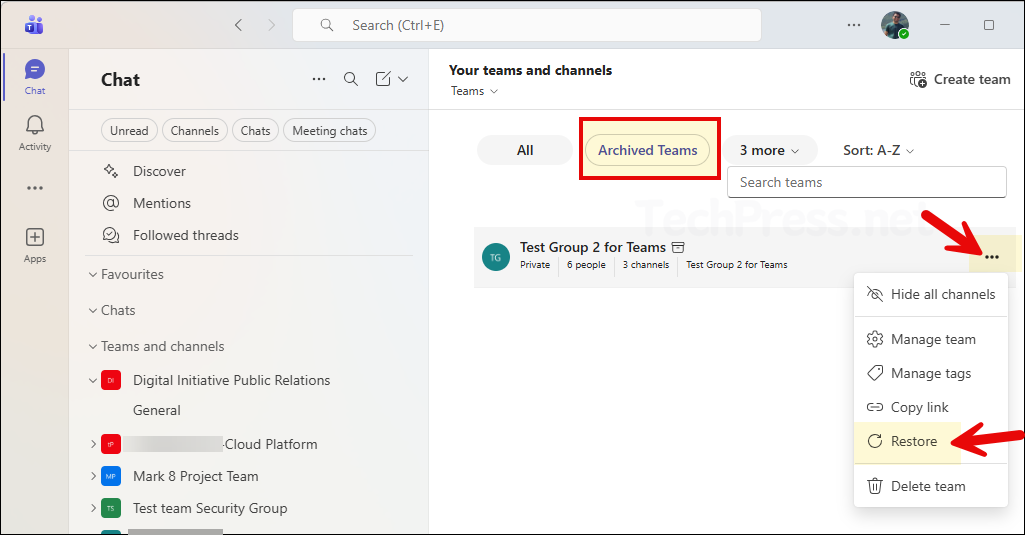
- Switch to the Archived Teams view.
- Find the Team you want to unarchive, click on the three dots for more options, and select Restore.
Delete a Team in Microsoft Teams
If you are certain the Team is no longer required, you can delete it. Team owners can do this from the Teams desktop or web app, and admins can also delete it from the Teams admin center.
Delete a Team from the Teams desktop or web app
- Open Microsoft Teams.
- Find the Team you want to delete.
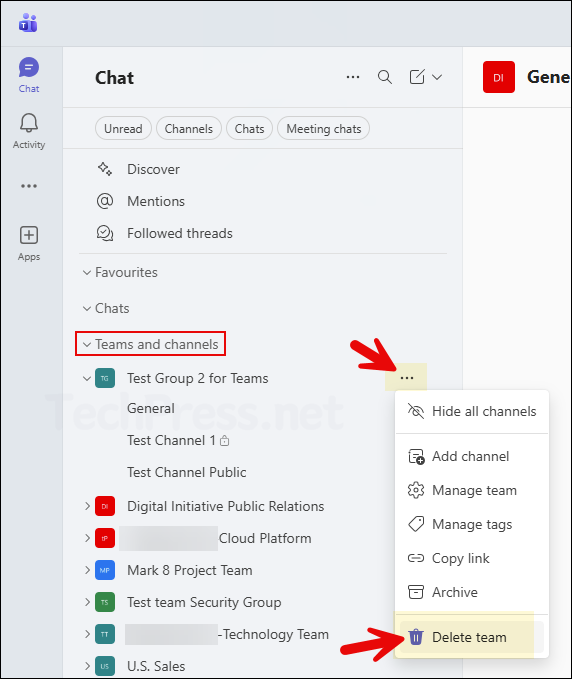
- Select More options next to the Team name.
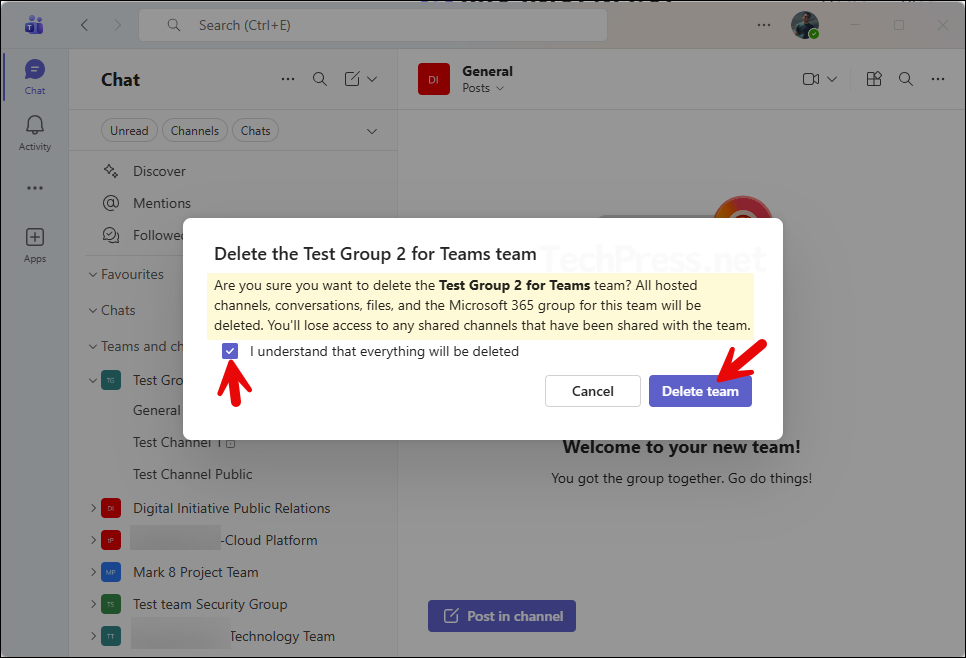
- Click Delete team.
- Confirm the deletion.
- Select the checkbox I understand that everything will be deleted and then click on Delete team once again to confirm deletion.
Delete a Team from the Teams admin center
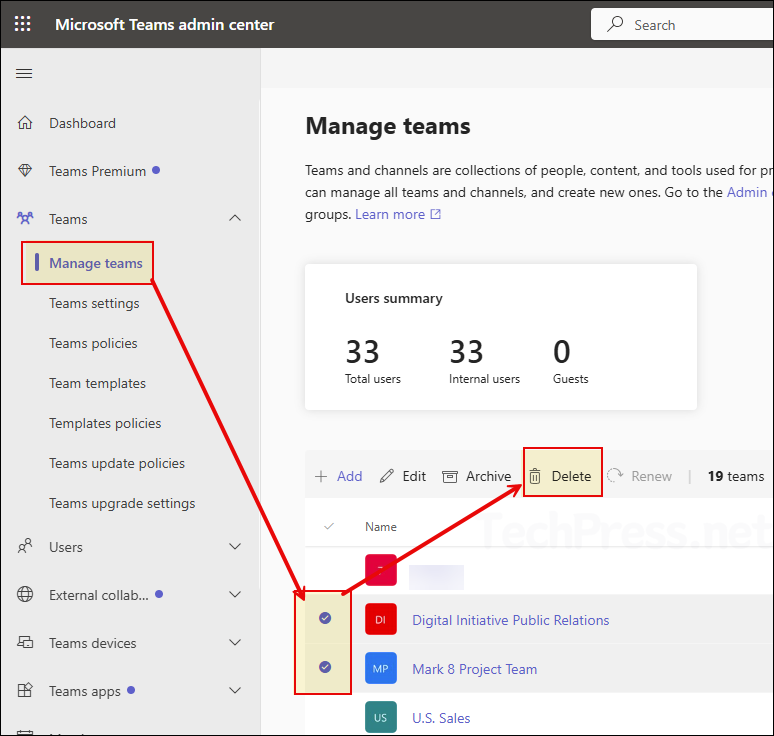
- Open the Microsoft Teams admin center > Teams > Manage teams.
- Select the Team you want to delete. You can also select multiple Teams to delete.
- Click Delete.
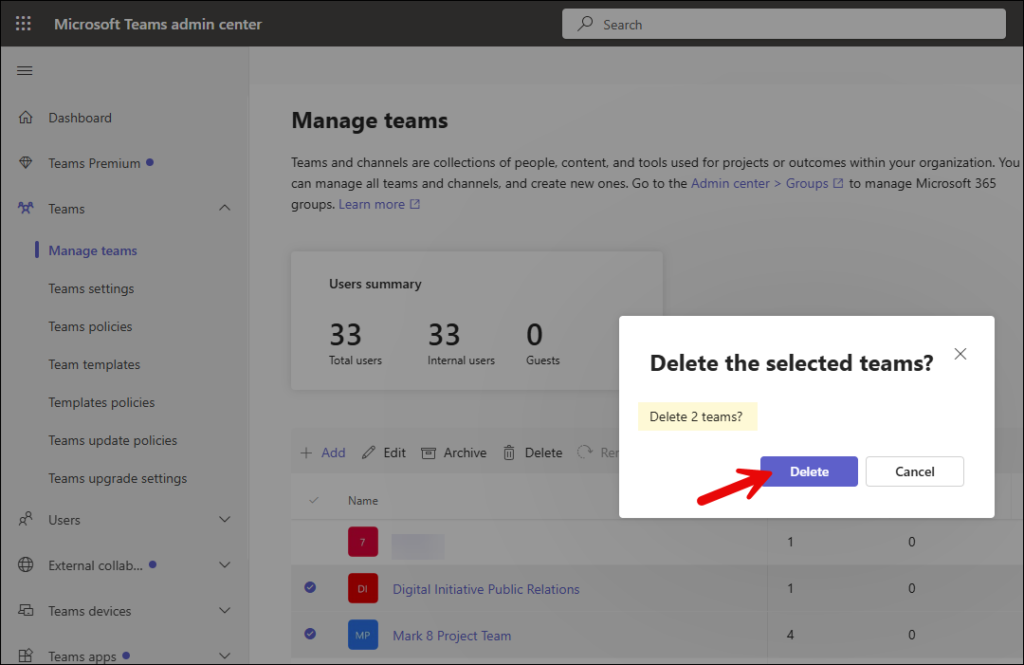
- Confirm the deletion when prompted.
What happens when you delete a Team?
Deleting a Team affects more than just the Teams interface. Deleting a Team removes it immediately from view for members in Teams and also removes or marks for deletion the connected Microsoft 365 services behind it, including Exchange, SharePoint, and other workloads tied to the Team’s Microsoft 365 group.
If the Team’s sites are under a retention policy, those sites will not be deleted until the retention period expires. This is important in compliance-driven environments where content retention is enforced.
Can you restore a deleted Team?
Yes, but not directly in the same way as an archived Team. A deleted Team is restored by restoring the Microsoft 365 group associated with the Team. That restore also brings back team content, including tabs, standard channels, private channels, and their associated site collections. By default, a deleted Microsoft 365 group is retained for 30 days.
In the Teams admin center, admins can go to Teams > Manage teams > Actions > View deleted teams, select the deleted Team, and click Restore. For more details on how to restore a Team, refer to the post: 3 Ways To Restore A Deleted Team In Microsoft Teams.
When should you archive a Team?
- The project is complete, but the Team content still needs to be referenced.
- You want to keep channels, posts, and files searchable.
- You may need to reactivate the Team in the future.
- You would like to stop new activity without losing the Team structure.
When should you delete a Team?
- The Team is no longer needed at all.
- The associated files and collaboration space should be removed.
- You are certain the Team will not be required again.
- The Team was created mistakenly or is duplicate content.
Best practices
- Archive first when the Team may still be needed later.
- Use the SharePoint read-only option when archiving a Team to prevent content changes by team members.
- Delete only when you are sure the Team and its connected Microsoft 365 resources are no longer required.
- Be aware of the 30-day recovery window for deleted Teams backed by Microsoft 365 groups.
- Review retention policies before deleting Teams in regulated environments.
Final thoughts
Archiving and deleting a Team in Microsoft Teams serve two very different purposes. Archiving is ideal when you want to preserve a Team in a read-only state and possibly reactivate it later. Deleting is the right choice only when the Team and its connected content are no longer required. In most cases, archiving first is the safer approach because it avoids accidental data loss and gives you an easy path to restore the Team later.
