
In this post, I will show you how to set tab color in Windows Terminal app. Windows Terminal lets you color-code tabs so different shells or environments are easier to recognize at a glance. You can set a tab color temporarily for the current session, assign a default tab color to a specific profile, or launch tabs with a custom color from the command line.
In this guide, I will show you the different ways to set tab colors in Windows Terminal, including the Settings UI, settings.json, and runtime methods for one-off tabs. I will also show you how to reset the tab color if you want to return to the default look.
Contents
Why use tab colors in Windows Terminal?
Tab colors make it easier to distinguish between profiles such as PowerShell, Command Prompt, Azure, and WSL distributions. For more information, refer to the link: Windows Terminal tips and tricks | Microsoft Learn.
Method 1: Set Tab Color for the Current Session
This is the quickest method when you only want to color one tab temporarily. Right-click a tab, select Change tab Color, then choose a predefined color or pick Custom. When you select Custom, enter a color using the picker, RGB/HSV fields, or a hex value. Clicking on the Reset button will reset it to the default tab color.
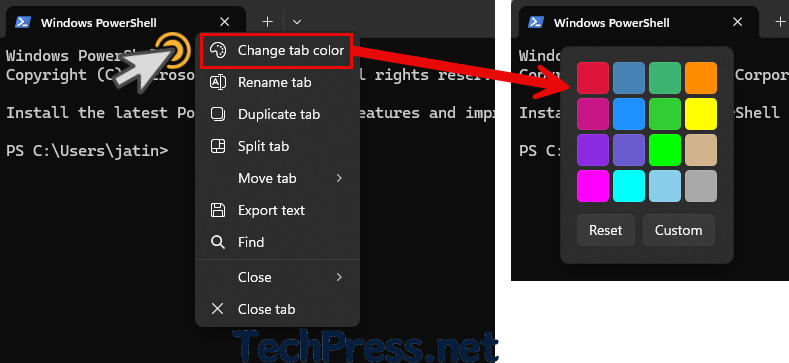
This method changes the tab color for that terminal session. If you want the same profile to always open with a specific tab color, use the profile setting instead. The tab color picker can override the color set in the profile.
Method 2: Edit the Tab Color Directly in Settings.json
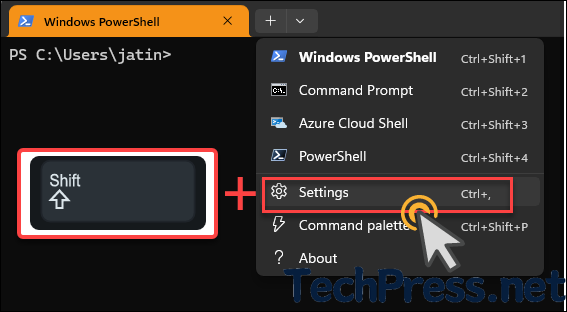
You can also set the color for each profile directly in the settings.json file. Open settings.json from the Terminal menu by selecting Settings while holding Shift. Open the file in Notepad, then add the tabColor property for the profile you want to customize and specify the desired hex color code.
Steps
- Open Windows Terminal.
- Hold Shift and select Settings.
- Locate the profile you want to edit in
settings.json. - Add or modify the
tabColorproperty. - Save the file.
Below is my modified settings.json file, where I have updated the tab colors for the PowerShell and Command Prompt profiles. This means that every time you open a PowerShell or Command Prompt session in Windows Terminal, the tab color will be set according to the tabColor property defined in the settings.json file.
Example
  "profiles":
    {
        "defaults": {},
        "list":
        [
            {
                "commandline": "%SystemRoot%\\System32\\WindowsPowerShell\\v1.0\\powershell.exe",
                "guid": "{61c54bbd-c2c6-5271-96e7-009a87ff44bf}",
                "hidden": false,
                "name": "Windows PowerShell",
                "tabColor": "#f59218"
            },
            {
                "commandline": "%SystemRoot%\\System32\\cmd.exe",
                "guid": "{0caa0dad-35be-5f56-a8ff-afceeeaa6101}",
                "hidden": false,
                "name": "Command Prompt",
                "tabColor": "#BD897E"
            },
            {
                "guid": "{b453ae62-4e3d-5e58-b989-0a998ec441b8}",
                "hidden": false,
                "name": "Azure Cloud Shell",
                "source": "Windows.Terminal.Azure"
            },
            {
                "guid": "{574e775e-4f2a-5b96-ac1e-a2962a402336}",
                "hidden": false,
                "name": "PowerShell",
                "source": "Windows.Terminal.PowershellCore"
            }
        ]
    },
The
tabColorproperty accepts hex values only, using either short or full hex notation.
Method 3: Launch a tab with a custom color from the command line
Windows Terminal also supports setting tab color when you start it from the command line. The --tabColor command line argument will override the profile value.
Example
wt --tabColor '#009999'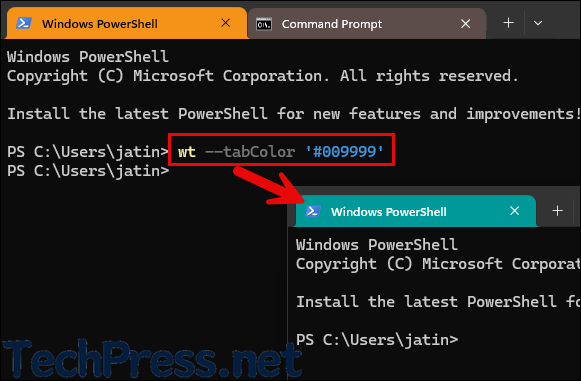
To open multiple tabs with different colors:
wt --tabColor '#009999' `; new-tab --tabColor '#f59218'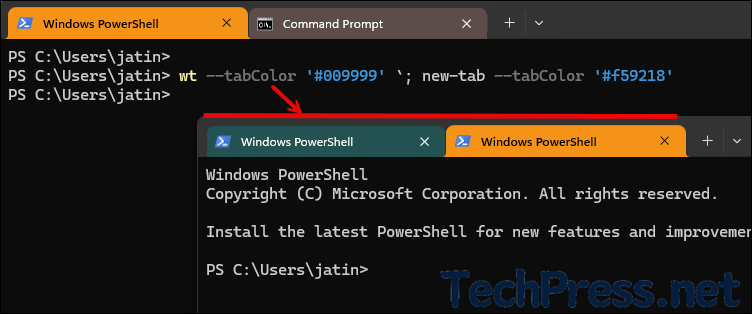
In PowerShell you need to escape the semicolon with a backtick when using
wtcommand delimiters. tab color is associated with the first pane in a tab. In a tab with multiple panes, the color is applied only if the first pane is focused, and you need to use--tabColorwithsplit-paneas well if you want to specify colors for additional panes.
Method 4: Use an action or command palette entry
Windows Terminal supports actions for changing tab colors at runtime. The setTabColor action can assign a specific color or reset it, while TabColorPicker opens the color picker for the active tab. Neither action is bound by default.
Example action
{ "command": { "action": "setTabColor", "color": "#ff00ff" } }Reset action
{ "command": { "action": "setTabColor", "color": null } }Settings.Json Example
{
  "actions": [
    {
      "name": "Set tab color to blue",
      "command": {
        "action": "setTabColor",
        "color": "#0078D7"
      }
    },
    {
      "name": "Reset tab color",
      "command": "setTabColor"
    },
    {
      "name": "Pick a tab color",
      "command": "tabColorPicker"
    }
  ]
}
If you want, you can add one of these actions to your custom key bindings or invoke the color picker through a custom command palette entry. You can invoke many Terminal features through the command palette with
Ctrl+Shift+P.
Can you set tab color through a color scheme?
No. You cannot set tabColor as part of a color scheme. You must set it through the tab picker, a profile setting, an action, or the wt --tabColor argument. While tab titles can be changed with escape sequences, tab color cannot currently be set that way.
How to Reset the Tab Color
You can reset a tab to its default color by choosing the default state in the color picker or by setting the color to null in the setTabColor action. If the color was defined by --tabColor, opening a fresh tab without that argument, it will use the profile or default appearance instead.
Troubleshooting
If your color change does not appear to stick, the most common cause is an override. The tab color picker overrides the profile’s tabColor, and the --tabColor command-line argument overrides the value defined in the profile. That means the final color depends on which method was applied most recently.
Conclusion
Windows Terminal gives you several ways to color tabs, depending on whether you want a one-time visual marker or a permanent per-profile look. For most users, the right-click Change tab Color, option is the fastest method. If you want consistent colors for PowerShell, Command Prompt, or WSL, the best option is to set tabColor in settings.json. For scripting and automation, the wt --tabColor argument is the most flexible choice.
