
In this post, I will show you how to customize Copilot key on keyboard in Windows 11. Windows 11 laptops and keyboards that include a dedicated Copilot key give users a quick way to launch Copilot, but many people want more control over what that key actually does.
With the Windows 11 Insider Preview Build 27729 release, users can personalize the Copilot key from Windows Settings, and administrators can also manage it through policy in enterprise environments. In this guide, I will explain what the Copilot key is, what “customize” really means in Windows 11, how to change it from Settings, what limitations apply, and the best approach for managed devices.
Contents
What is the Copilot key on Keyboard?
The Copilot key is a dedicated hardware key found on newer Windows 11 PCs and keyboards. Pressing this key launches Microsoft Copilot or Microsoft 365 Copilot. You can also launch the Copilot app using the Windows key + C keyboard shortcut.
For enterprise management, a policy called SetCopilotHardwareKey can be used to configure the action you want to perform when users press the Copilot key on their keyboard. For example, you can set it to open Calculator app or the Notepad app, etc.
If the keyboard connected to your PC does not have a Copilot key, adjusting this setting will not do anything.
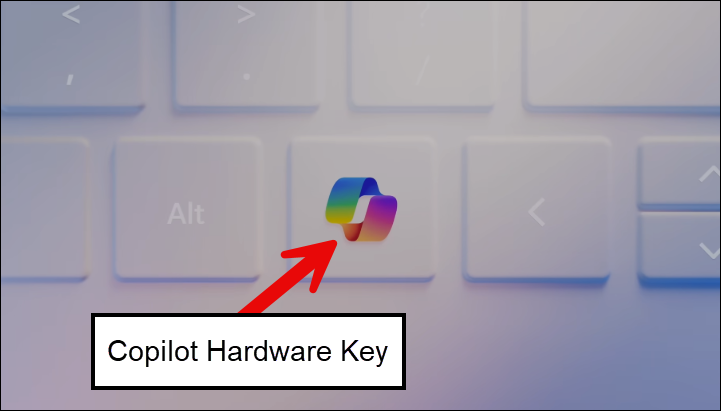
What does Customize Copilot key actually mean?
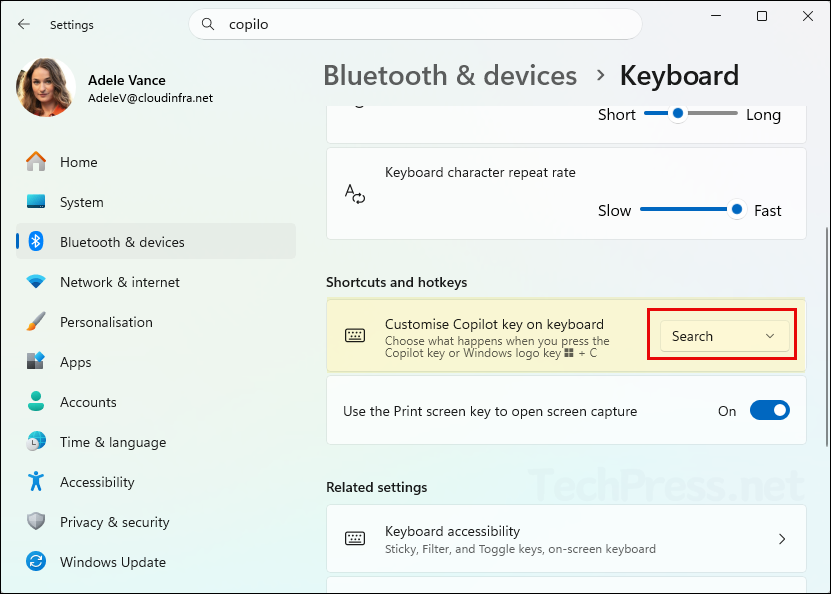
In Windows 11, customizing the Copilot key means choosing what app or experience opens when the key is pressed. The setting to customize this experience can be found in the Settings app > Bluetooth & devices > Keyboard > Customize Copilot key on keyboard. Depending on the device, build, and apps installed, the dropdown can show below options:
- Search
- Custom
- a currently mapped app, such as Microsoft 365 Copilot
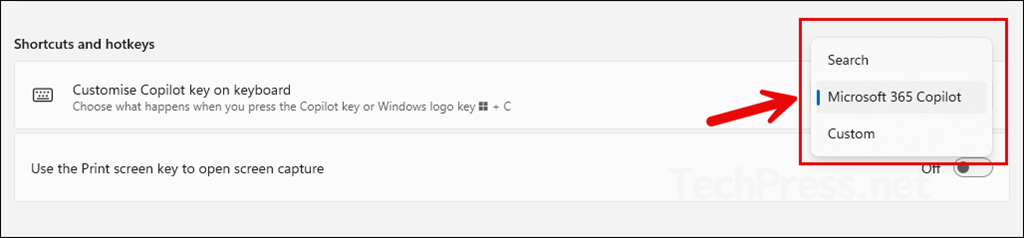
Important limitation to understand: Windows does not treat this like a universal keyboard-remapping tool for any random executable. Users can select an app only if it is MSIX packaged and signed, and if it is properly registered as a Microsoft Copilot hardware key provider. If an app does not appear in the picker, the app provider may not have registered it for this scenario.
Customize Copilot Key on Keyboard
To customize Copilot key on the keyboard, follow below steps:
- Open the Settings app > Bluetooth & devices > Keyboard.
- Under Shortcuts and hotkeys, click on the drop-down for the setting Customize Copilot on keyboard and click on the Custom or Customized option.
Press Win + R on the keyboard and type ms-settings:personalization-textinput-copilot-hardwarekey and press Enter to open the Customize Copilot Key on Keyboard setting directly.
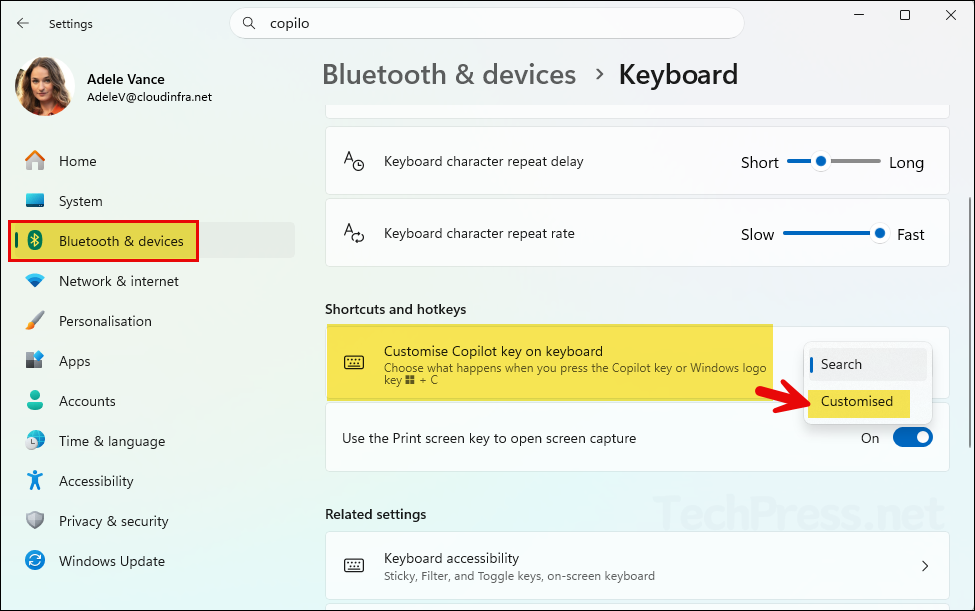
Windows opens an app picker that lists eligible MSIX-packaged and signed apps that are registered as a Copilot hardware key provider. If the app picker is empty or the app you want is missing, that usually means the app is not registered for this feature.
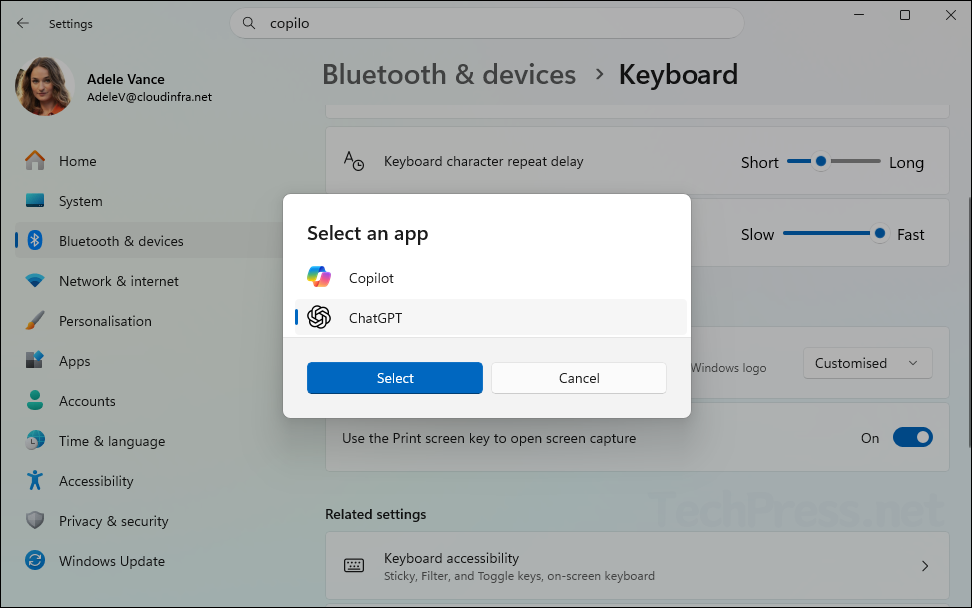
Remap Copilot Key to Search
You can remap the Copilot key back to Search, which means that pressing the Copilot key will launch Search on a Windows 11 device. To remap the Copilot key to Search, go to Settings > Bluetooth & devices > Keyboard. Under Shortcuts and hotkeys, select the drop-down menu for Customize Copilot key on keyboard and select Search.
Test the Copilot key
After saving the setting, press the Copilot key and confirm it launches the expected app or experience. Alternatively, press the Windows + C shortcut.
App Is Not Listed When Remapping Copilot Key
The Copilot key setting is not the same as classic keyboard remapping. The app must meet packaging and registration requirements to appear in the picker. Apps must declare themselves as a Microsoft Copilot hardware key provider in their package manifest.
Best Approach for Personal Devices
For personal or BYOD-type Windows 11 devices, the best approach is to use the built-in Windows Settings page. It is the cleanest and most supported method, and it aligns with MS current recommendation for both the Copilot key and the Windows + C shortcut experience.
Best Approach for Managed Devices (Intune/GPO)
If you want to define a default target app centrally, use the SetCopilotHardwareKey policy setting. This policy is user-scoped, not device-scoped, and the value you set must be the app’s AUMID. For more details, refer to the post Configure Copilot Hardware Key using Intune.
FAQs
The “Customize Copilot key on keyboard” setting is missing
This usually points to build level, rollout stage, or management state. You will need to be on the supported version of Windows 11 to configure this setting.
The custom app picker is empty
App picker only shows supported apps that are MSIX packaged, signed, and registered as Copilot hardware key providers. If the Microsoft 365 Copilot app is missing, reinstall the app and try again.
The key keeps changing back
If the PC is managed, check whether Intune or Group Policy is setting the Copilot hardware key.
You want the key to act like a normal Ctrl key or launch any EXE
This is not a supported scenario, Only the apps that are eligible can be configured to launch with the Copilot key on the keyboard.
Final thoughts
Customizing the Copilot key in Windows 11 is now a supported part of the Windows experience, but it is important to understand its boundaries. For most users, the easiest method is Settings > Personalization > Text input > Customize Copilot key on keyboard. For IT admins, Microsoft provides a user-scoped policy called SetCopilotHardwareKey, which can be deployed through Group Policy or Intune using the target app’s AUMID. The main limitation is that only supported, properly registered apps appear in the custom picker, so this feature is better thought of as an app-mapping control than a full keyboard-remapping solution.
