
In this post, I will show you how to disable Unlock Premium in Microsoft Teams. The Unlock Premium option appears in the top right-hand corner of the Teams client, next to the user’s profile picture. When users click this option, they are prompted to start a 60-day trial of Microsoft Teams Premium.
Microsoft Teams Premium includes several advanced capabilities designed to enhance meetings, collaboration, and administrative controls. Some key features available in Teams Premium include below features. For more information, refer to the link: Microsoft Teams Premium – Overview for admins – Microsoft Teams | Microsoft Learn.
- AI-powered meeting recap with automatically generated notes, tasks, and meeting highlights
- Intelligent meeting features such as live translated captions and advanced webinar capabilities
- Meeting protection and sensitivity labels to secure confidential meetings
- Custom meeting templates to enforce meeting policies and standard configurations
- Advanced webinar features including waitlists, custom registration pages, and automated reminders
- Virtual appointment enhancements for appointment management and queue analytics
- Custom branding for meeting lobbies and meeting experiences
- Advanced reporting and analytics for meetings and webinars
In many organizations, administrators may want to prevent users from starting Teams Premium trials or purchasing the license themselves. This is especially important in enterprise environments where licensing and feature access must be centrally controlled by IT administrators.
The “Unlock Premium” option in Microsoft Teams appears because Microsoft promotes the Teams Premium add-on license inside the Teams client. Users see it when they try to access features that require the premium license or when self-service trials are allowed in the tenant.
As an admin, you cannot completely remove the UI element from the Teams client, but you can stop users from initiating the Premium trial or purchase, which effectively prevents the prompt from being actionable.

Steps to Disable Unlock Teams Premium Trial
To disable users from starting a trial of Microsoft Teams Premium, follow below steps:
- Go to Microsoft 365 Admin Center: https://admin.microsoft.com.
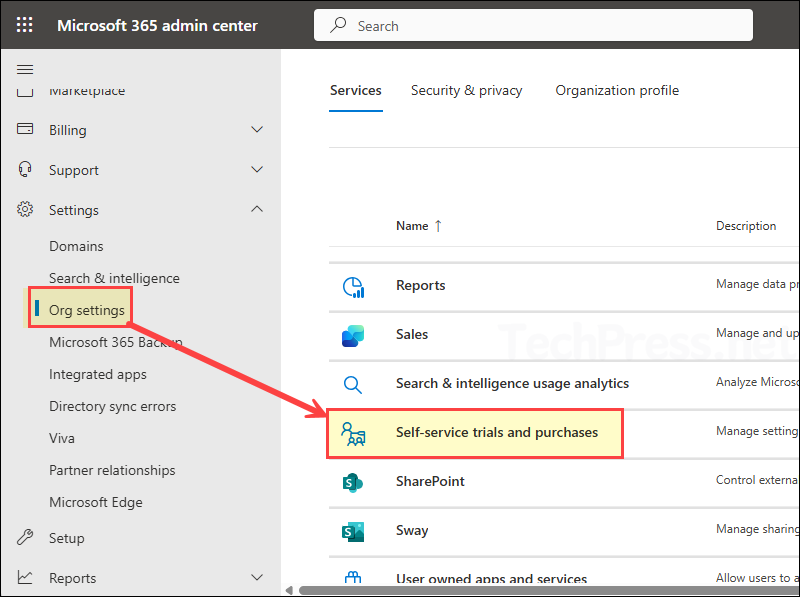
- Navigate to Settings > Org settings and click on Self-service trials and purchases option.
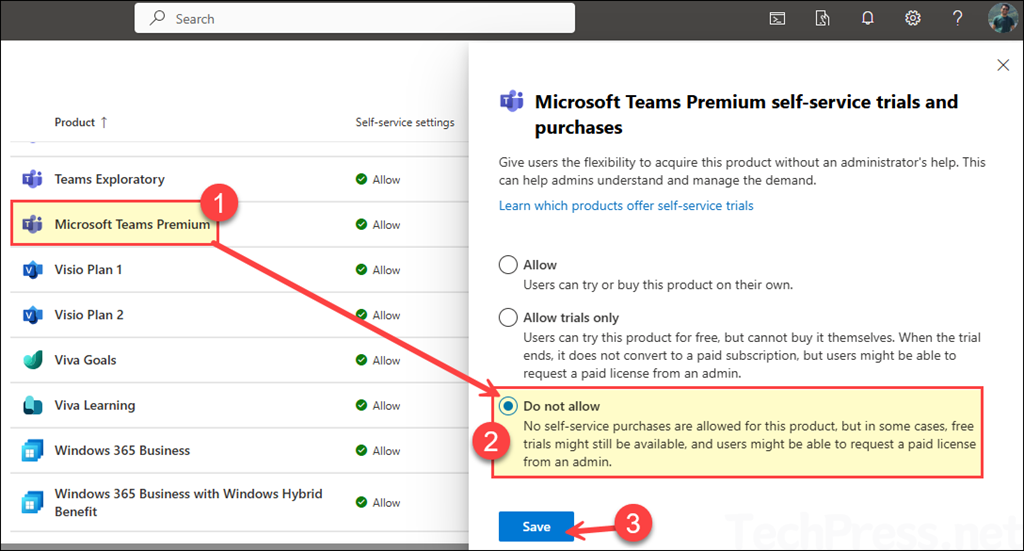
- Locate Microsoft Teams Premium and set it to Do not allow.
- Save the configuration.
Disable Unlock Teams Premium using PowerShell
Another method to disable Unlock Premium in Teams is to use PowerShell. It requires installing the MSCommerce PowerShell module first. MSCommerce module in the PowerShell Gallery and lists cmdlets such as Connect-MSCommerce, Get-MSCommerceProductPolicies, Get-MSCommerceProductPolicy, and Update-MSCommerceProductPolicy. The module is used for managing self-service purchases and trials for MSTeams.
Step 1: Install and Import MS Commerce module
Install-Module -Name MSCommerce
Import-Module -Name MSCommerce
Step 2: Connect to Microsoft Commerce
Connect-MSCommerceStep 3: Find the Teams Premium product entry
This command lists products that support self-service purchase and trial policies. The Teams Premium Product ID is CFQ7TTC0RM8K. The product appears as Teams Premium Introductory Pricing or Teams Premium, so using a wildcard match is safer than hard-coding only the display name.
Get-MSCommerceProductPolicies -PolicyId AllowSelfServicePurchase | Where-Object {$_.ProductName -like "*Teams Premium*"}Step 4: Disable self-service purchase and trial for Teams Premium
Now, use below commands to disable Unlock Premium in MS Teams.
$product = Get-MSCommerceProductPolicies -PolicyId AllowSelfServicePurchase | Where-Object {$_.ProductName -like "*Teams Premium*"}

Update-MSCommerceProductPolicy -PolicyId AllowSelfServicePurchase -ProductId $product.ProductId -Value "Disabled"
Below is a more direct command to disable Unlock Premium in Teams. This used the -ProductId CFQ7TTC0RM8K value to target the disablement.
Alternative command
Update-MSCommerceProductPolicy -PolicyId AllowSelfServicePurchase -ProductId CFQ7TTC0RM8K -Value "Disabled"Step 5: Verify the Change
When the policy is set successfully, the effective state should show Disabled for the Teams Premium product. Use Get-MSCommerceProductPolicy as the command to retrieve the current policy for a specific product.
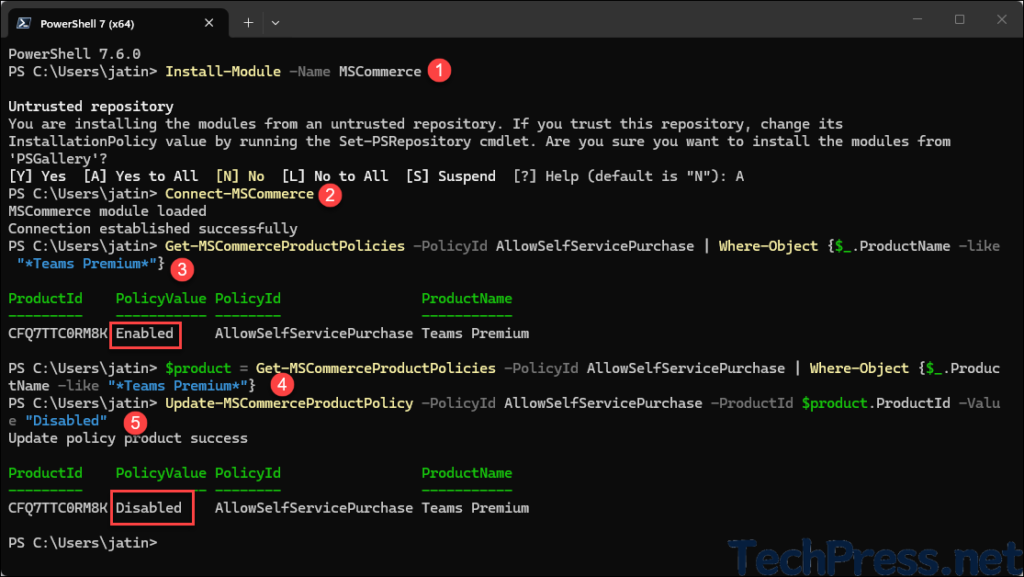
Get-MSCommerceProductPolicy -PolicyId AllowSelfServicePurchase -ProductId CFQ7TTC0RM8KThe screenshot below shows the implementation of the above PowerShell commands to disable Unlock Premium in Teams.
Complete PowerShell Script to Disable Unlock Premium in Teams
Below is an altogether single PowerShell script to disable Unlock Premium in Microsoft Teams. Ensure that you install MSCommerce module using Install-Module -Name MSCommerce first before you run the script.
Disable_Unlock_Premium.ps1
# Install once if needed
# Install-Module -Name MSCommerce

Import-Module MSCommerce
Connect-MSCommerce

$product = Get-MSCommerceProductPolicies -PolicyId AllowSelfServicePurchase |
Where-Object { $_.ProductName -like "*Teams Premium*" }

if ($null -eq $product) {
    Write-Host "Teams Premium product entry was not found."
}
else {
    foreach ($item in $product) {
        Update-MSCommerceProductPolicy -PolicyId AllowSelfServicePurchase -ProductId $item.ProductId -Value "Disabled"
    }

    $product | ForEach-Object {
        Get-MSCommerceProductPolicy -PolicyId AllowSelfServicePurchase -ProductId $_.ProductId
    }
}
End User Experience
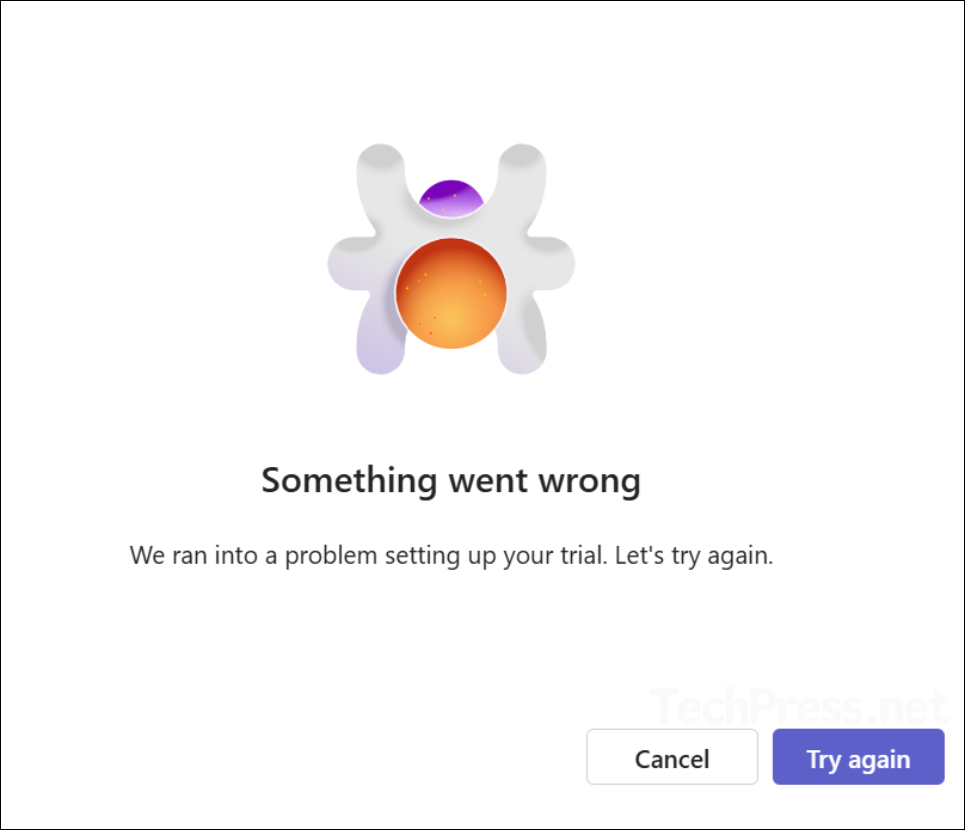
After disabling self-service purchases for Microsoft Teams Premium, users clicking on the Unlock Premium button will get an error message and will not be able to start the trial of Teams Premium. Let’s see the end-user experience.
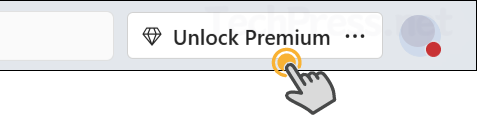
- Click on Unlock Premium.
- Click on the Start trial button.
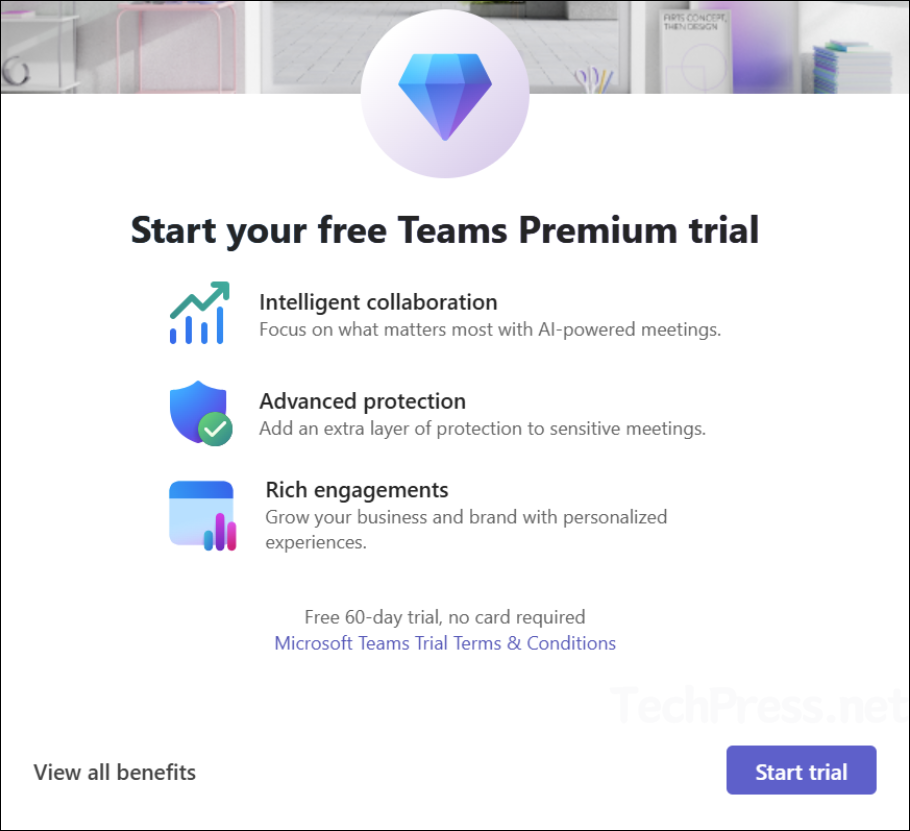
- On the next screen, you will get an error message: Something went wrong, We ran into a problem setting up your trial. Let’s try again. Click on the Cancel button.
FAQs
Can I completely remove the Unlock Premium button from Teams?
Not through any currently documented supported admin setting. Unlock Premium UI is part of the native Teams interface and cannot presently be hidden or removed through Microsoft 365 or Teams admin controls.
Does disabling self-service also block the Teams Premium trial?
Yes. AllowSelfServicePurchase policy controls both purchases and trials. Setting it to Disabled blocks both for that product.
Will disabling the policy remove existing Teams Premium trial licenses?
No. Changing the self-service policy only affects future purchases and trials. Existing trials or purchases remain in place until they expire or are otherwise managed.
How long does it take for the change to apply?
It can take up to 72 hours. For Teams specifically, users should close and reopen the app.
What is the ProductId for Teams Premium?
It’s CFQ7TTC0RM8K for Teams Premium. In the published list, it appears as Teams Premium Introductory Pricing.

Well written article and a good reminder to always check and verify settings in your Microsoft Tenant.
Pro-Tipp: Disabling Self-Service Purchase in the Admin Center only applies to current products.
For future products, you need PowerShell (MSCommerce). Otherwise new services may allow self-service purchases by default.
Command to disable it for all products:
Get-MSCommerceProductPolicies -PolicyId AllowSelfServicePurchase | ForEach-Object { Update-MSCommerceProductPolicy -PolicyId AllowSelfServicePurchase -ProductId $_.ProductId -Enabled $false }