
In this post, I will show you how to enable or disable developer mode in Windows 11. Developer Mode in Windows 11 unlocks extra tools, settings, and features designed for building, testing, and sideloading apps, but it also relaxes some security controls, so you should enable it only where it’s really needed.
Contents
What is Developer Mode in Windows 11?
Developer mode in Windows 11 is meant for developers and not for ordinary day-to-day activities like gaming, web browsing, email, or working on the Office apps. If you are creating software using Visual Studio application, you will need to enable Developer Mode on both the development PC and on any devices you’ll use to test your code. Overall, developer mode in Windows has the following features:
- Allows app sideloading (installing apps from outside the Microsoft Store, including loose app packages during development).
- Enables extra debugging and deployment features for developers (e.g., deploying apps from Visual Studio).
- Loosens certain security restrictions to streamline development workflows.
Because it lowers some protections, Developer Mode should be limited to trusted developer machines and disabled again when no longer required. Microsoft reference: Enable Developer Mode | Microsoft Learn.
Requirements
- Administrator rights: You must be signed in with a local or Microsoft account that has local administrator permissions.
- Windows 11 edition: Developer Mode works on Windows 11 Home, Pro, and Enterprise. Some corporate environments may block it via policy.
- Corporate/Intune-managed devices: Your IT admin may control this setting via Group Policy, Intune, or other MDM. If the setting is greyed out, it’s likely enforced by policy.
- Security considerations: Enabling Developer Mode increases attack surface (sideloading, debugging interfaces). Only enable it on trusted machines, ideally non-production devices.
Method 1: Enable or Disable Developer Mode via Settings
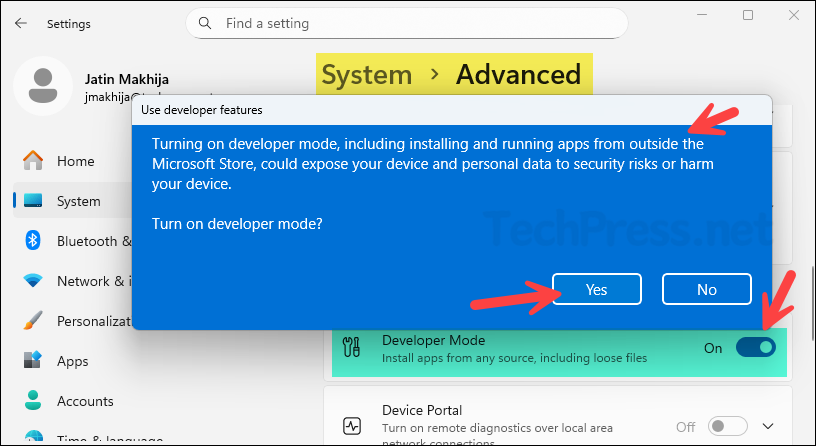
- Press Windows + I to open Settings. Go to System > scroll down to find Advanced.
- Scroll down on the Advanced settings page to find the Developer Mode toggle under for developers section.
- Use the Developer Mode toggle switch to enable or disable it. When you enable this toggle switch, you will get the below confirmation pop-up message. Click on Yes to proceed.
Turning on developer mode, including installing and running apps from outside the Microsoft Store, could expose your device and personal data to security risks or harm your device.
If you are on a Windows 11 build before the 25H2 feature update, For developers may also appear under Privacy & security > For developers. For Windows 11 25H2 or later, use the steps given above.
Note
Method 2: Enable or Disable Developer Mode via Registry
Another method to enable or disable the developer mode on Windows 11 devices is by using Windows Registry Editor.
- Open the registry editor on your Windows 11 device.
- Navigate to the below registry key:
HKEY_LOCAL_MACHINE\SOFTWARE\Microsoft\Windows\CurrentVersion\AppModelUnlock
- Create AllowDevelopmentWithoutDevLicense DWORD reg entry if it does not exist and set its value to 1. Subsequently, restart your computer once, and developer mode will be activated.
- To force Developer Mode ON: set to
1. - To force Developer Mode OFF: set to
0.
- To force Developer Mode ON: set to
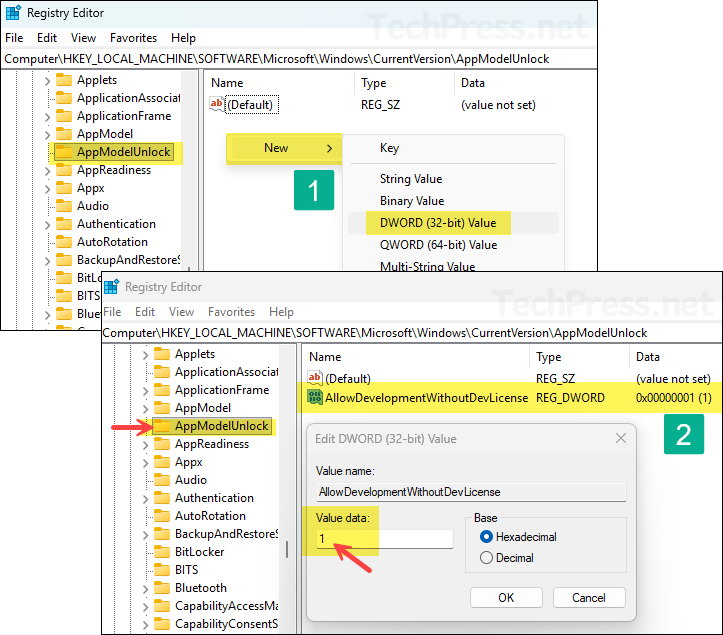
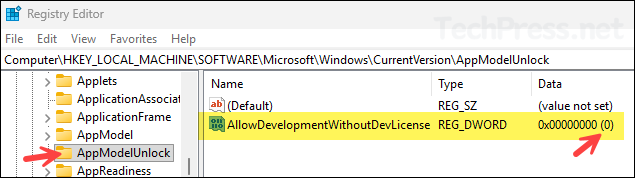
- To turn off the developer mode on Windows 11, set AllowDevelopmentWithoutDevLicense DWORD reg entry value to 0.
Method 3: Enable or Disable Developer Mode via Group Policy (GPO)
On Windows 11 Pro or Enterprise, as well as on domain-joined devices, you can control Developer Mode using either Local Group Policy or a domain GPO. Local Group Policy changes apply only to the individual machine and must be configured manually on each device. A domain GPO, on the other hand, provides a centralized way to deploy and manage the policy across multiple computers.
Using a Local Group Policy
- Sign in to a Windows 11 device and open the Local Group Policy Editor (gpedit.msc).
- Navigate to Computer Configuration > Administrative Templates > Windows Components > App Package Deployment.
- Double-click on Allows development of packaged Microsoft Store apps and installing them from an integrated development environment setting and set it to Enabled to enable the developer mode.
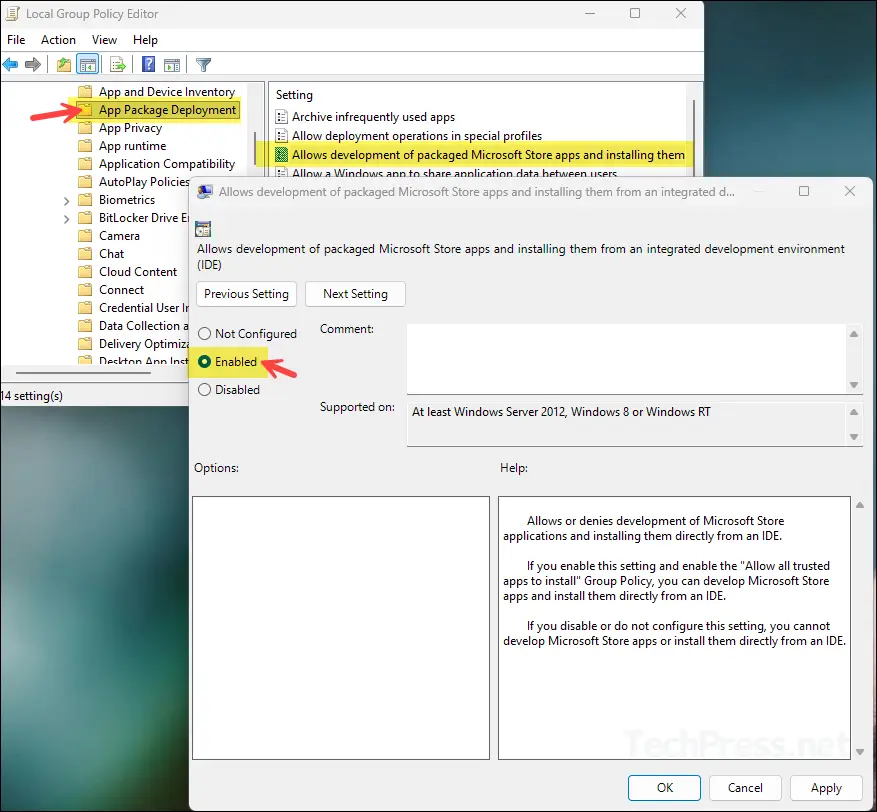
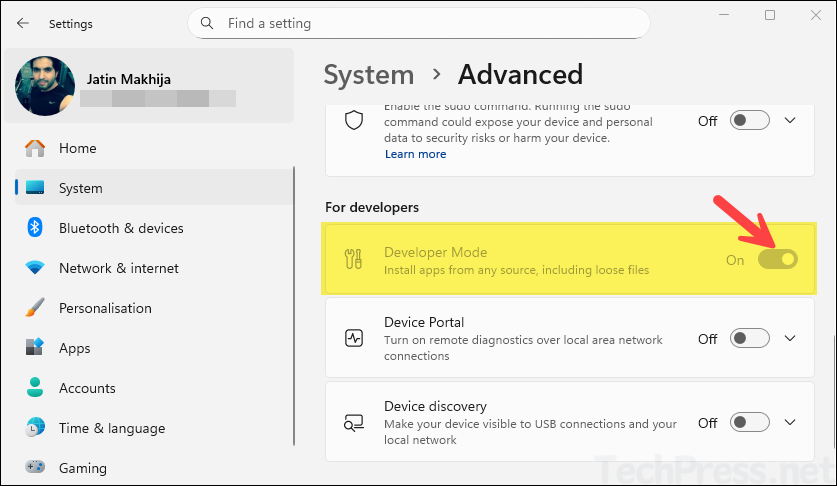
After you enable the above local group policy setting, go to the Settings app > System > scroll down to find Advanced. You will find that the developer mode toggle is enabled and greyed out.
Using a Domain Group Policy (GPO)
For a more centralized management of managing the developer mode on Windows 11, you can use a domain group policy (GPO). You create a GPO by using a domain controller or by installing the Group Policy Management Console on a Windows 11 device. Regardless of which method you use, below steps will remain the same:
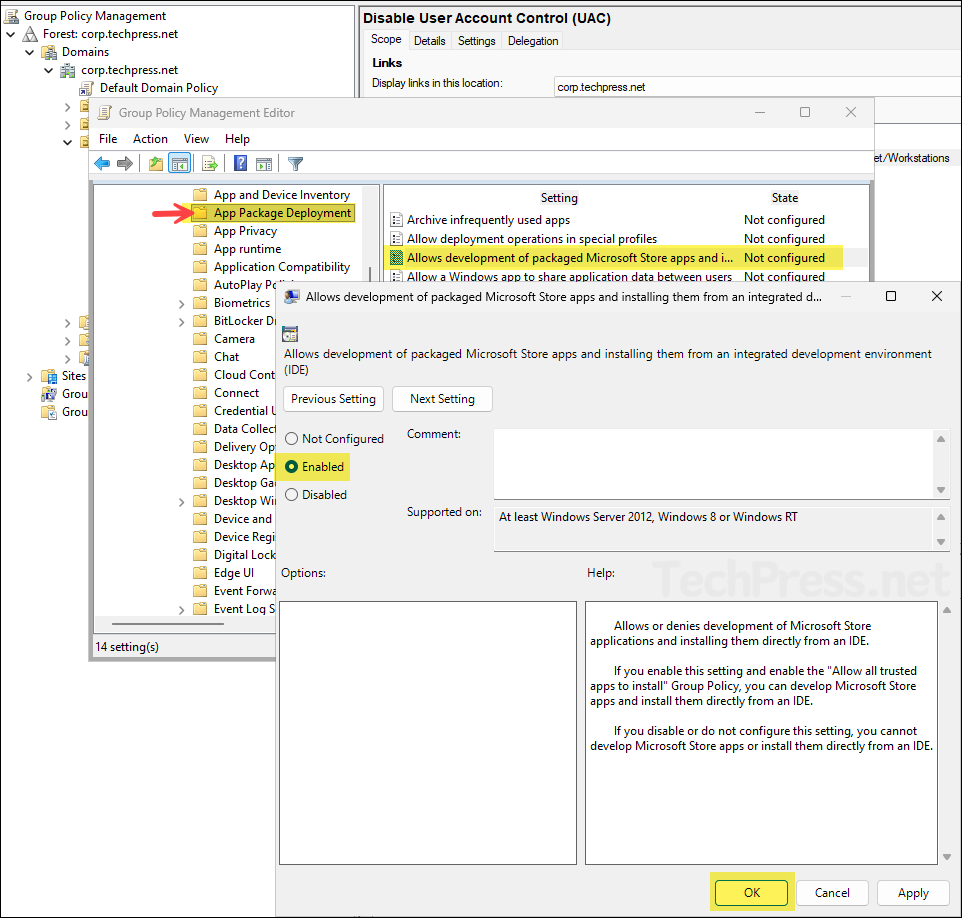
- Open the Group Policy Management console (
gpmc.msc). - Create a new GPO and navigate to Computer Configuration > Administrative Templates > Windows Components > App Package Deployment.
- Double-click on Allows development of packaged Microsoft Store apps and installing them from an integrated development environment setting and set it to Enabled to enable the developer mode. Set this to disabled to disable the developer mode.
- Link the GPO to an OU containing computers.
Windows 11 Developer Mode Toggle is Greyed Out
If a user finds that the Windows 11 Developer Mode toggle is greyed out, it means one of the following:
- The user does not have permission to manage the setting.
- This setting is being controlled by a policy.
- The user is signed in with a guest account.
The screenshot below shows an example where Developer Mode is enabled but greyed out. This typically occurs when a policy has been applied using one of the methods described in this post, which prevents the user from changing the setting manually.
