
In this post, I will show you how to set Windows Terminal as default command line application on Windows 11 devices. Windows Terminal is Microsoft’s modern host application for command-line tools such as Command Prompt, PowerShell, and WSL. If you want every supported command-line app to open inside Windows Terminal instead of the legacy Windows Console Host, Windows 11 lets you change that behavior in just a few clicks.
Why Set Windows Terminal as the Default Command Line?
Setting Windows Terminal as the default terminal application gives you a more modern command-line experience with tabs, panes, Unicode and UTF-8 support, GPU-accelerated text rendering, and extensive customization options. Once configured, supported command-line applications open in Windows Terminal instead of the older Windows Console Host.
Prerequisites
Before you begin, make sure your device meets these requirements:
- You are running Windows 11.
- If you are using Windows 10 instead, it requires Windows 10 22H2 with the May 23, 2023, update KB5026435 or later.
Method 1: Set Windows Terminal as default from Windows Terminal Settings
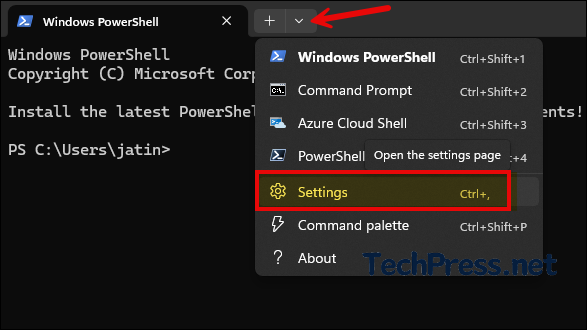
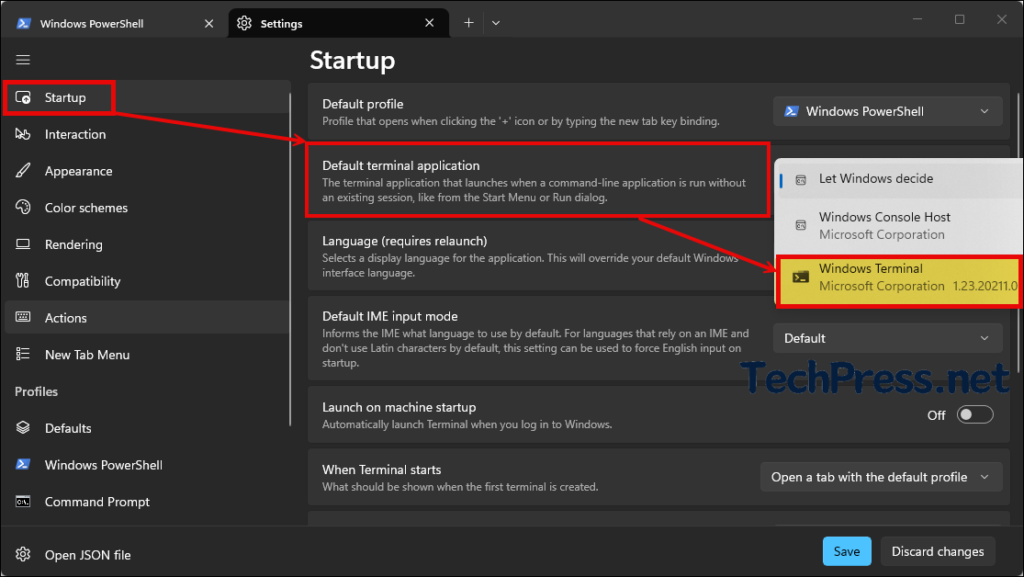
This is the easiest and most direct method. Open Windows Terminal, go to the Settings UI, select Startup, and choose Windows Terminal as the default terminal application.
Method 2: Set Windows Terminal as default via Settings app
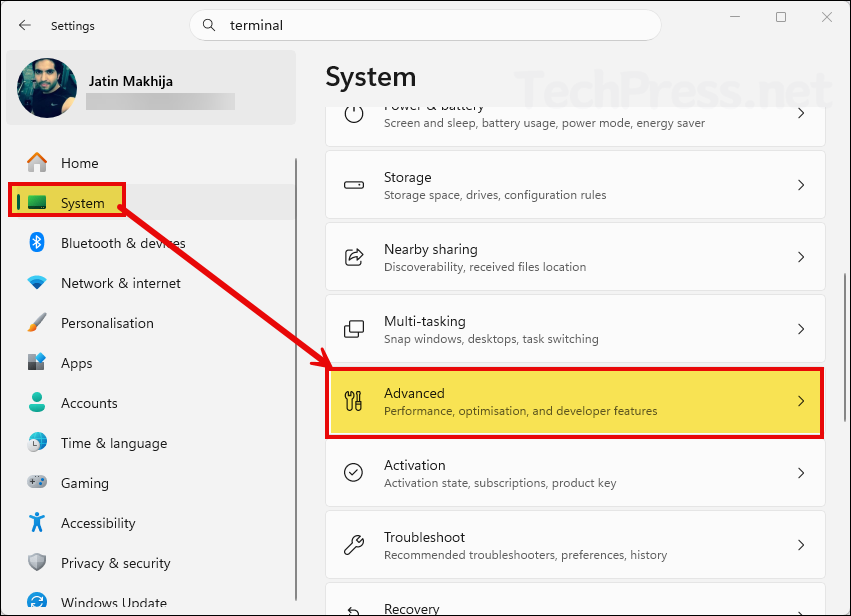
You can use advanced system settings to set the default terminal to Windows Terminal. Follow the steps below:
- Open Settings > System > Advanced.
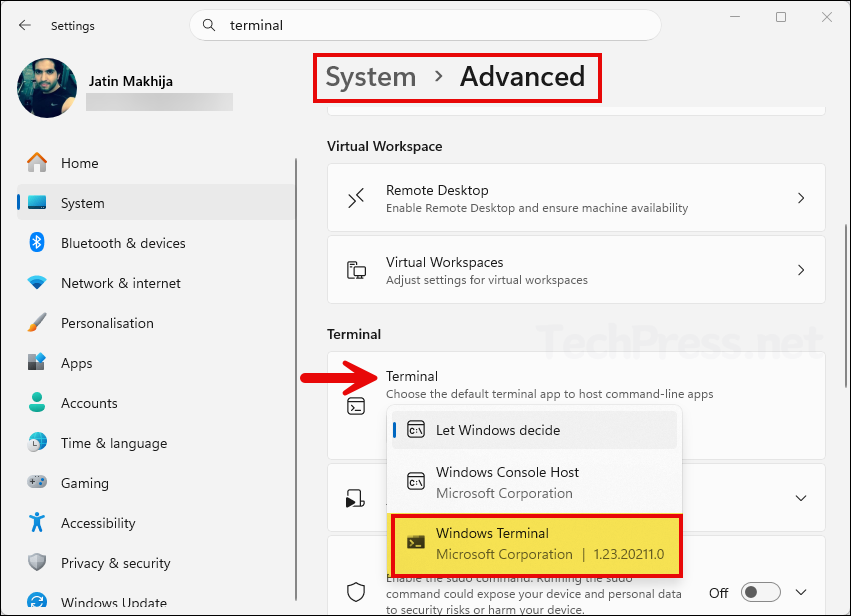
- On the Advanced page, find the Terminal setting and select Windows Terminal as the default terminal application. This method is useful if you want to configure the terminal choice from Windows itself rather than from inside the Terminal app.
Set your default profile inside Windows Terminal (Optional)
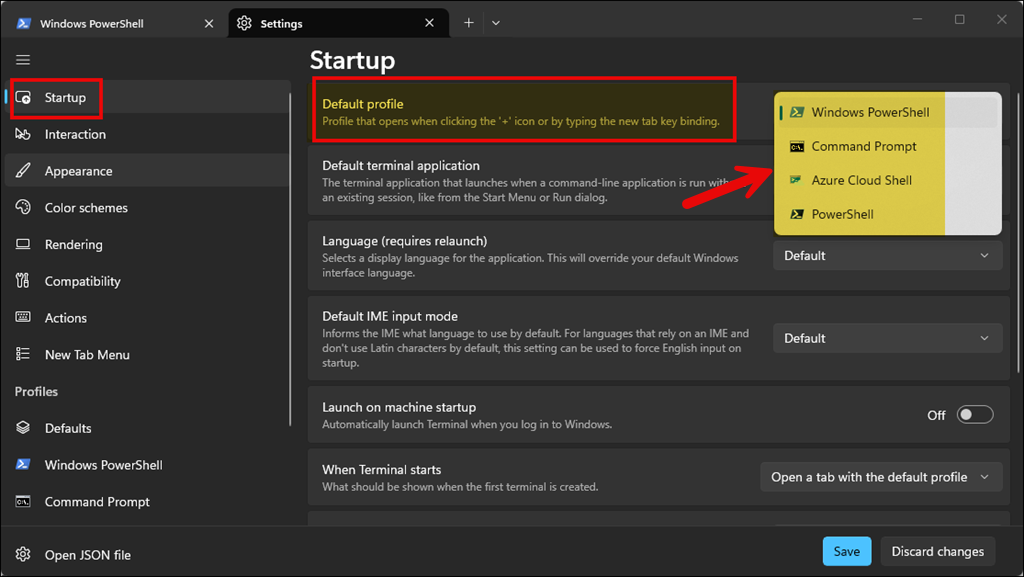
After you set Windows Terminal as the default command-line application, you may also want to decide which shell opens first when Terminal launches. Windows Terminal opens with PowerShell by default, but you can change the default profile under the Startup settings page.
For example, you can set the default profile to:
- Windows PowerShell
- Command Prompt
- PowerShell 7
- Azure Cloud Shell
- WSL distributions, if installed
This does not change the default terminal host for Windows. It only controls which shell opens first inside Windows Terminal.
What happens after enabling Windows Terminal as default?
When Windows Terminal is set as the default terminal application, Windows routes supported command-line applications into Terminal instead of the legacy console host. That means when you launch tools such as Command Prompt or PowerShell in supported scenarios, they open inside the Windows Terminal interface.
3 Ways to Switch Back to Windows Console Host
If you ever want to revert the change, there are three ways to opt out of the modern Terminal experience. This is useful if you run into compatibility issues with an older command-line tool.
- Start > Settings > System > Advanced > Terminal, then select Windows Console Host
- Windows Terminal settings > Startup > Default terminal application > Windows Console Host
- Console window properties: right-click the title bar of an open console window, choose Properties, then select Windows Console Host
Default Terminal Application option is missing or unavailable
If you do not see the default terminal application setting, check the following:
1. Confirm Windows Terminal is installed
Windows Terminal must be present on the device before it can appear as a selectable terminal application.
2. Confirm you are on a supported Windows version
Windows Terminal is available on all Windows 11 versions, and on Windows 10 22H2 only after installing KB5026435.
3. Check for organizational policy
There is a policy called Default terminal application. On supported systems, admins can control whether Windows uses Automatic selection, Windows Console Host, Windows Terminal, or Windows Terminal Preview. This policy support applies to Windows 11 22H2 or Windows 10 22H2 with Build 19045.3031 / KB5026435 and Windows Terminal 1.17 or later. If your device is managed by your organization/Intune, this setting may be controlled by policy and not editable by the user.
Best Practices
When setting Windows Terminal as default, keep these points in mind:
- Use Windows Terminal settings if you want the simplest and most direct configuration method.
- Also configure the default profile so the correct shell opens first, such as PowerShell 7 or Command Prompt.
- In enterprise environments, review whether a Group Policy or Intune policy is enforcing a terminal preference.
- If you support legacy command-line apps, keep in mind that switching back to Windows Console Host is still supported.
Final thoughts
Windows Terminal is the best command-line experience for most Windows 11 users because it brings together multiple shells in a single modern interface. Setting it as the default command-line application is straightforward, and Microsoft supports doing this either from the Windows Terminal app itself or from Windows system settings. Once enabled, you get a cleaner and more flexible terminal experience across PowerShell, Command Prompt, and other supported shells.
